


Passwords can make WordPress login frustrating for users who forget their credentials or struggle to manage multiple accounts. Passwordless login offers an alternative by letting users verify their identity through a one-time code, a secure login link, or another supported authentication method.
By removing the need to enter a password, you can simplify access to your WordPress site while reducing the risks associated with weak or reused passwords. However, the right approach depends on how users access your site and how much protection you need.
This guide explains how to add passwordless login to WordPress with All In One Login. You’ll learn how to enable email OTP login in the Free version and use Pro features such as SMS OTP login, Login Links, and temporary login URLs. We’ll also explain how to extend passwordless login to strengthen your site’s login security.
What Is Passwordless Login in WordPress?
Passwordless login is an authentication method that lets users sign in without typing a password. Instead, they prove access to an approved email address, phone number, or temporary login link.
WordPress passwordless login can use different methods, including:
- Email OTP: The user enters a one-time code sent to their email address.
- SMS OTP: The user enters a one-time code sent to their phone.
- Magic link or Login Link: The user clicks a secure link sent to their email.
- Temporary login URL: An administrator generates a time-limited link for a specific user.
These methods offer different experiences. An OTP requires the user to enter a code, while a magic link lets them sign in with a click. A temporary login URL can provide short-term access without asking the user to share their password.
Why Use Passwordless Login on WordPress?
Passwordless login can simplify authentication and reduce reliance on weak or reused passwords. Instead of remembering another password, users verify their identity through an email code, SMS code, or secure login link.
However, passwordless authentication doesn’t eliminate every security risk. The security of each method depends on how users access their verification channels. You should combine passwordless login with appropriate security measures to protect user accounts.
Consider passwordless login if your site:
- Has customers who regularly sign in to view orders or manage accounts.
- Needs a simpler sign-in experience for members or registered users.
- Provides temporary access to clients, contractors, or other specific users.
- Wants to offer an alternative to password-based login.
Passwordless login is one part of a broader login security setup. You can also use All In One Login’s login attempt limits, bot verification, IP controls, and two-factor authentication to help protect access.
Which Passwordless Login Method Should You Use?
Choose a method based on how users access your site and the sign-in experience you want to provide.
| Method | How users sign in | Best suited for |
| Email OTP | Enter a code sent to their email | Users who prefer code-based verification |
| SMS OTP | Enter a code sent to their phone | Users who prefer phone-based verification |
| Login Link (magic link) | Click a link sent to their email | A quick, one-click sign-in experience |
| Temporary login URL | Open a link generated for a specific user | Short-term access without sharing passwords |
All In One Login Free includes email OTP login. The Pro version adds SMS OTP login through Twilio integration, Login Links, and temporary login URLs.
Prerequisites to Passwordless Login
Before enabling passwordless authentication, make sure you have:
- A WordPress site where you can install and configure plugins.
- Administrator access to the WordPress dashboard.
- A working email setup for email-based codes and links.
- A Twilio account if you plan to use SMS OTP login.
- All In One Login Free installed and activated. Upgrade to Pro to access SMS OTP Login, Login Links, and Temporary Login URLs.
If you use email-based login, test that your site can deliver messages reliably. Users need to receive their OTPs or login links to complete authentication.
Steps to Add Passwordless Login in WordPress
All In One Login offers several passwordless login options. The steps below cover the available methods; choose the one that fits your site and the features included in your plan.
Step 1: Install and Activate All In One Login Pro
Start by installing the free version of All In One Login, then proceed with the Pro version, which requires the free plugin as a dependency.
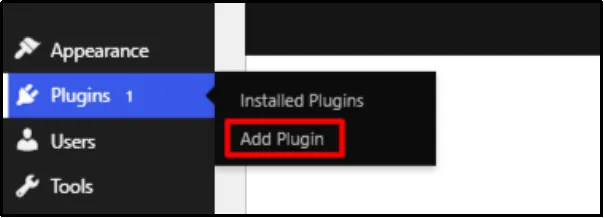
- In your WordPress dashboard, go to Plugins → Add Plugin
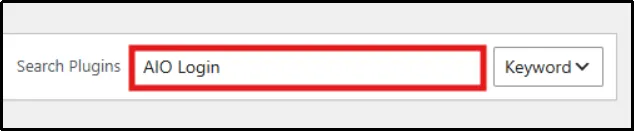
- Type All In One Login in the search bar.
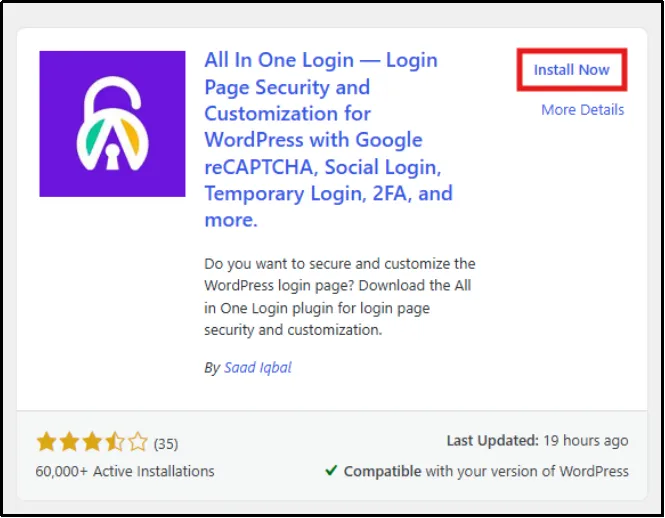
- Click Install Now, then Activate.
After you install the free version, install All in One Login Pro.
- Navigate to the All in One Login pricing page and purchase the Business plan.
- You will receive an email that contains the All in One Login Pro ZIP file and its license key. Download the ZIP file and copy the license key for later use.
- Head back to Plugins → Add Plugin.
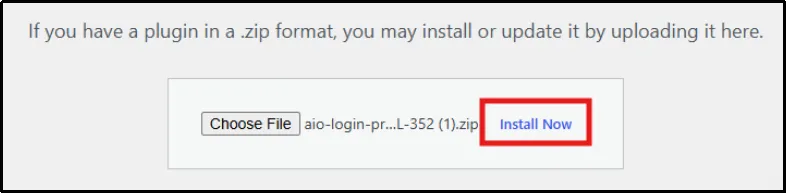
- Now click Upload Plugin, then Choose File to select the appropriate ZIP file.
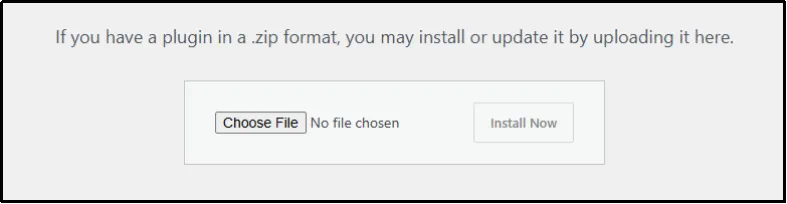
- Click Install Now, and after a few seconds, click Activate Plugin.
- You will be automatically redirected to the Installed Plugins page. Click Activate License under All in One Login Pro.
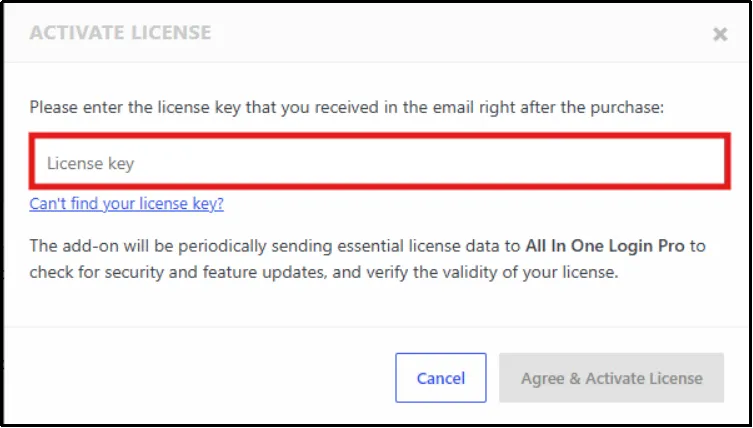
- Paste the License key you copied earlier and click Agree & Activate License.
Congratulations on successfully activating the All In One Login Business plan.
After activation, open the plugin’s settings to configure the login method you want to use.
Step 2: Enable Email OTP Login
Email OTP login lets users sign in with a one-time verification code sent to their email address. This feature is available in the Free version.
- Go to All In One Login → Passwordless Authentication.
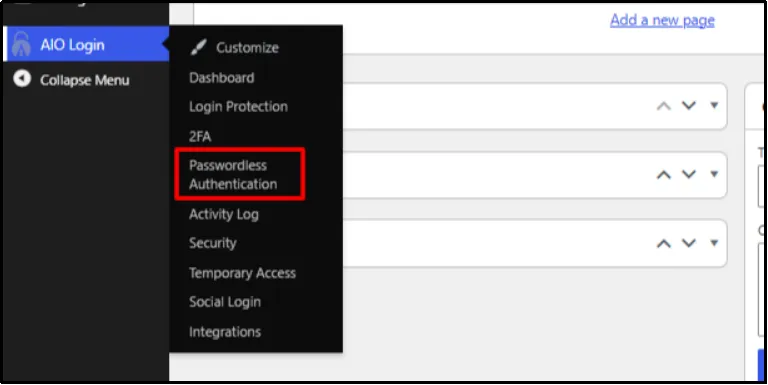
- Find the email OTP login option.
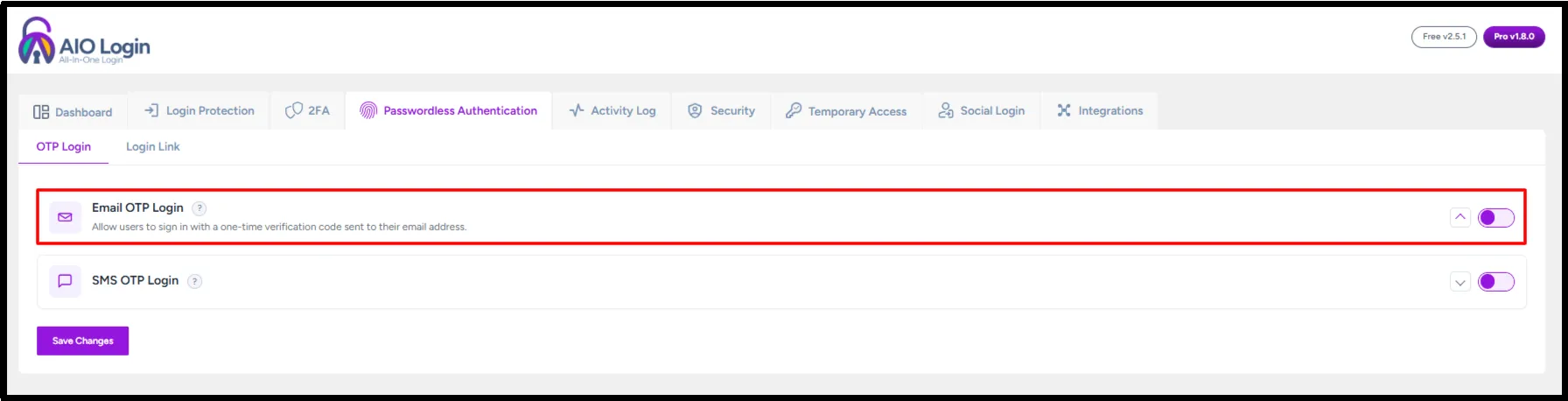
- Enable the feature and configure your Email OTP Login settings.
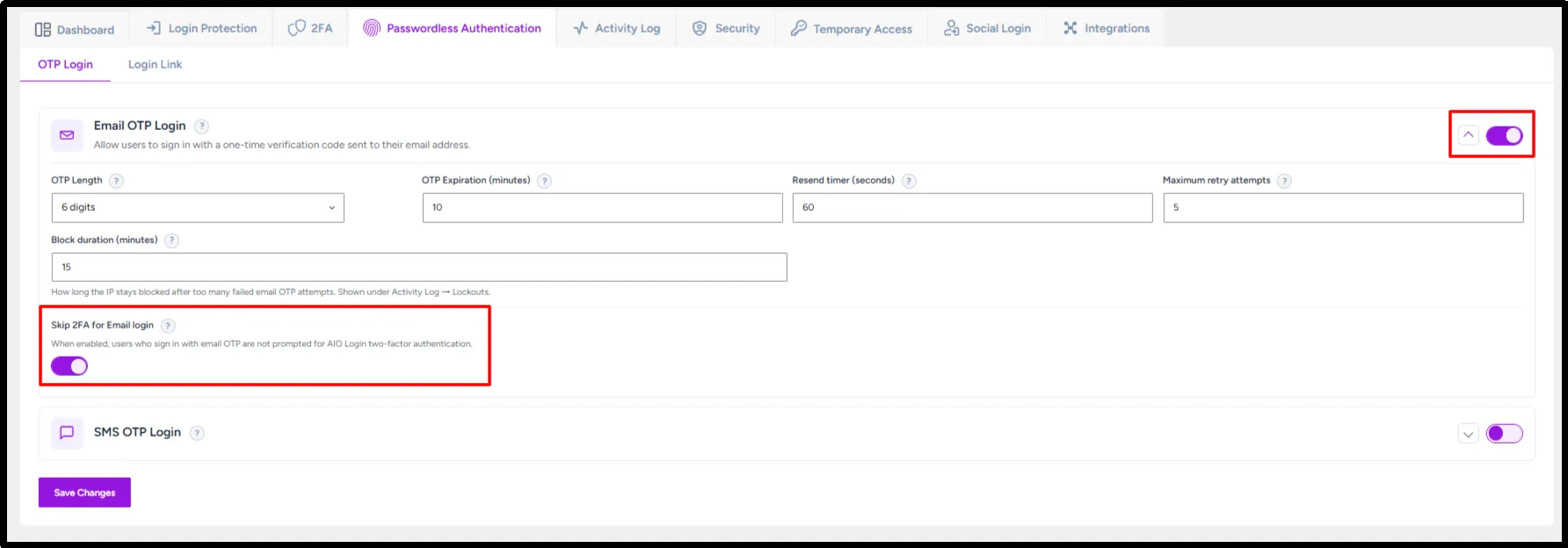
You can select a desired OTP length, set an expiration time, allow resends after a specific time, limit the maximum number of attempts, and set a block duration for failed attempts. You can also skip 2FA for email OTP login by toggling the bar on.
NOTE: If you want users to complete an additional verification step, keep the Skip 2FA option disabled. This allows your configured 2FA requirements to apply to supported login flows.
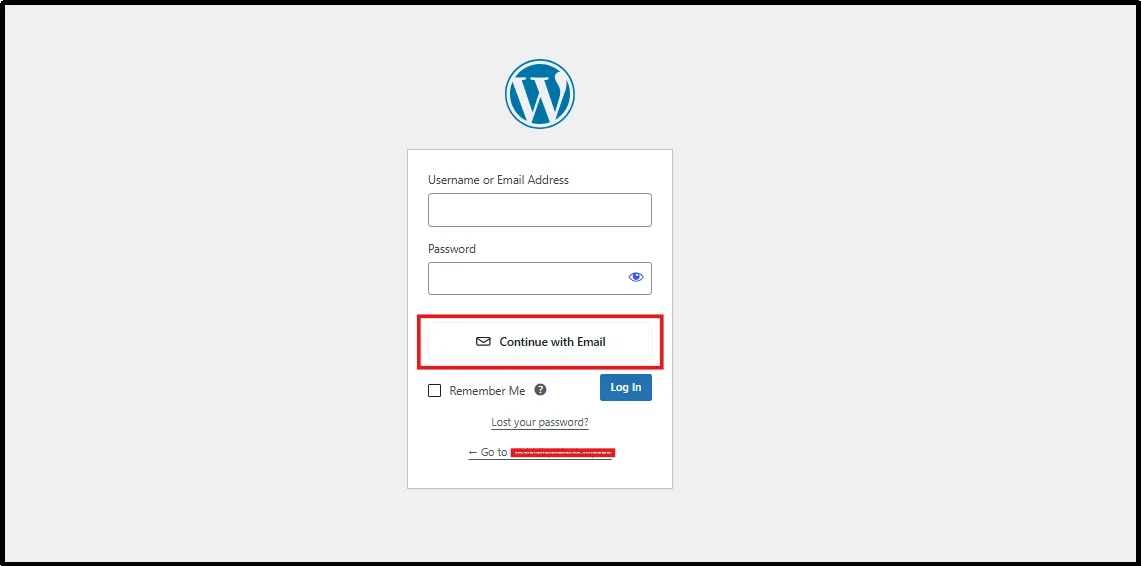
- Test the email OTP login flow.
When a user signs in, they can request a one-time code and use it to verify their identity. Make sure the test email arrives before you offer the option to users.
Step 3: Enable SMS OTP Login
All In One Login Pro supports SMS OTP login through Twilio integration. Users receive a one-time verification code by text message.
- Go back to All In One Login → Passwordless Authentication.
- Find the SMS OTP Login setting.
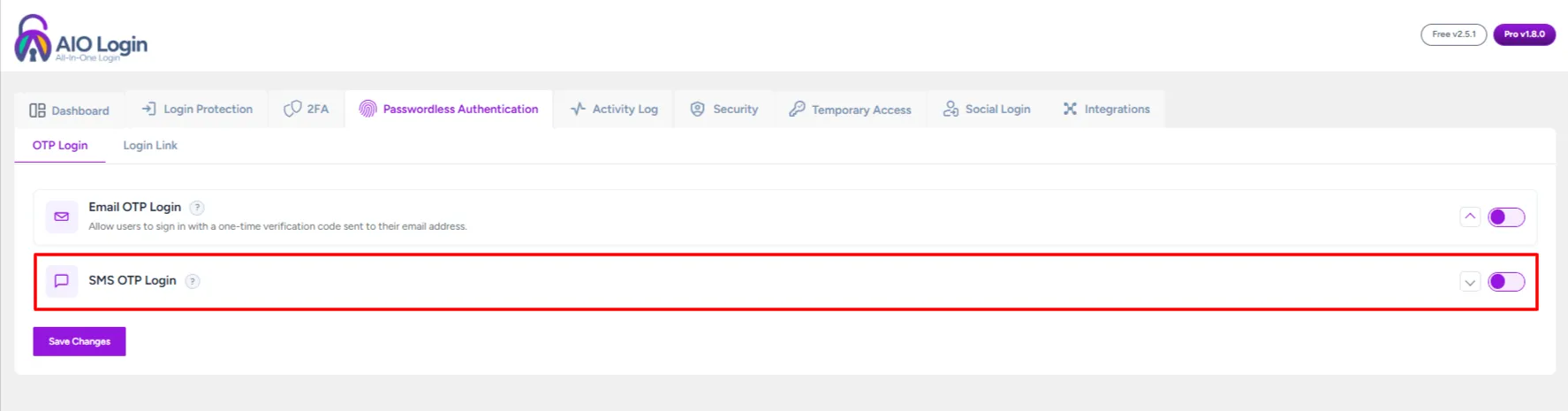
- Enable SMS OTP login.
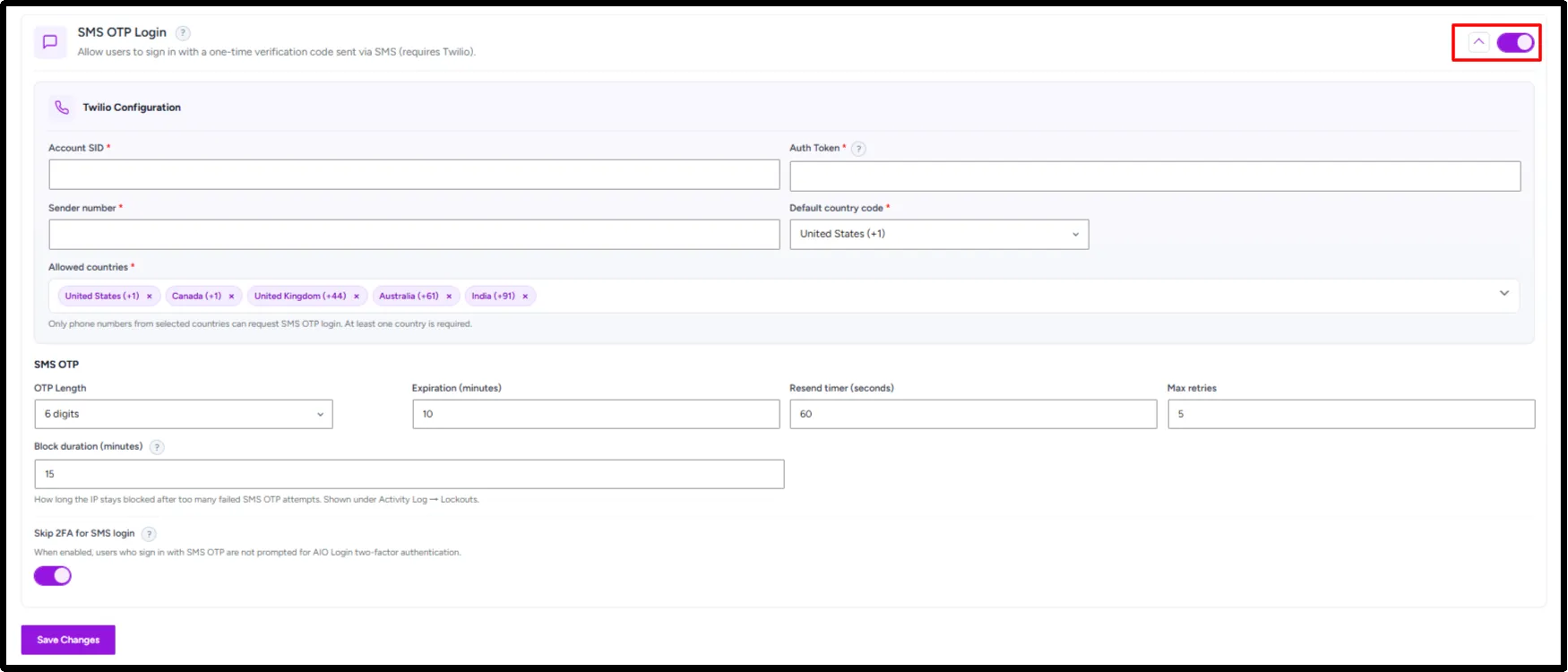
- Connect the required Twilio details.

- Configure the SMS OTP Login settings just like you did in email.

You can choose the desired OTP length, set an expiration time, allow users to resend the code after a specific interval, limit the maximum number of verification attempts, and configure a block duration for failed attempts. You can also skip 2FA for SMS OTP login by toggling the corresponding option.
- Test SMS OTP Login with a phone number from an allowed country.
Confirm that the code arrives and that the user can complete sign-in. SMS OTP depends on the configured Twilio integration, so check the connection if messages do not arrive.
Step 4: Set Up Login Links (Magic Links)
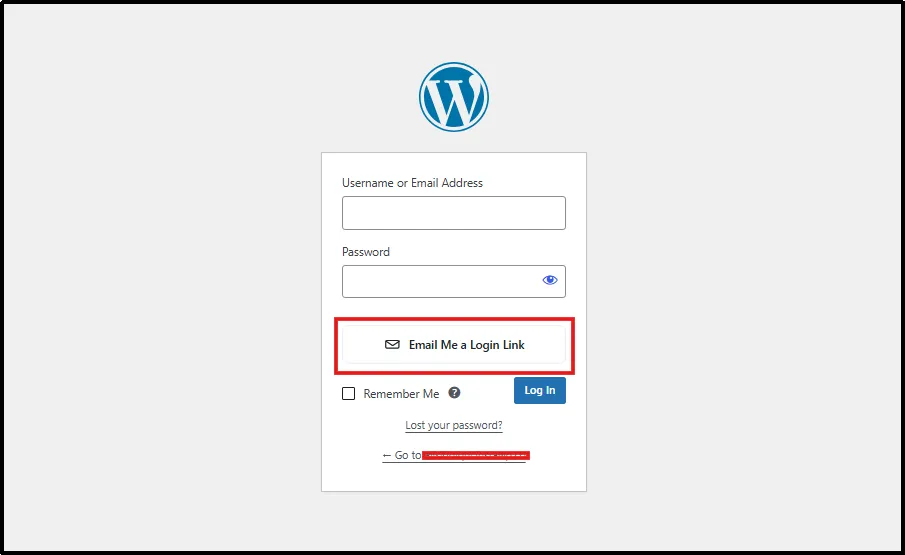
Login Links let users sign in by clicking a secure link sent to their email.
- Navigate back to All In One Login → Passwordless Authentication.
- Select the Login Link tab.
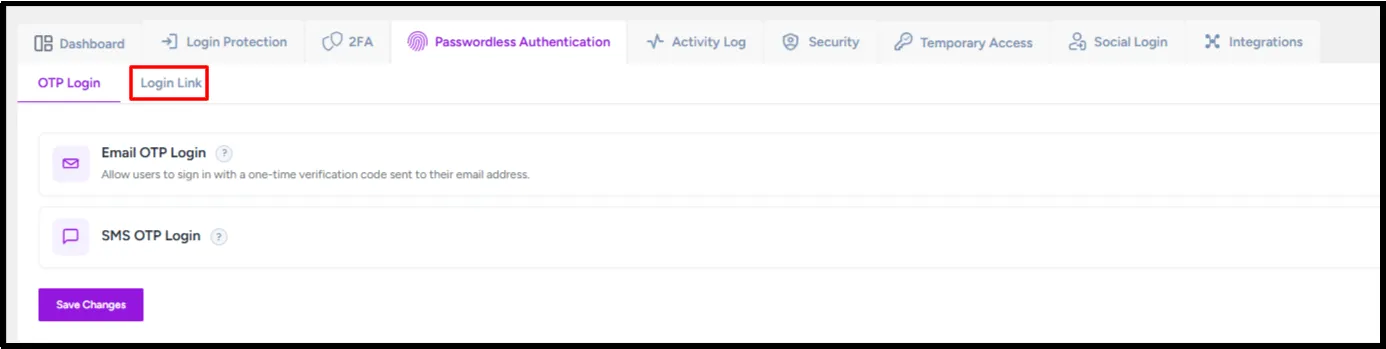
- Enable the Login Link feature. Set the Login Link’s validity and the maximum requests limit. Just like Email and SMS OTP Login, you can skip 2FA for Login Link.
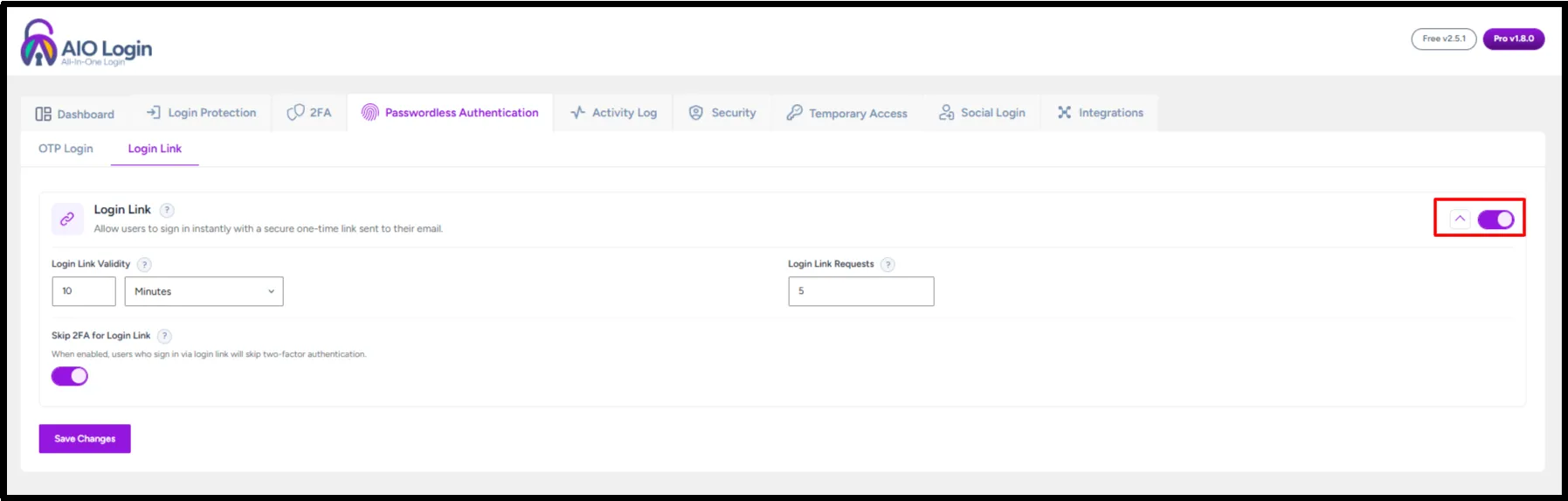
- Save your changes and test the process.
The user receives an email link and clicks it to sign in without entering a password. This can reduce friction for users who want a quick login experience.
Step 5: Create Temporary Login URLs
Temporary login URLs provide short-term access for specific users. You can control when a link expires and how many times it can be used.
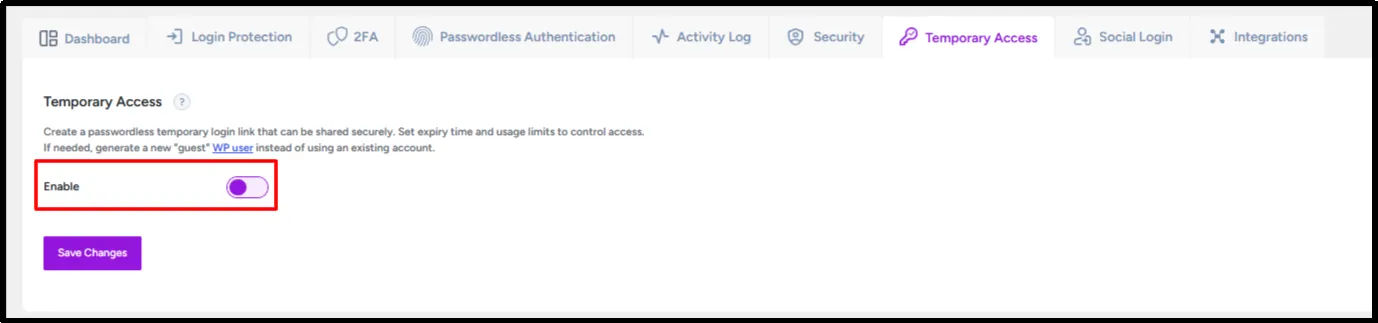
- Go to All In One Login → Temporary Access.
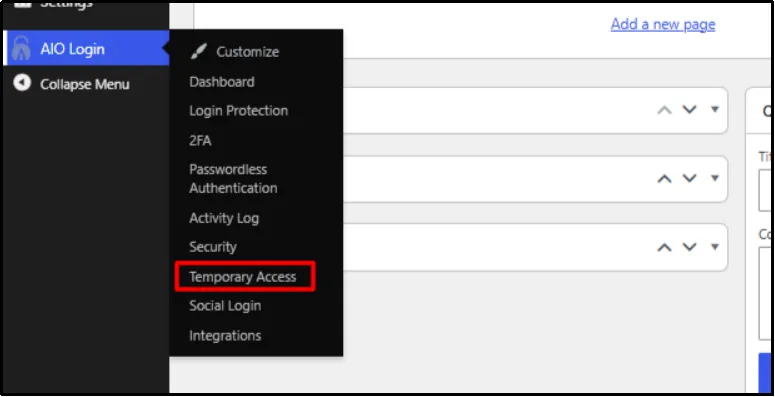
- Enable Temporary Access and click on Save Changes.
- Click on Add New, and a pop-up will appear: “Add New Temp Access.”
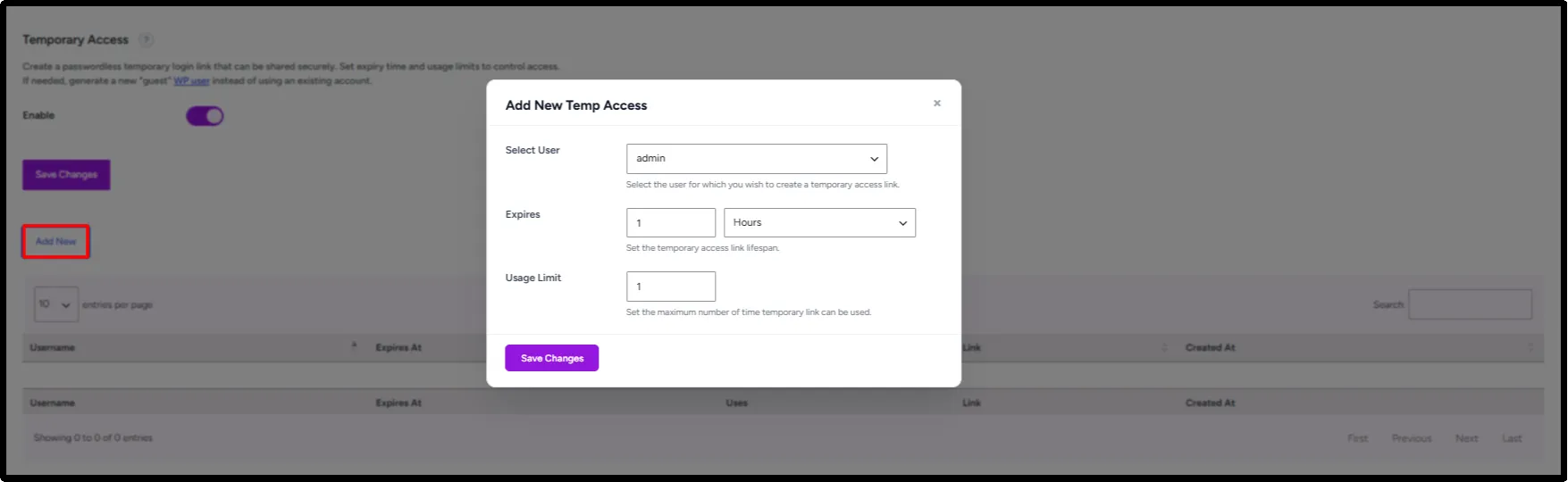
- Select a user, set an expiry and usage limit. Then click on Save Changes.
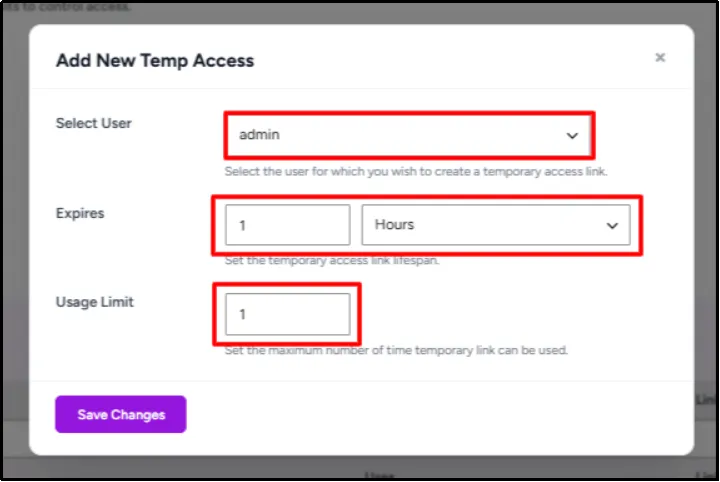
- This will generate a link for the intended user.

- Share the link with that user through an appropriate channel.
- Test the link and confirm that it stops working according to the limits you set.
Use temporary links when someone needs access without sharing a password. Set an expiration and visit limit that match the access you intend to provide.
Add Other Login Protections Alongside Passwordless Login
Passwordless authentication can simplify sign-in, but it should sit within a broader login security setup. All In One Login includes additional features that can help protect the login page and monitor suspicious activity.
- Limit Login Attempts: Lock out users after repeated failed login attempts to help prevent brute-force attacks.
- Google reCAPTCHA, hCaptcha, or Cloudflare Turnstile: Add bot verification to help reduce automated login attempts.
- IP Whitelisting and IP Blacklisting: Restrict access to trusted IP addresses or block unwanted ones.
- Login Activity Logs: Review login attempts, IP addresses, lockouts, and related activity.
- Email-Based 2FA or App-Based 2FA: Add another verification step for supported login flows.
These features are available across the Free and Pro versions as described in the plugin’s feature list. Pro also includes 2FA backup codes and a grace period.
Troubleshooting Passwordless Login
If passwordless login does not work as expected, check the method you enabled and test the full sign-in flow.
1. The email OTP or Login Link does not arrive
Check that the email address is correct and that your site can send email. Ask the user to check their spam folder, then request a new code or link. If nothing works, get Post SMTP and configure a reliable mailer.
2. SMS OTP codes do not arrive
Confirm that the Twilio integration is configured and connected. Then test with a phone number you can access.
3. A temporary login URL no longer works
Check the link’s expiration and visit limit. Generate a new URL if the original has expired or reached its allowed number of visits.
4. Users cannot complete sign-in
Test the login flow using a separate account and confirm that the user follows the steps for the selected method. If the issue continues, temporarily review other login-related settings and plugin conflicts.
Enable Passwordless Login in WordPress with All In One Login
Give users a faster way to sign in via passwordless login. With All In One Login passwordless login features, you can start with email OTP login in the Free version, then upgrade to Pro for SMS OTPs, one-click Login Links, and temporary login URLs.
Choose the method that fits your users and test the sign-in flow before making it available across your site. You can also pair passwordless login with features such as login attempt limits, bot protection, and two-factor authentication for a more complete login security setup.
Get All In One Login and make signing in simpler for your WordPress users.
Frequently Asked Questions
Can I add passwordless login to WordPress for free?
Yes. All In One Login Free includes email OTP login. SMS OTP login, Login Links, and temporary login URLs are Pro features.
How do I enable passwordless login without coding?
Install and activate All In One Login, then enable the passwordless method you want to use in the plugin settings. The Free version supports email OTP login, while Pro adds other methods.
Is passwordless login secure?
Passwordless login can reduce reliance on weak or reused passwords, but no login method removes every risk. Use it alongside appropriate protections, such as bot verification, login attempt limits, and activity monitoring.
Can customers use passwordless login on WooCommerce?
Yes. All In One Login Pro supports passwordless Login Links on WooCommerce account and checkout pages.
What is the difference between an OTP and a magic link?
An OTP is a one-time code the user enters to verify their identity. A magic link is a secure link the user clicks to sign in.