



WordPress uses the predictable wp-login.php URL by default. Because attackers and automated bots know this endpoint, they launch repeated brute force attacks and automated requests against your login page.
Changing the WordPress login URL can reduce automated traffic targeting the default login endpoint and add another layer to your login security strategy. However, you should combine it with stronger protections such as login rate limiting, two-factor authentication (2FA), strong passwords, and a web application firewall (WAF).
In this guide, you’ll learn how to change your WordPress login URL using AIO Login, how to test the new login address safely, and which additional security measures work alongside a custom login URL.
What Is the WordPress Login URL?
Your WordPress login URL is the web address users visit to authenticate their accounts and access the WordPress admin dashboard. In a standard installation, WordPress serves this login page through the wp-login.php file.
When a user submits valid credentials, WordPress authenticates the account and establishes an authenticated session using WordPress authentication cookies. After successful authentication, WordPress can redirect the user to /wp-admin/, where administrators manage site content, plugins, themes, users, and settings.
It helps to understand the distinction between these two elements.
- wp-login.php is the login gateway.
- /wp-admin/ is the WordPress administration area behind it.
Changing your WordPress login URL changes the address WordPress uses to expose the login form; it does not move or rename the underlying wp-login.php core file. It does not rename or move the dashboard itself, and logged-in administrators continue to use /wp-admin/ exactly as before.
Default WordPress Login URLs
Your WordPress login URL can vary depending on whether WordPress runs at the root of your domain, in a subdirectory, on a subdomain, or as part of a multisite network. However, the standard login endpoint remains wp-login.php.
Standard Installation
- yourdomain.com/wp-login.php
- yourdomain.com/wp-admin/
Subdirectory Installation
- yourdomain.com/blog/wp-login.php
Subdomain Installation
- blog.yourdomain.com/wp-login.php
WordPress Multisite
- Network administration uses the standard WordPress login flow.
- Super Administrators use the same authentication system but receive network-level permissions.
- Individual sites in the network can use their own site URLs, while authentication still relies on WordPress’s login system.
Why Change Your WordPress Login URL?
Changing your WordPress login URL reduces your site’s exposure to automated bot traffic that targets the predictable wp-login.php endpoint. This tactic works best as one layer within a broader WordPress login security strategy.
Here’s what a custom login URL actually accomplishes.
- Reduces automated bot attacks. Many automated scanners look for predictable WordPress login endpoints such as wp-login.php. A custom login URL can prevent some basic scans from reaching the login form, though attackers can still discover the new URL through other methods.
- Disrupts brute force attacks. A custom login slug disrupts automated scripts that target the default wp-login.php endpoint. While this does not stop determined attackers entirely, it blocks the vast majority of opportunistic bot scans. Use rate limiting, strong passwords, 2FA, CAPTCHAs, and WAFs as additional defenses.
- Keeps security logs cleaner. A custom login URL can reduce automated requests to the default login endpoint, potentially reducing noise in your authentication logs. However, attackers can still probe other endpoints, so continue monitoring failed logins and other suspicious activity.
- Reduces unnecessary server requests. Every blocked or failed bot login attempt still consumes server resources. Fewer bots reaching the login form means less load on your hosting environment.
- Adds another layer to your security strategy. A custom login URL works best as one component in a broader defense system rather than a standalone fix.
Important: Changing your login URL is only one part of WordPress login security. Combine it with strong passwords, two-factor authentication (2FA), login rate limiting, bot protection, regular updates, and a web application firewall (WAF).
Before You Change Your Login URL
A few minutes of preparation can help prevent common lockout problems. Work through this checklist before changing your login URL.
- Back up your website. Create a complete backup of your WordPress files and database before modifying the login URL. If a configuration error or plugin conflict occurs, you can instantly restore your site from this backup.
- Confirm that you have a recovery method. Make sure you can access your site through your hosting file manager, SFTP, FTP, or SSH before changing the login URL.
- Confirm administrator access. Make sure your account has the permissions needed to install and configure a plugin.
- Save your current login URL. Write it down somewhere outside the website itself, such as a password manager or a secure note.
- Test on a staging site if using WooCommerce, LMS, or membership plugins. These plugin types often hook into the login process, so a staging test catches conflicts before they reach your live site.
- Inform other administrators about the upcoming change. Anyone who logs in regularly needs the new URL before the old one stops working.
The Safest Way to Change Your WordPress Login URL
The most reliable way to change your WordPress login URL in 2026 is to use a dedicated WordPress login security plugin instead of editing core files. The All in One Login plugin is built specifically for this purpose and handles the process without touching any WordPress core code.
Here’s why it stands out as the recommended method:
- No editing of WordPress core files. The plugin intercepts and redirects login requests through WordPress hooks, leaving wp-login.php untouched.
- Easy to configure and manage. All in One Login lets you enable or disable the custom login URL from its dashboard without modifying WordPress core files.
- Compatible with WordPress updates. Because core files are never modified, WordPress updates won’t overwrite your custom login setup.
- Beginner-friendly. The setup process is designed for site owners without development experience.
- Helps reduce login page exposure. Beyond the URL change itself, the plugin typically includes related protections, such as login attempt limits and activity logging.
How to Change Your Login URL Using the All in One Login Plugin
Follow these steps in order. Each one builds on the previous step, so avoid skipping ahead, especially the testing step at the end.
Step 1: Install and Activate the All in One Login Plugin
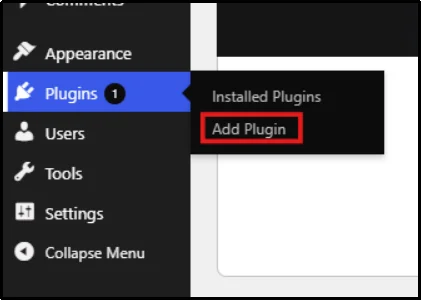
- In your WordPress dashboard, go to Plugins → Add Plugin.
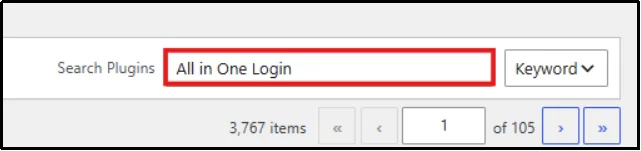
- Type “All in One Login” in the search bar.
- Click Install Now, followed by Activate.
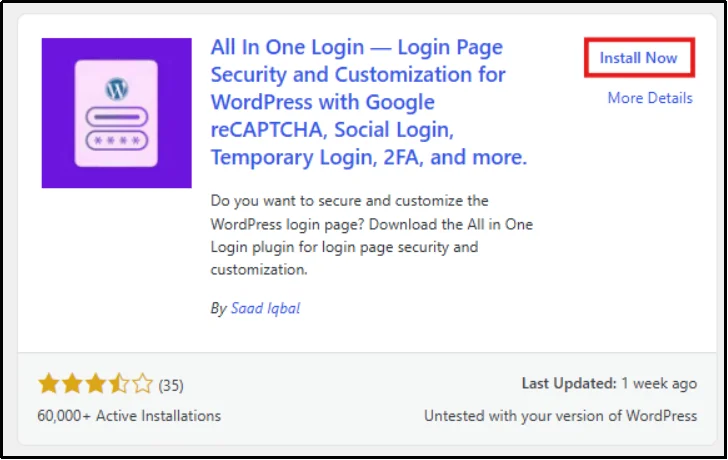
- A new menu item will appear in your dashboard sidebar once activation completes.
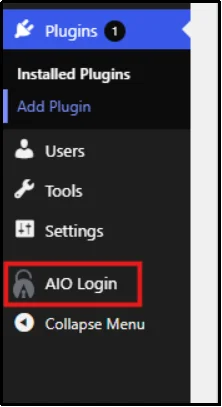
Step 2: Enable Custom Login URL
- Navigate to All in One Login → Dashboard.
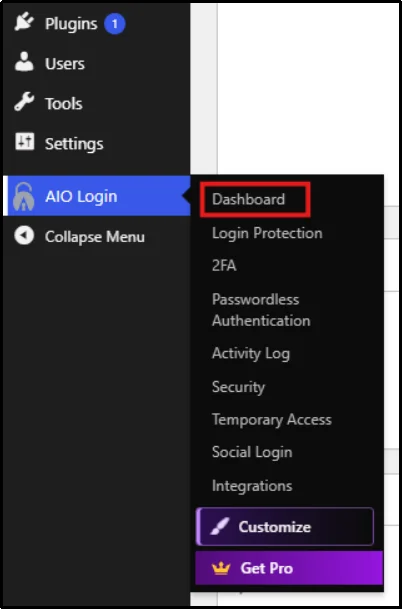
- Once inside the dashboard, you will find the first box labelled – Custom Login URL.
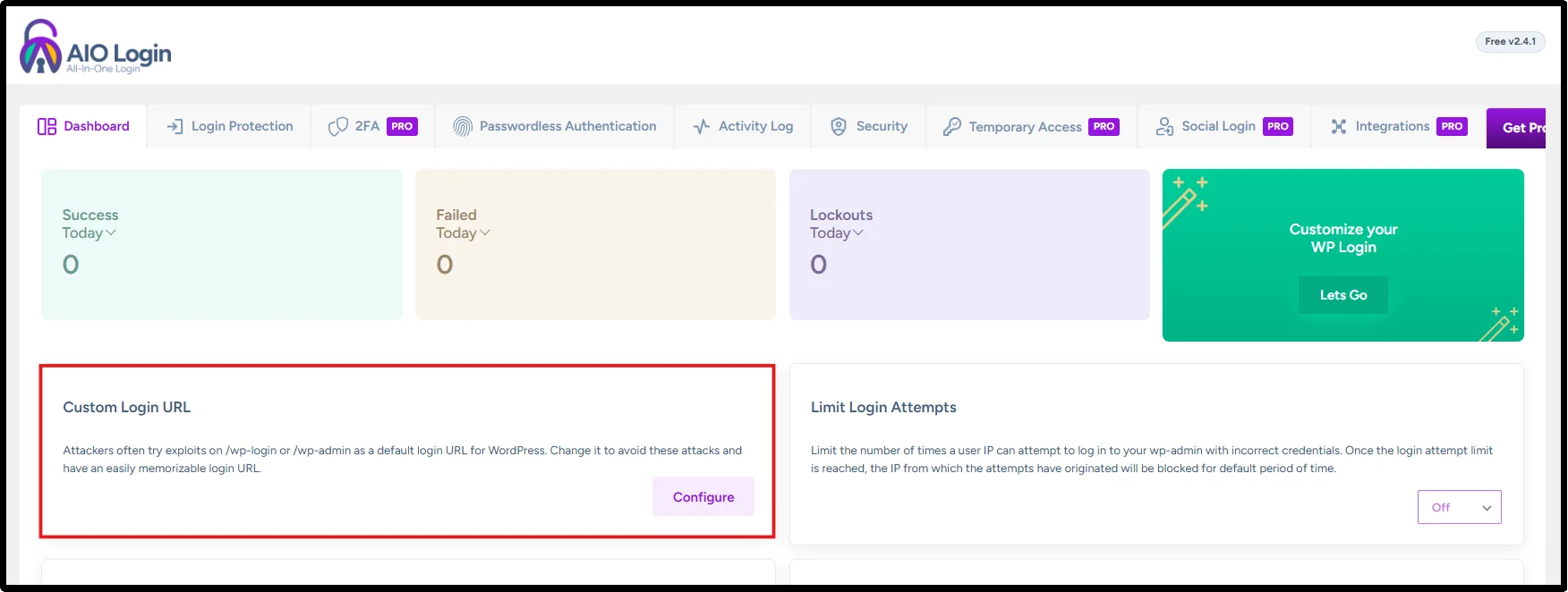
- Click on Configure.
- Toggle the Enable button on.
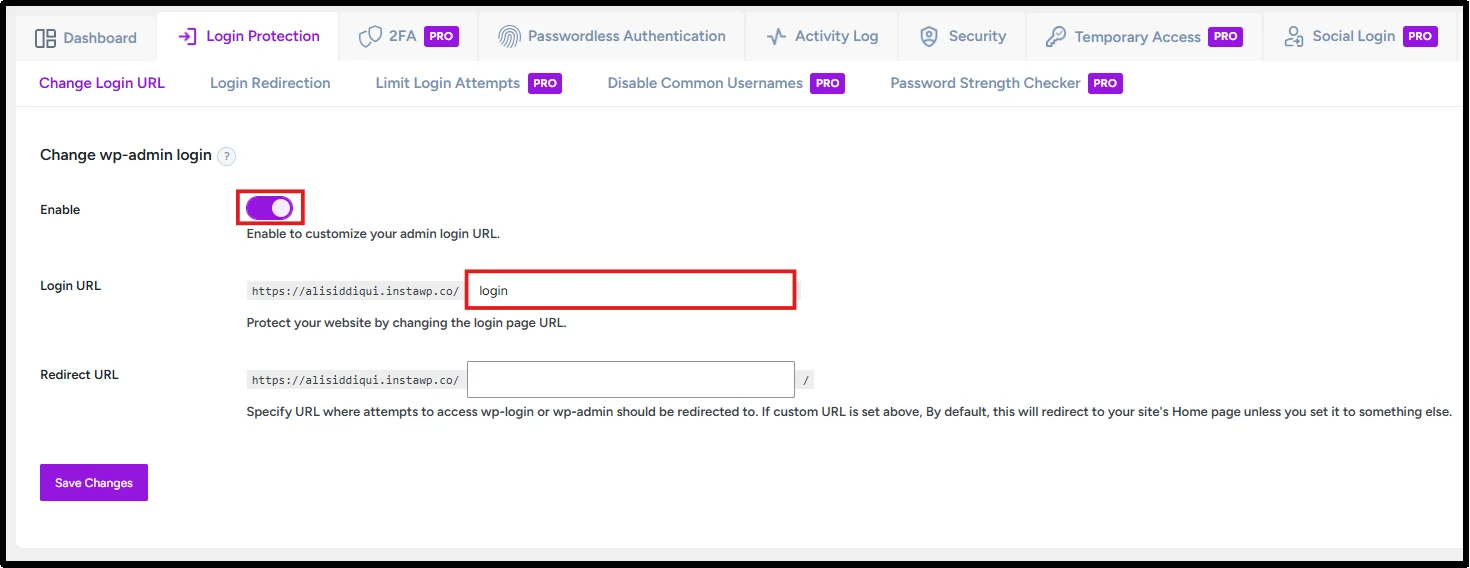
- Create a strong, unpredictable custom login slug and enter it into the Login URL field.
- Now click on Save Changes.
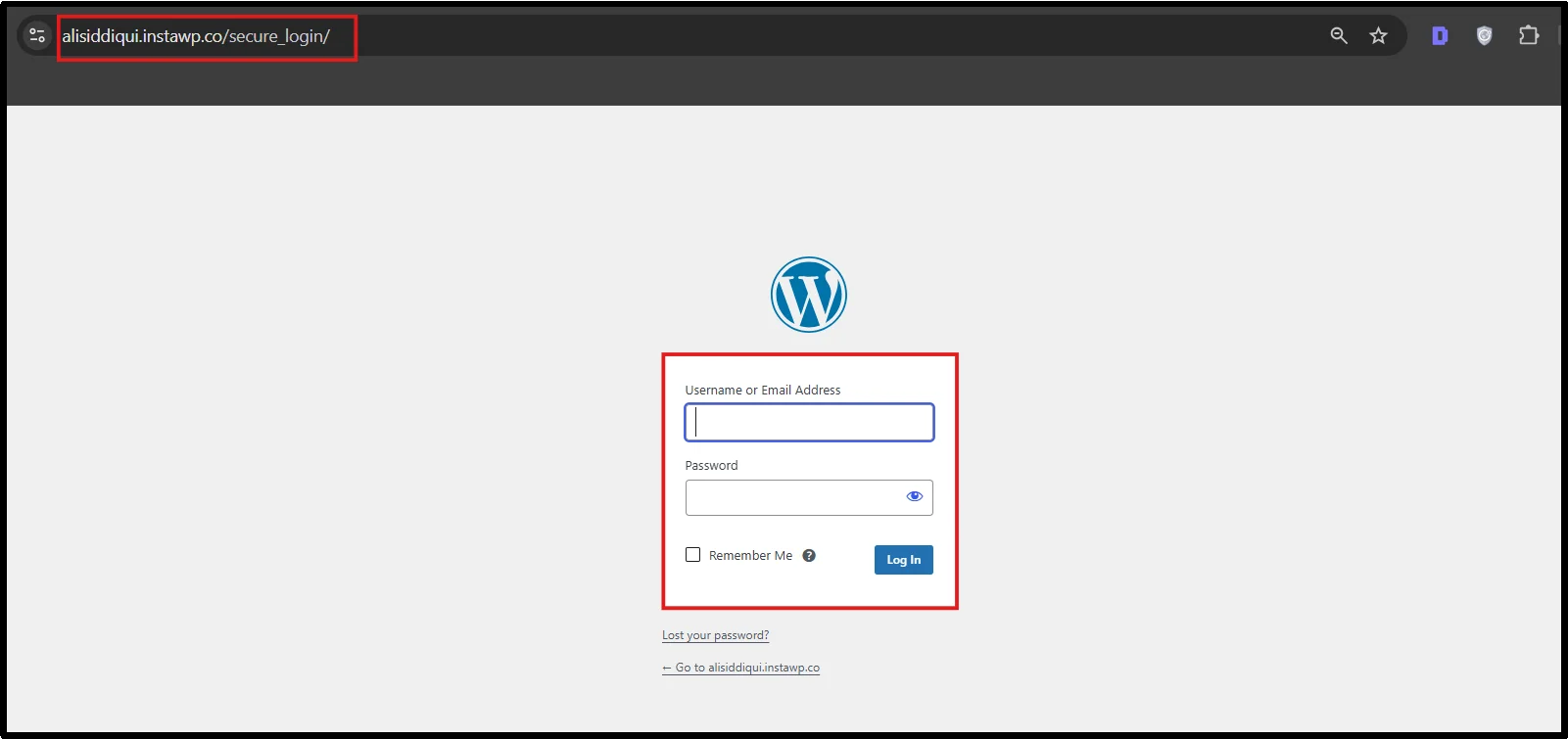
After saving the new login URL, we tested the custom address in a private browser window and confirmed that it loaded the WordPress login screen successfully. We also checked the old /wp-admin/ route to verify that the configured redirect worked as expected.
What Happens to /wp-admin/?
Many site owners mistakenly believe that changing the login URL also renames or hides the /wp-admin/ directory. This is incorrect. The /wp-admin/ directory remains exactly where it always was, and logged-in administrators continue accessing the dashboard through it.
What changes is the login route itself, the page where credentials are submitted before a session is created.
When a logged-out visitor requests /wp-admin/, WordPress normally redirects the visitor to the login flow. With All in One Login’s Custom Login URL feature, you can configure where visitors go when they request the old /wp-admin/ URL.
How to Choose a Secure Custom Login URL
The value of a custom login URL depends heavily on how predictable the slug is. Bots and attackers often try common substitutes for the default login path, so a slug that’s easy to guess offers little real protection.
| Avoid | Better Choice |
| /login | /staff-entry |
| /admin | /portal-access |
| /signin | /secure-dashboard |
| /wordpress-login | /private-entry |
Predictable slugs are easier for bots to discover because automated scanning tools are often pre-loaded with lists of common login paths. Choose a slug that doesn’t match common login terms, public-facing page names, or predictable administrative paths. Store the URL in a password manager rather than relying on secrecy alone.
Combining unrelated words, numbers, and hyphens produces a slug that’s far harder to stumble onto while still being something you can remember or store securely.
What If You Forget Your Custom Login URL?
Losing track of a custom login URL is more common than most site owners expect, especially on sites managed by multiple people. These recovery options restore access without needing to remember the slug.
1. Disable the Plugin
You can deactivate the plugin directly from the file system, which immediately restores the default wp-login.php URL.
- Hosting File Manager: Log in to your hosting control panel, locate the wp-content/plugins/ folder, and rename the plugin’s folder. WordPress will automatically deactivate any plugin whose folder can’t be found.
- FTP: Connect with an FTP client, navigate to the same wp-content/plugins/ directory, and rename the plugin folder the same way.
- SSH: If you have command-line access, rename the plugin directory with a single command, which achieves the same result more quickly.
2. Restore from Backup
If you took a backup before making changes, as recommended earlier in this guide, restoring it will revert the login URL along with any other changes made since.
3. Ask Your Hosting Provider
Many hosting providers can access the file system on your behalf and disable a plugin if you’re unable to do so yourself. This is a reasonable fallback if you’re not comfortable using FTP or a file manager.
4. Use Emergency Access Methods (If Available)
Some WordPress Login security plugins, including the All in One Login Plugin, offer a secondary emergency access route, such as a recovery email link or a temporary access key stored during setup. Check your plugin’s documentation for this feature before you need it.
Common Problems After Changing the Login URL
Most issues after a login URL change trace back to caching, cookies, or a misconfigured slug. Here’s how to diagnose and fix the most common ones.
| Problem | Possible Cause | Solution |
| 404 error | Incorrect slug | Verify the slug matches exactly what was saved in settings |
| Redirect loop | Cache conflict | Clear all caching layers, including server and plugin caches |
| Login page reloads | Cookies | Clear browser cookies and try again in a private window |
| Password reset fails | Plugin conflict | Temporarily disable other plugins to isolate the conflict |
| Old URL still works | Cache/CDN | Purge all caches, including any CDN-level caching |
| White screen | PHP error | Enable WordPress debugging to reveal the underlying error message |
Cache & CDN Considerations
Your login page must bypass page caching. Serving a cached login page causes stale content, interferes with authentication flows, and creates problems with login cookies and security tokens. Exclude your custom login URL from your page cache, and verify that your CDN, server cache, and caching plugin do not cache it.
Why You Should Avoid Manual Code Edits
Some tutorials suggest adding custom code to your functions.php file or editing core files directly. We strongly advise against this for several reasons:
- Updates overwrite changes: WordPress core updates will erase any manual edits to wp-login.php or functions.php, silently reverting your login URL to the default.
- Plugin compatibility issues: Many plugins, particularly those handling forms, memberships, or e-commerce, expect wp-login.php to behave in a standard way. Direct edits create unpredictable conflicts.
- Increased maintenance: Every future WordPress update requires you to reapply the edit manually, adding an ongoing maintenance burden.
- Greater risk of lockouts: A small syntax error in a core file can break the entire login process, instantly locking out every user on the site.
For all of these reasons, a dedicated plugin like the All in One Login Plugin remains the safer, more sustainable approach.
Additional Ways to Secure Your WordPress Login
A custom login URL works best as part of a layered security approach. These additional measures address the parts of login security that a URL change alone can’t cover.
- Enable Two-Factor Authentication (2FA): Require a second verification step, such as an authenticator app, so a stolen password alone cannot grant access to your site.
- Limit Login Attempts: Restrict repeated failed login attempts to slow down brute force attacks and block automated bots.
- Use Strong Passwords: Protect administrator accounts with long, unique passwords generated by a trusted password manager.
- Add CAPTCHA: Use a CAPTCHA on your login page to prevent bots from submitting automated login requests.
- Disable XML-RPC (If Not Required): Turn off XML-RPC if you don’t use it to eliminate a common target for brute force and DDoS attacks.
- Enable Login Activity Logs: Monitor login attempts and user activity to quickly detect suspicious or unauthorized access.
- Remove Unused Administrator Accounts: Regularly delete inactive or unnecessary admin accounts to reduce potential entry points.
- Keep WordPress Updated: Update WordPress core, themes, and plugins promptly to patch known security vulnerabilities.
- Install a Firewall: Use a web application firewall (WAF) to filter malicious traffic before it reaches your WordPress login page.
WordPress Login Security Checklist
Use this checklist as a quick reference for a fully secured WordPress login process. Print it, save it, or keep it pinned in your site’s documentation.
- Custom login URL enabled
- Strong, unique passwords for every account
- Two-factor authentication active
- Login attempt limits configured
- Web application firewall installed
- Regular malware scanning scheduled
- Daily backups running and verified
- WordPress core, themes, and plugins kept updated
- Login activity monitoring enabled
- Password manager used by all administrators
Secure Your WordPress Login in Minutes
Changing your WordPress login URL is a simple, low-effort way to reduce automated attacks and unnecessary bot traffic against your site. Always test the new URL thoroughly before logging out of your current session, and avoid modifying WordPress core files directly, since updates will overwrite those changes and increase the risk of a lockout.
For the strongest results, combine a custom login URL with broader security measures, such as two-factor authentication, login-attempt limits, and a web application firewall. The All in One Login Plugin offers a straightforward way to customize your login page and URL to strengthen your site’s overall login security, from initial setup through ongoing monitoring.
Check out the All in One Login to add extra layers of security without complicating your workflow.
Frequently Asked Questions
What is the default WordPress login URL?
The default WordPress login URL is wp-login.php, accessed at an address like yourdomain.com/wp-login.php. It’s the same across nearly every WordPress installation unless it has been manually changed.
Is changing the login URL worth it?
Yes, for most sites. It significantly reduces automated bot traffic and brute force attempts, though it should always be paired with other security measures rather than used on its own.
Can hackers still find my login page?
A determined attacker or hacker with direct access to your server or database could still locate it, but a custom login URL prevents your site from being found by the vast majority of automated scans that rely on the default path.
Does changing the login URL stop brute force attacks?
It does not stop them completely, but it makes them far less effective. Most automated brute force scripts only target the default wp-login.php path.
Can I change the login URL without a plugin?
You can add custom code to your site’s functions.php file, but this requires advanced technical expertise. A dedicated plugin remains the safer, more maintainable option for most site owners.
What happens if I forget the new URL?
You can disable the plugin through FTP or your hosting file manager, which restores the default login URL, or restore from a backup taken before the change.
Does WooCommerce still work?
Yes, as long as the change is tested properly beforehand. WooCommerce’s customer-facing account flows are generally separate from the WordPress admin login, but testing on staging first is still recommended.
Can I customize the WordPress login page too?
Yes. Many WordPress login security plugins, including the All in One Login Plugin, allow you to customize the branding, logo, and styling of the login page itself, separate from changing its URL.