

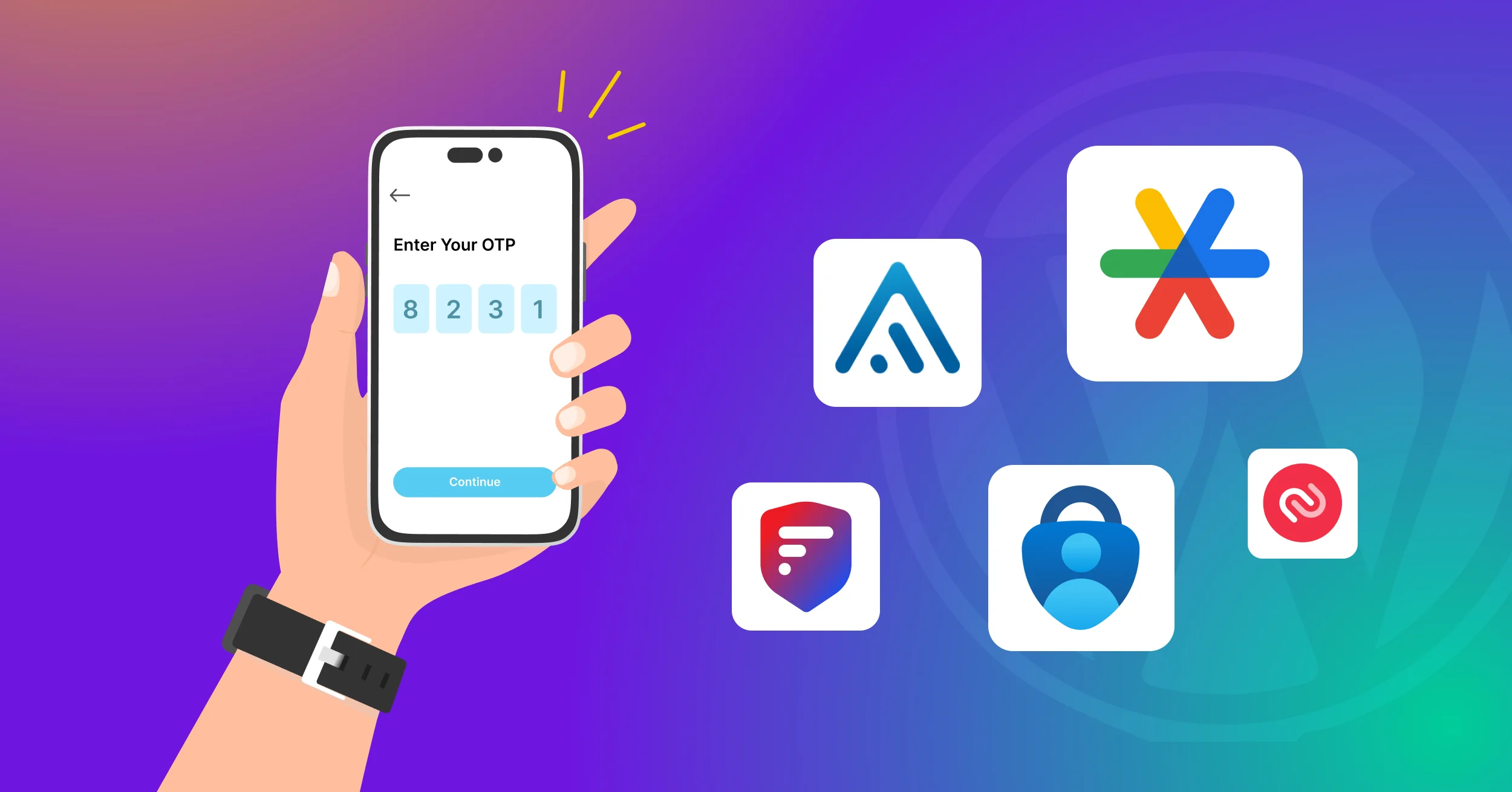
Every password you use is one leak away from being useless. Reused logins, phishing pages, and credential stuffing bots mean that a password alone was never meant to be the only account protection. Microsoft reported that enabling multi-factor authentication (MFA) can block more than 99.2% of automated account-compromise attempts, making it one of the most effective account security controls available.
A two-factor authentication (2FA) app, often called an authenticator app, provides one of the easiest ways to improve account security. These apps generate time-based one-time passwords (TOTP) that verify your identity during login, even if someone steals your password.
In this guide, we’ve tested the best authenticator apps of 2026 based on security, backups, privacy, platform support, and ease of use.
What is TOTP, and How is it Different From Other 2FA Methods?
TOTP (Time-Based One-Time Password) is an open authentication standard defined in RFC 6238. It generates short-lived verification codes using a shared secret and the current time, allowing websites and apps to verify your identity without sending codes over a network.
How does it work?
- When you set up 2FA on a website, it shares a secret key with your app, usually via a QR code.
- Your app combines that secret key with the current time and runs the result through a cryptographic hash (HMAC-SHA-1 in most implementations).
- The result is a 6 to 8 digit code that changes every 30 seconds.
- The website runs the same calculation on its end. If the codes match, you’re verified.
Because TOTP codes are generated locally on your device instead of being transmitted over a network, they work offline and cannot be intercepted in transit like SMS-based one-time passwords.
This is the key reason security teams consistently rank TOTP above SMS-based 2FA. SIM-swapping and SMS interception attacks simply don’t apply to it.
TOTP vs. other authentication methods:
- TOTP apps: offline, phishing-resistant to a degree, free, works everywhere.
- SMS or email OTP: easiest to set up, weakest security (SIM swap and interception risks).
- Push-based MFA (Duo, Microsoft Authenticator prompts): a tap-to-approval notification instead of typing a code; more convenient, but requires an internet connection and can be defeated by “MFA fatigue” attacks if a user isn’t careful.
- Passkeys / FIDO2 security keys: the strongest option, phishing-proof by design, but not every site supports them yet. Think of passkeys as where the industry is heading, and TOTP as the reliable standard that works everywhere right now.
How We Evaluated These Apps
We compared each app against six criteria:
- Security Architecture (open source vs. closed, encryption method),
- Cross-platform support,
- Backup and recovery (can you actually restore your codes if you lose your phone),
- Export/import freedom (are you locked in),
- Usability,
- Cost.
Take a look at the quick comparison table for the best two factor authentication apps in 2026.
How We Tested These Authenticator Apps
We installed and evaluated each authenticator app on its supported platforms whenever possible. During testing, we reviewed setup speed, QR code scanning, account recovery options, encrypted backups, import and export functionality, desktop support, privacy controls, and overall usability. We also examined whether each app supports open-source auditing, end-to-end encryption, and reliable recovery methods if a user loses access to their device.
Comparison Table: 9 Best TOTP Apps in 2026
| App | Platforms | Open Source | Encrypted Backup | Export Codes | Price |
| Google Authenticator | iOS, Android | No | Yes (Google Account sync) | Yes (QR export) | Free |
| Microsoft Authenticator | iOS, Android | No | Yes (Microsoft Account) | No | Free |
| Twilio Authy | iOS, Android only | No | Yes, but no export | No | Free |
| 2FAS | iOS, Android | Yes | Yes (cloud, optional) | Yes | Free |
| Aegis Authenticator | Android only | Yes | Yes (local/cloud) | Yes | Free |
| Proton Authenticator | iOS, Android, Windows, macOS, Linux | Yes | Yes (end-to-end encrypted) | Yes | Free |
| 1Password | iOS, Android, Windows, macOS, Linux, Web | No | Yes (encrypted via 1Password account) | Yes | Paid (starts at ~$2.99/month) |
| Bitwarden Authenticator | iOS, Android, desktop, browser | Partial | Yes | Yes | Free / Premium $10/yr |
| Duo Mobile | iOS, Android | No | Yes | No | Free (Duo plans) |
List of 9 Best TOTP Apps in 2026
We’ve compiled a detailed overview of all the two factor authentication apps below. Take a look at how each app stacks up in terms of security and what to watch out for, so your next decision isn’t one you regret.
1. Google Authenticator (Android / iOS)
Best for: first-time 2FA users who want the simplest possible setup.
Google Authenticator remains one of the best authenticator apps for beginners because it offers simple setup, reliable verification codes, and broad compatibility across online accounts.
Also, Google added Google Account cloud sync a few years back, which finally fixed its old problem of losing all codes on a factory reset. There’s no setup friction: install the app, scan a QR code, and you’re generating codes in seconds, which is exactly why it’s the app most sites point to first in their own 2FA setup instructions.
Google Authenticator doesn’t try to be a password manager, doesn’t offer a desktop app, and gives you little control over how your accounts are organized once the list grows past a dozen or so entries.
Strengths:
- Dead simple interface
- Near-universal compatibility with sites that support TOTP
- Google Account cloud sync (codes survive a phone switch)
- QR-based export for migrating between phones
Watch for:
- Closed source
- No desktop app
- Minimal customization or organization features for people managing dozens of accounts
Pricing:
- Free
2. Microsoft Authenticator (Android / iOS)
Best for: Microsoft 365 and Azure AD users, and anyone who prefers push notifications over typing codes.
Microsoft Authenticator supports standard TOTP, but its real strength is passwordless push sign-in for Microsoft accounts, plus password autofill when linked to your Microsoft account. It’s a strong pick if your organization already runs on Microsoft’s identity stack, since the app doubles as the client-side piece of Azure AD/Entra ID conditional access policies many workplaces already enforce.
For personal use outside a Microsoft-heavy environment, it still functions as a perfectly capable general TOTP app; you can add any site’s QR code to it the same way you would with Google Authenticator.
Strengths:
- Push-based approval (tap instead of typing a code)
- Cloud backup tied to your Microsoft account
- Built-in password autofill
- Strong fit for Microsoft 365 / Azure AD environments
Watch for:
- No export feature; migrating away means manually re-registering 2FA on every site
- Requires a Microsoft account for backup
Pricing:
- Free
3. Twilio Authy (Android / iOS)
Best for: people who need multi-device sync and don’t mind staying mobile-only.
Authy used to be the go-to choice for anyone looking for a desktop 2FA app, but that changed. Twilio killed off the Authy desktop apps for Windows, macOS, and Linux in 2024, forcibly logging out desktop users who hadn’t synced to mobile first. Authy is now mobile-only, and it still has no built-in way to export your codes to another app, something worth knowing before you commit.
The app itself still does what it always did well: encrypted backups that sync across multiple phones, a PIN or biometric lock on top of the app, and a straightforward interface with little learning curve. But the 2024 changes are hard to ignore: between the loss of desktop support, the missing export option, and a breach that exposed user phone numbers the same year, Authy’s reputation for reliability has taken real damage.
Strengths:
- Encrypted multi-device sync across phones
- PIN/biometric app lock
- Long track record and wide name recognition
Watch for:
- Desktop apps discontinued in 2024, mobile only now
- No export feature (switching away means disabling and re-adding 2FA on every site individually)
- A 2024 incident exposed a large set of user phone numbers through an unsecured API endpoint
Pricing:
- Free
4. 2FAS (Android / iOS)
Best for: privacy-conscious users who still want cloud backup.
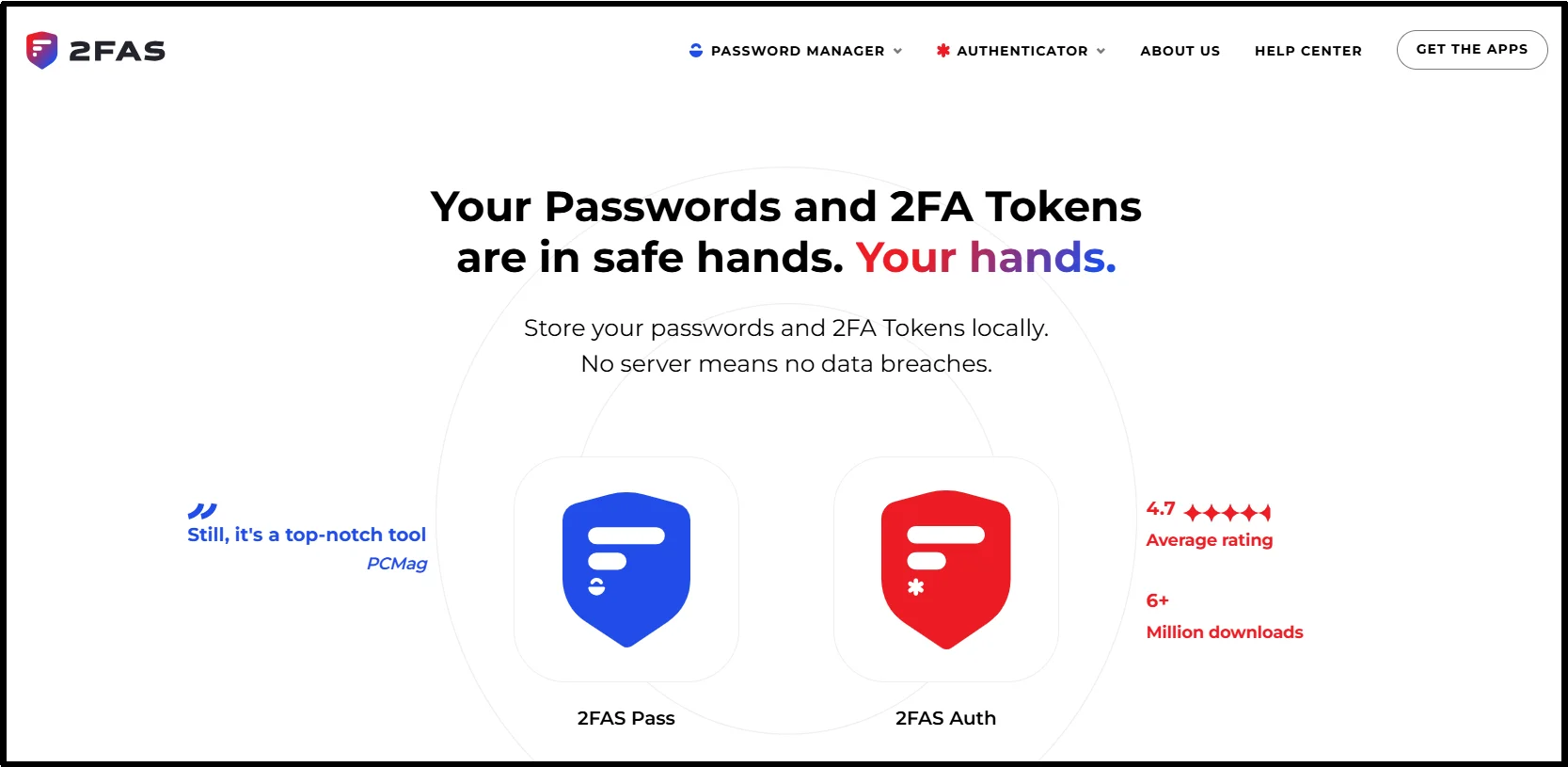
2FAS is open source, free, and collects minimal data; no account or phone number is required to use it. It supports encrypted cloud backup as an opt-in rather than a default, giving you more control over where your secrets live, and the interface stays clean even as your list of accounts grows.
What makes 2FAS worth a second look next to the bigger names is how deliberately it avoids the usual trade-offs: you don’t have to hand over an account or phone number just to get started, and because the code is open source, its privacy claims can actually be verified rather than taken on faith.
Strengths:
- Open source and auditable
- Minimal data collection, no account or phone number required
- Optional encrypted cloud backup (opt-in, not forced)
- Clean interface with a browser extension for desktop use
Watch for:
- Smaller company behind it than Google or Microsoft, so long-term support commitment is less certain
Pricing:
- Free
5. Aegis Authenticator (Android / iOS)
Best for: Android power users who want full local control.
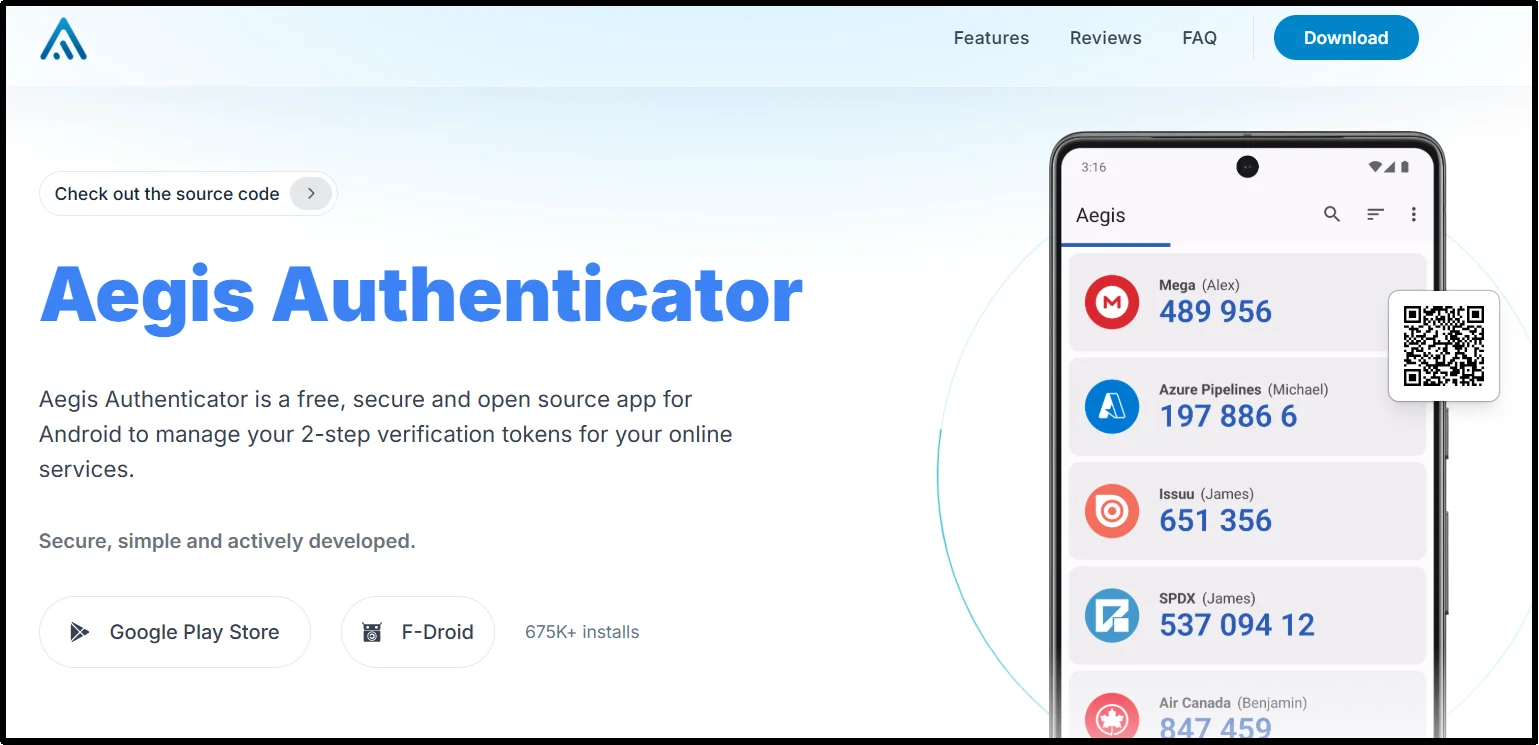
Aegis is open source, Android-only, and built around local encrypted vaults rather than cloud sync by default. You can export an encrypted or plaintext backup any time, and organize accounts into custom groups, useful if you’re managing codes for dozens of services.
The philosophy behind Aegis is control: nothing leaves your device unless you explicitly choose to back it up, and the app doesn’t quietly phone home in the background. That makes it a favorite among Android users who’ve already gravitated toward other open-source, privacy-first tools, and its active community means bugs tend to get addressed quickly.
Strengths:
- Strong local encryption
- Full export control (encrypted or plaintext backups, anytime)
- No telemetry
- Actively maintained by its open-source community
- Custom groups for organizing large numbers of accounts
Watch for:
- No iOS version, Android only
- No built-in cloud sync; backups are on you, which is good for privacy but less convenient
Pricing:
- Free
6. Proton Authenticator (Android / iOS)
Best for: anyone who wants a genuinely cross-platform, privacy-first app, including desktop.
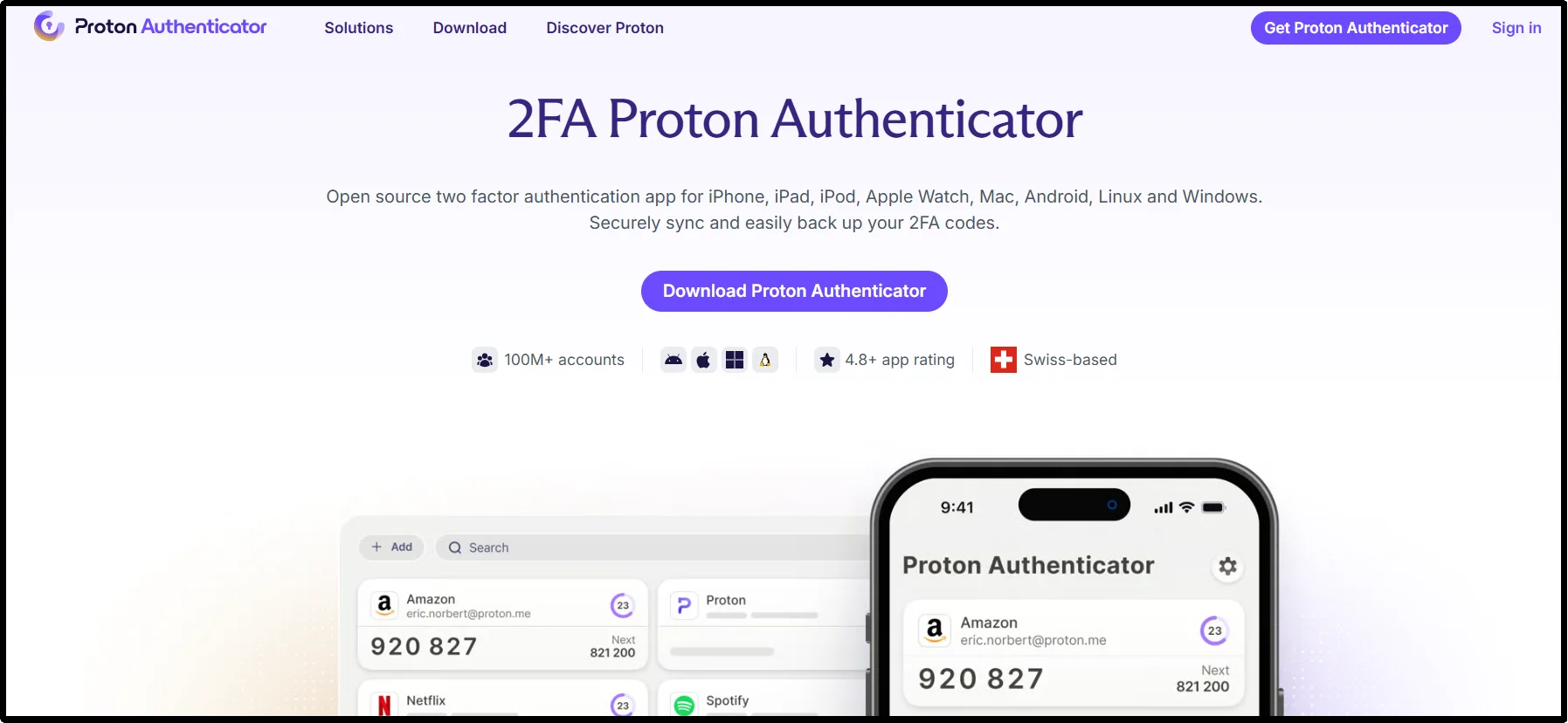
Proton Authenticator is the newest widely-used entrant on this list and closes a real gap: it’s fully open source, end-to-end encrypted, and, unlike most of the apps above, actually runs natively on Windows, macOS, and Linux, not just mobile. Codes are generated locally, backups are end-to-end encrypted so even Proton can’t read them, and it supports direct import from Google Authenticator, Authy, Aegis, and others.
Coming from the team behind Proton Mail and Proton VPN, it inherits the same privacy-by-design approach: no ads, no trackers, and no requirement to create a Proton account just to start using it. The desktop apps in particular fill a hole nothing else on this list has covered well since Authy’s desktop version was shut down; you can view and use your codes right from your computer, protected by a biometric or PIN lock on the app itself.
Strengths:
- True cross-platform support, including native Windows, macOS, and Linux desktop apps
- Open source and auditable
- End-to-end encrypted sync, even Proton can’t read your codes
- No ads or trackers
- No account required to start
- Straightforward import from Google Authenticator, Authy, Aegis, and others
Watch for:
- Newer product than Google or Microsoft’s offerings, so its long-term track record is shorter
- A few users note minor UX rough edges, like limited account reordering
Pricing:
- Free
7. 1Password (Android / iOS)
Best for: professionals and businesses that want a unified solution for password management and two-factor authentication.
1Password comes with a built-in authenticator, so you can generate TOTP verification codes right alongside your saved passwords. That means you don’t need a separate 2FA app, and signing in is quicker because everything you need is in one place. Since both your passwords and verification codes are protected, you get convenience without sacrificing security. If you already use 1Password, turning on the authenticator only takes a few clicks.
While 1Password started as a password manager, its built-in authenticator and passkey support make it a practical alternative to dedicated authenticator apps for many users.
It also supports passkeys, making it easy to move toward passwordless sign-ins as more websites and apps adopt the technology. Available on Windows, macOS, Linux, iOS, Android, and as an extension for popular web browsers, 1Password includes other useful features like secure sharing, Travel Mode, and Watchtower, which help you spot weak or compromised passwords before they become a problem.
Strengths:
- End-to-end encrypted sync across all devices
- Available on iOS, Android, Windows, macOS, Linux, and web browsers
- Automatically fills one-time verification codes on supported websites
- Supports exporting your data if you decide to switch services
Watch for:
- No free plan; requires a paid 1Password subscription
- Storing passwords and 2FA codes in the same ecosystem may not align with the “separate device” security model preferred by some organizations
Pricing:
- Individual plan: Starts at $2.99/month (billed annually)
- Family, Team, and Business plans are also available.
8. Bitwarden Authenticator (Android / iOS)
Best for: people who already use Bitwarden as a password manager and want 2FA in the same ecosystem.
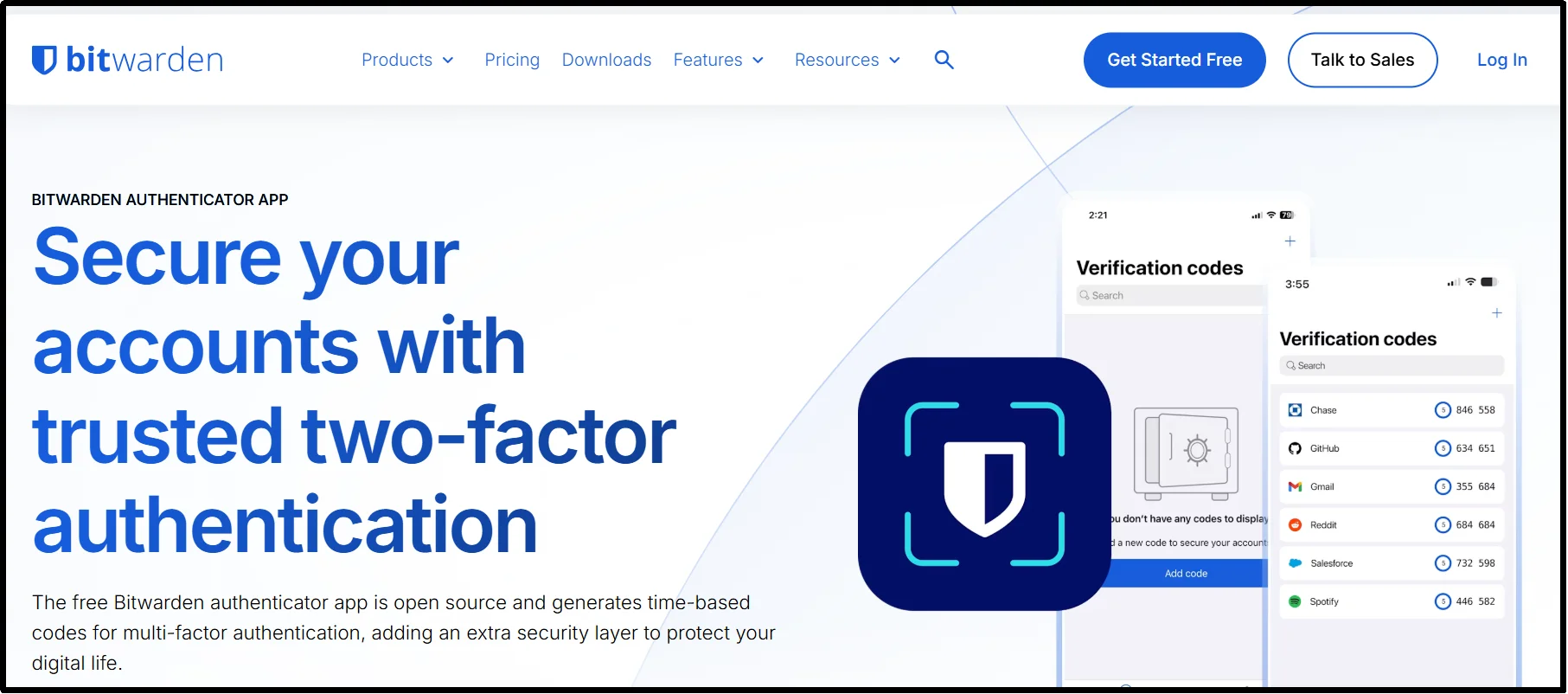
Bitwarden’s standalone Authenticator app (separate from the TOTP field inside Bitwarden’s password manager) gives you a dedicated 2FA app backed by the same zero-knowledge encryption architecture Bitwarden is known for, with sync across desktop, mobile, and browser.
Keeping it as a separate app from the main Bitwarden password manager is a deliberate choice; it lets you decide whether you want your 2FA codes stored alongside your passwords or kept apart. For existing Bitwarden users, adding the Authenticator app is a natural extension that requires almost no new learning curve, since the sync and vault security model is identical to what you already trust for your passwords.
Strengths:
- Zero-knowledge encrypted sync
- Works across browser extensions, desktop, and mobile
- Integrates naturally if you’re already a Bitwarden password manager user
- Export supported
Watch for:
- Best value requires linking to a Bitwarden account
- Storing your password manager and 2FA codes in one ecosystem reduces the “separate device” principle some security teams recommend
Pricing:
- Free tier available
- Premium: $10/year (unlocks additional Bitwarden features beyond just 2FA)
9. Duo Mobile (Android / iOS)
Best for: small businesses and teams that need centralized MFA management, not just a personal app.
Duo Mobile (from Cisco) supports standard TOTP but is built primarily around push-based approvals and centralized admin controls, which are useful once you’re managing 2FA for a team rather than just yourself. Unlike the enterprise IAM platforms sometimes lumped into “authenticator app” lists (Okta, Auth0, Ping Identity), Duo Mobile is a genuine end-user TOTP/push app with an admin layer behind it.
That admin layer is what sets it apart from every other app on this list: an IT team can provision, monitor, and revoke access for every employee’s device from a single dashboard, and Duo’s number-matching push approval is specifically designed to resist the “MFA fatigue” attacks where someone gets spammed with approval requests until they accidentally tap yes.
Strengths:
- Push approval with number-matching to resist MFA fatigue attacks
- Admin dashboard for provisioning and revoking team access
- Works for standard personal TOTP use too, not just push
Watch for:
- Its real value only shows up with a paid Duo plan behind it
- Overkill if you just need personal 2FA with no team to manage
Pricing:
- Free for the app itself
- Duo business plans required for admin/team features (see Cisco Duo pricing for current tiers)
Which Authenticator App Should You Choose?
There’s no single “best” authenticator app for everyone. The right choice depends on your devices, security preferences, and how you manage your online accounts. Here’s a quick breakdown to help you find the option that fits your needs.
- Google Authenticator remains one of the easiest options for beginners. It offers a simple setup process, broad compatibility, and reliable TOTP support for most online accounts.
- Microsoft Authenticator fits naturally into the Microsoft ecosystem. Microsoft 365 users, Entra ID administrators, and anyone who prefers passwordless sign-ins will get the most value from it.
- Twilio Authy excels at encrypted multi-device synchronization. It works well for users who want access to their authentication codes across multiple mobile devices.
- 2FAS appeals to privacy-conscious users. Its open-source code, minimal data collection, and optional cloud backup make it a strong alternative to mainstream authenticator apps.
- Aegis Authenticator gives Android users complete control over their authentication data. Local encrypted backups, flexible export options, and advanced organizational features make it a favorite among power users.
- Proton Authenticator delivers one of the best cross-platform experiences available today. Native apps for Windows, macOS, Linux, iOS, and Android make it a practical choice for users who regularly switch between devices.
- 1Password combines password management, passkeys, and two-factor authentication in a single platform. Many professionals prefer this all-in-one approach because it reduces friction during sign-ins.
- Bitwarden Authenticator makes the most sense for existing Bitwarden users. The shared security model and familiar interface create a seamless experience across passwords and authentication codes.
- Duo Mobile targets businesses and teams rather than individual users. Its centralized management tools, device controls, and enterprise-focused features simplify multi-factor authentication at scale.
Security Risks You Should Know, and How to Avoid Them
A TOTP app closes one door, but a few habits can leave others open. Here’s what actually causes people to get locked out or compromised, and the simple fix for each.
- Losing your phone without a backup or account recovery plan. This is the single most common way people get locked out. Enable encrypted cloud backup where available, or store recovery codes in a safe, offline location.
- Screenshotting QR codes during migration. A QR export code contains the raw secret key; anyone who sees it can generate your codes too. Delete migration screenshots immediately after use.
- Malware that steals TOTP secrets or screen-reads codes. Keep your phone’s OS updated and avoid installing authenticator apps from outside official app stores.
- Relying on an app with no export path. If the company shuts down the app, changes its policy, or gets acquired, you want a way out. This is why apps like Authy and Microsoft Authenticator, both lacking export, carry more long-term risk than they used to.
- Storing 2FA and passwords in the same vault with no separation. Convenient, but it collapses “something you know” and “something you have” into one compromise point if that vault is ever breached.
- Backup Codes Stored Insecurely. Many websites provide backup codes when you enable two-factor authentication. Store these codes securely because anyone who gains access to them can bypass your authenticator app.
Choose Your TOTP App and Protect Your WordPress Login
Whichever TOTP app you pick, remember it only protects the accounts you personally enroll it on; it doesn’t do anything for things like your WordPress site with multiple admins, editors, or customer accounts.
Pair your preferred authenticator app with All In One Login to strengthen WordPress security through two-factor authentication, email OTP verification, login attempt protection, IP restrictions, activity logging, and advanced authentication controls.
Try All In One Login and bring that same protection standard to your site’s login page.
Frequently Asked Questions
Can I use one authenticator app for multiple accounts?
Yes. Most authenticator apps let you store TOTP codes for dozens or even hundreds of online accounts. Each account gets its own unique secret key and rotating verification code.
Do authenticator apps work without an internet connection?
Yes. TOTP authenticator apps generate verification codes locally on your device, so they continue working even when you’re offline. However, cloud backup and account syncing features require an internet connection.
Can I have the same authenticator app on two devices?
Yes, but only if the app supports secure synchronization or multi-device setup. Some apps let you sync encrypted data across devices, while others require you to scan the original QR code on each device during setup.
Do I need an authenticator app if a website supports passkeys?
Not necessarily. Passkeys offer stronger phishing resistance and may replace TOTP for supported services. However, many websites still rely on TOTP authentication, making an authenticator app useful for broader compatibility.
How many accounts can a TOTP authenticator app store?
Most authenticator apps don’t impose a practical limit. The maximum number depends on your device’s storage and the app’s design, but storing hundreds of accounts is generally possible.
Can I change authenticator apps without disabling two-factor authentication?
Yes, if your current app supports exporting TOTP accounts. Otherwise, you’ll need to log in to each service individually, disable two-factor authentication, and re-enable it using your new app.
What happens if I lose access to my authenticator app?
If you lose access to your authenticator app, you can usually recover your accounts using backup codes, recovery keys, or encrypted backups. Always save recovery information when enabling two-factor authentication.
Which authenticator app is the most secure?
Open-source authenticator apps such as Aegis, 2FAS, and Proton Authenticator allow independent security reviews and provide strong encryption options. The most secure choice depends on whether you prioritize privacy, encrypted backups, desktop support, or enterprise features.
Are authenticator apps safer than SMS verification?
Yes. Authenticator apps generate one-time passwords directly on your device and avoid the SIM-swapping and interception risks associated with SMS verification.