

WordPress is without question the world’s most popular content management system (CMS), powering over 43% of all websites on the internet as of 2025, according to W3Techs. But with great popularity comes an uncomfortable reality: WordPress sites are frequent targets for cyberattacks, especially brute force attacks.
A brute force attack is a relentless and automated process where hackers use software to guess your login credentials by trying thousands of username and password combinations every second until they crack the code.
And guess what?
They don’t need to be coding geniuses to launch such an attack. There are countless free tools and botnets available that make this type of hacking easier than you’d think.
Once an attacker successfully breaks into your WordPress site, the consequences can be catastrophic:
- Your website could be defaced or injected with malware.
- Sensitive customer data might be stolen.
- Google might blacklist your domain.
- Your SEO rankings could nosedive overnight.
- Hosting providers may suspend your account for resource abuse.
But don’t worry! Protecting your WordPress login from brute force attacks doesn’t require you to be a cybersecurity expert.
In this guide, we’ll walk you through nine easy yet highly effective ways to secure your WordPress login page, reduce the risk of unauthorized access, and keep your site safe from these relentless attacks.
Let’s get started!
What is a Brute Force Attack?
A brute force attack is exactly what it sounds like: a brute, forceful method of hacking into your website by trying out every possible combination of usernames and passwords until the correct one is found. It’s not sophisticated, but it’s surprisingly effective, especially against websites with weak login security.
Imagine handing a thief a lock and a million keys. If the thief is patient enough (or uses an automated robot), they’ll eventually find the key that opens the lock.
In the case of WordPress, attackers typically use automated bots or scripts that hammer your /wp-login.php or /wp-admin page around the clock, trying to guess valid credentials.
Common Tools Used for Brute Force Attacks:
- Hydra
- John the Ripper
- Aircrack-ng
- Medusa
- WPScan (specifically for WordPress)
These tools are often paired with massive “password dictionaries” or databases of common passwords like 123456, password, admin123, or even leaked credentials from past data breaches.
And here’s the kicker: since WordPress login pages are public by default, attackers don’t need to look hard to find your site’s entry point.
💡 NOTE: Later in the article, we will show you how to hide or make your WordPress login page private using the All In One Login plugin.
Why WordPress Logins Are Prime Targets for Brute Force Attacks
Hackers love WordPress login pages, and there are a few solid reasons for that, which are as follows:
Reason #1: WordPress’s Dominance Makes It a Juicy Target
WordPress powers more than 810 million websites worldwide. Websites of all sizes use it, from personal blogs to Fortune 500 companies, making it a common target for cybercriminals.
Reason #2: Predictable Login URLs
Unless you take proactive steps to change it, your login page is always located at:
or
This makes it incredibly easy for hackers to locate the door to your site.
Reason #3: Weak Username and Password Habits
Many WordPress site owners still use the default admin username combined with simple, easy-to-guess passwords. Cybercriminals exploit this habit through brute force attacks.
Reason #4: High Automation Potential
Brute force attacks don’t rely on a human sitting at a keyboard. They rely on bots that are capable of testing thousands of logins per second without taking a coffee break.
Reason #5: No Built-in Login Rate Limiting
Out of the box, WordPress doesn’t limit the number of failed login attempts. That’s like leaving your front door wide open with no lock, hoping a burglar won’t try it.
😀 GOOD NEWS! Along with a custom login URL, you can also limit login attempts for the WordPress login page using the All In One Login plugin, which we will talk about later in the article.
09 Easy Ways to Protect WordPress Login From Brute Force Attacks
Now that you understand the risk, let’s move on to the actionable steps that will protect your WordPress login page from brute force attack.
Method #1: Change the Default WordPress Login URL
One of the simplest ways to confuse brute force bots is by changing your WordPress login URL from the default /wp-login.php or /wp-admin to something unique.
Most brute force scripts are hardcoded to target the standard login paths. Changing the URL instantly blocks a large percentage of these automated attacks before they even start.
How to Do It:
First, install and activate the best WordPress login security plugin, All In One Login.
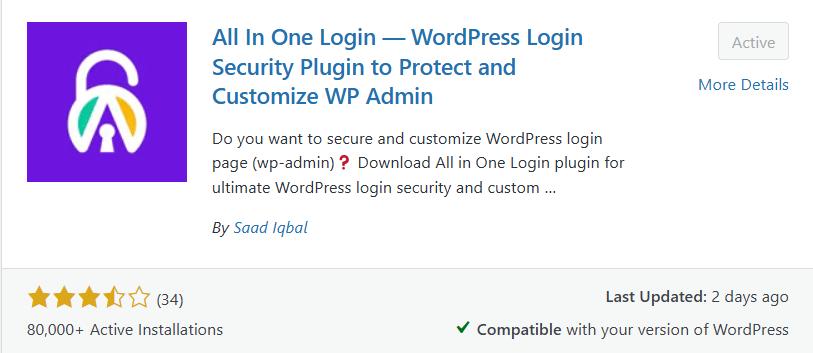
Once installed, go to AIO Login >> Dashboard >> Login Protection >> Change Login URL. After that, toggle on to enable the custom login URL feature.
Enter the unique non-guessable slug, for instance, https://yourdomain.com/my-secret-login in the input box as you can see in the screenshot below.
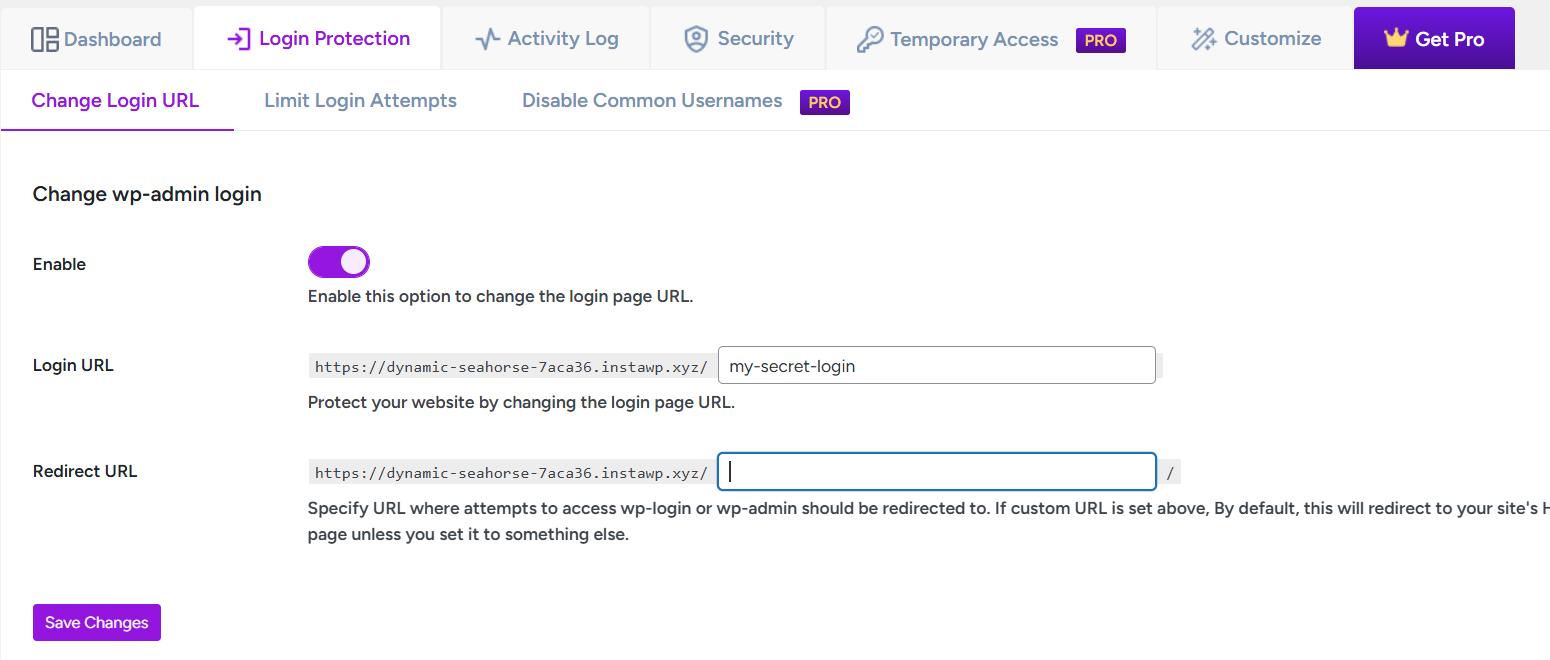
You can also add the URL where you want to redirect the /wp-login.php or /wp-admin attempts.
Finally, select the Save Changes button to apply the changes.
🔥 Pro Tip: Combine this with two-factor authentication (which we’ll cover in Step 3) for an extra layer of security.
Method #2: Use Strong and Unique Passwords
This might sound basic, but weak passwords are still the #1 way hackers get into WordPress sites.
According to Verizon’s 2023 Data Breach Investigations Report, over 70% of hacking-related breaches include the human element, with people being involved either via error, privilege misuse, use of weak or stolen credentials, or social engineering.
Now, you might be thinking, “What makes a strong password?” Don’t worry! To make your password strong, follow the following parameters.
Your password must be;
- At least 12–16 characters long.
- A mix of uppercase, lowercase, numbers, and special symbols.
- Avoid using personal information like birthdays, names, or common words.
Also, here are some of the password managers you can use to generate powerful passwords:
Method #3: Implement Two-Factor Authentication (2FA)
Even if a hacker manages to guess your password, two-factor authentication can stop them cold.
Two-factor authentication adds an extra layer of security to your login page. Even if a hacker guesses your password, they’ll also need access to your second authentication factor. Simply put, 2FA requires two forms of verification before granting access:
- Something you know (your password).
- Something you have (a temporary code on your phone or email).
To add 2FA to your WordPress login via the All In One Login plugin, follow the steps:
🚨 NOTE: 2FA is the premium feature of All In One Login. To get the premium version, click here to visit the official website, select your premium plan, and then proceed with the following procedure.
Download the Pro zip file from the welcome email or from your Freemius account, upload it via Plugins → Add New → Upload Plugin, install, activate, and enter your license key.

Next, open the AIO Login dashboard, go to the Security tab, and switch on the 2FA feature.
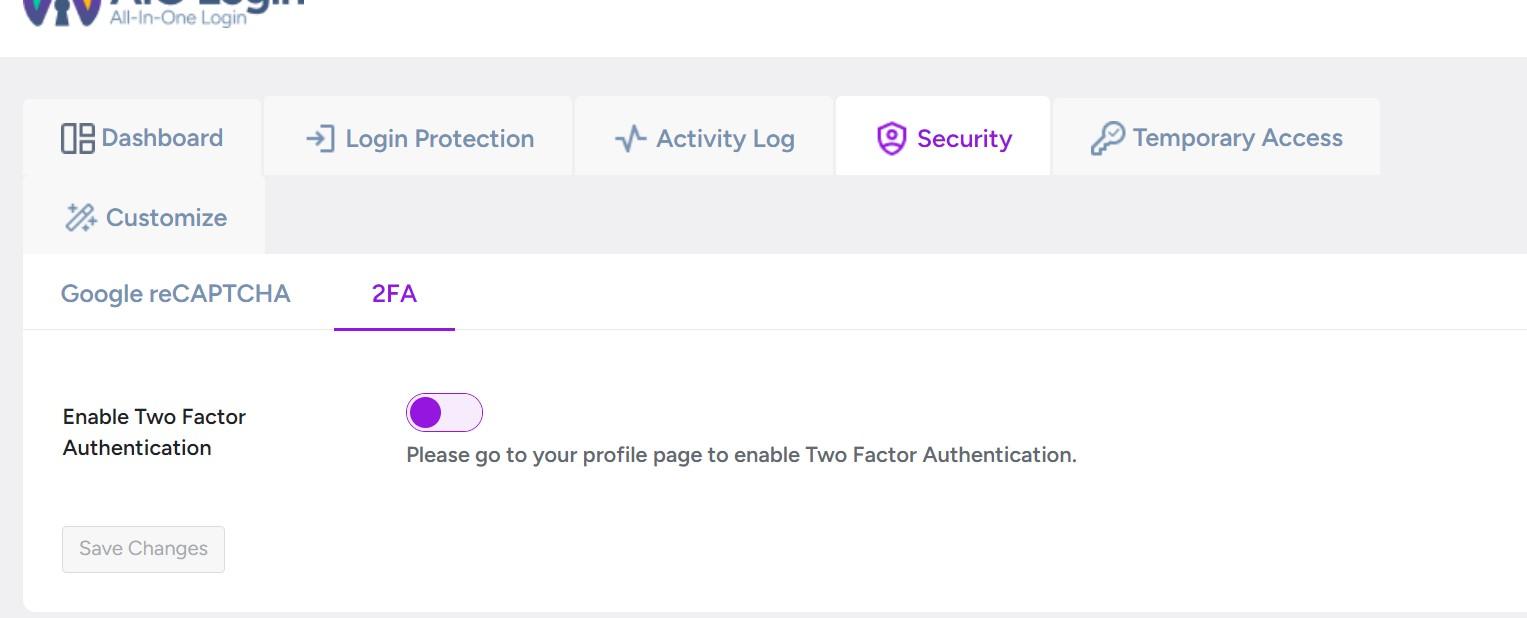
Upon toggling on, scan the displayed QR code with an authenticator app like Google Authenticator or Authy.
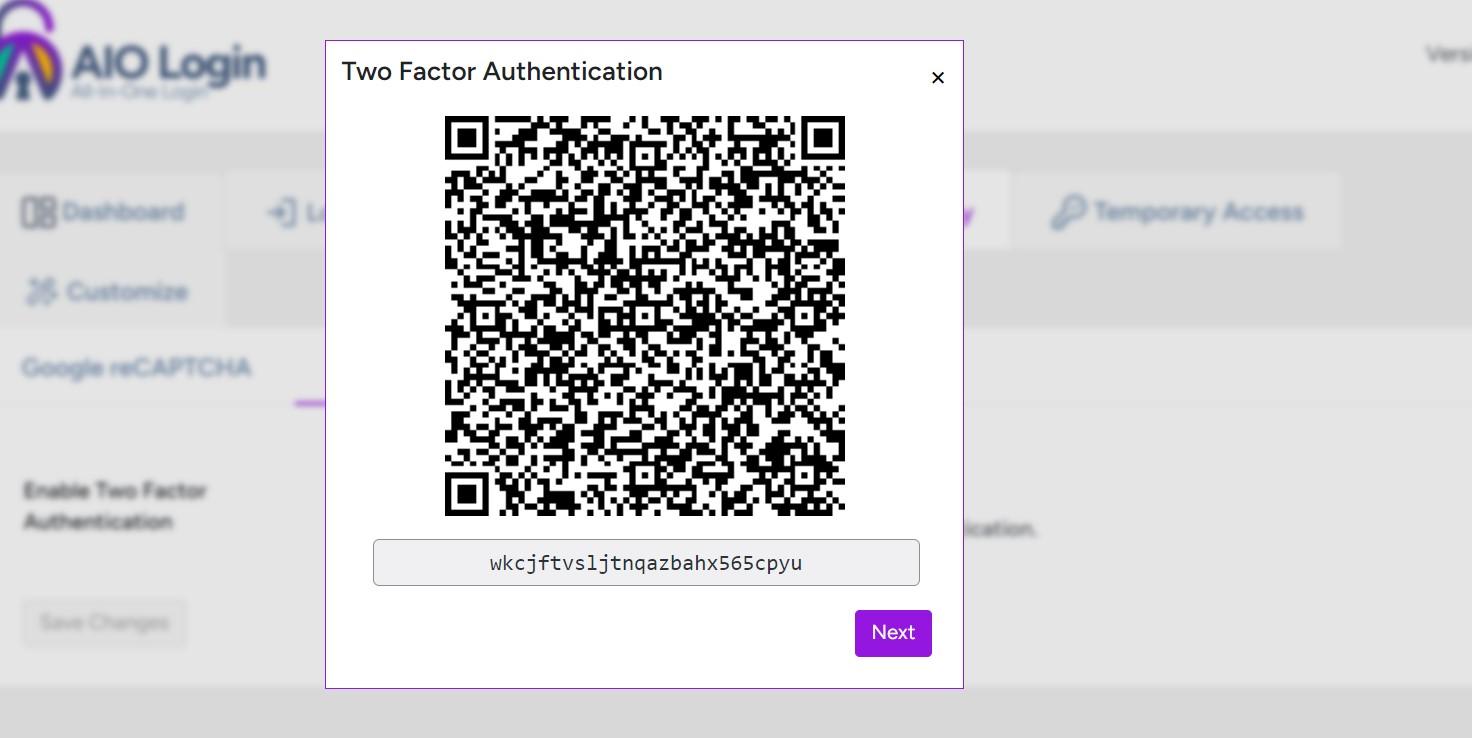
Copy the backup key, click Next, enter the OTP from your app, and hit Verify OTP.

Once verified, click Save Changes.
Now, every time you log in, you must enter both your password and a time-based one-time code, giving your WordPress login strong protection against brute force attacks.

This simple step can reduce the chance of unauthorized access by more than 99.9%, according to Google’s own internal research and Microsoft’s security reports.
Method #4: Limit Login Attempts
WordPress doesn’t limit login retries by default, which is like giving hackers unlimited chances to guess your password.
To fix this, you need to limit login attempts.
Fortunately, All In One Login allows you to easily apply login limitations.
Head to the Login Protection tab and open the Limit Login Attempts section.
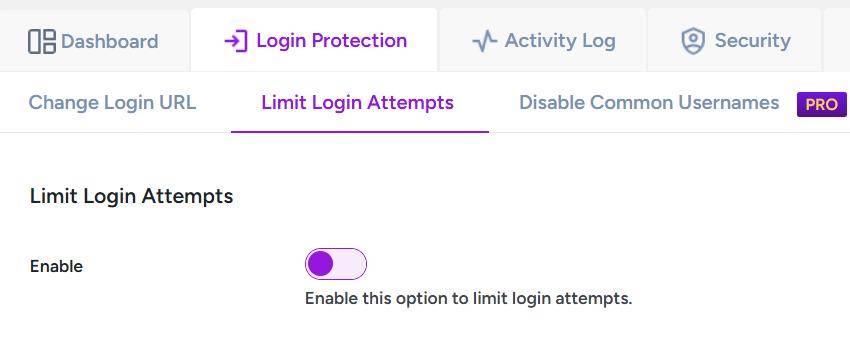
Next, toggle on to enable the feature, set the maximum allowed login attempts (recommended: 3–5), and define the lockout timeout in minutes.
Customize the lockout message, then click Save Changes.

Now, anyone who exceeds the attempt limit will be locked out for the set time, blocking brute force attacks!
🌟 Interesting Fact: Websites using login attempt limits see a reduction of up to 95% in brute force success rates, according to Wordfence’s threat research.
Method #5: Add CAPTCHA or reCAPTCHA to Your Login Page
Another simple but powerful way to stop brute force bots is to implement CAPTCHA or Google’s reCAPTCHA on your WordPress login page.
Why CAPTCHA Matters:
Brute force attacks rely on automation. CAPTCHA acts like a roadblock that forces human verification, stopping bots from mindlessly submitting login attempts.
The following are the steps to add reCAPTCHA to your WordPress login page via the All In One Login plugin:
Install and activate the AIO Login plugin from your WordPress dashboard. Then, visit the reCAPTCHA website, register your site, choose the reCAPTCHA type, and copy the generated Site Key and Secret Key.

Go back to AIO Login → Security → Google reCAPTCHA.
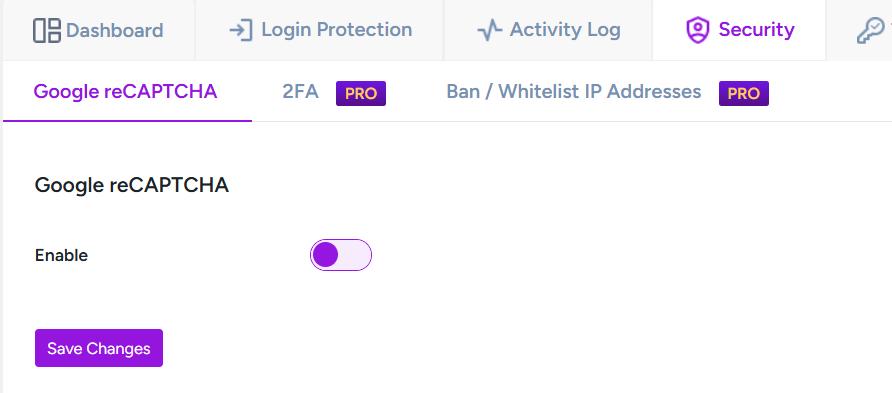
Next, enable the feature, select your reCAPTCHA version, paste the keys, pick a theme, and click Save Changes.
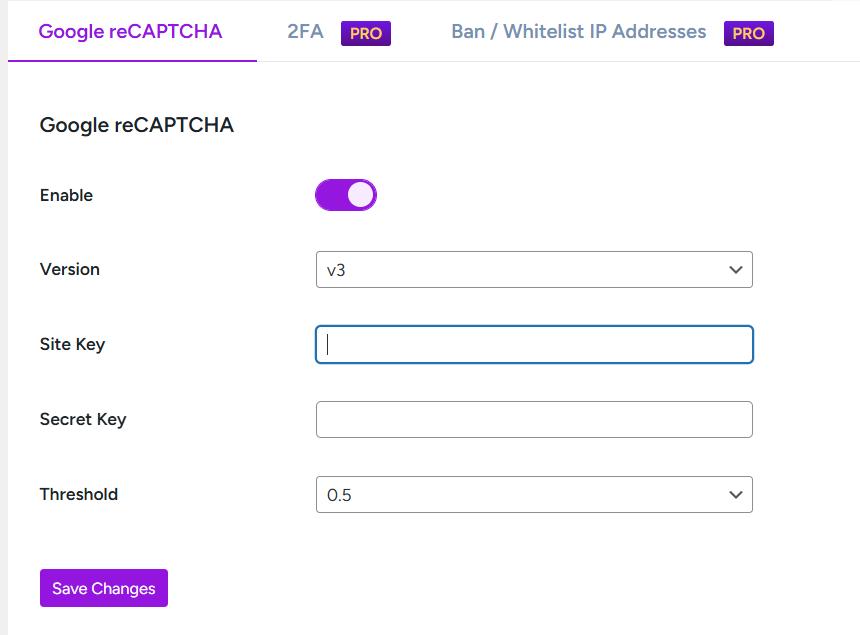
Finally, test the login form to confirm reCAPTCHA is working properly.
💡 Fun Fact: A study by Imperva found that automated bots made up nearly 30% of all web traffic. Adding CAPTCHA can drastically reduce the number of brute force attacks by cutting off bot-based login attempts.
Method #6: Disable XML-RPC if Not Needed
XML-RPC is a feature that allows WordPress to handle remote connections, such as pingbacks, mobile app publishing, and third-party services. But it’s also a favorite backdoor for brute force attacks.
Why It’s a Problem:
Hackers can exploit the system.multicall method in XML-RPC to attempt thousands of password guesses in a single request, bypassing traditional login rate-limiting protections.
How to Disable XML-RPC:
- Use plugins like Disable XML-RPC or Wordfence Security.
- Alternatively, block it manually via .htaccess:
<Files xmlrpc.php>
Order Allow,Deny
Deny from all
</Files>
Add the above code to the .htaccess file.
NOTE: Unless you specifically rely on services like Jetpack or remote posting tools, disabling XML-RPC is one of the fastest ways to close a brute force backdoor.
Method #7: Enforce Login IP Whitelisting
If you or your team always log in from known, fixed IP addresses (like your home or office), you can dramatically boost security by allowing logins only from these IPs.
By restricting access to your login page at the server level, you prevent all other IP addresses, including malicious bots, from accessing the login screen.
Simply add the following whitelisting rule in your .htaccess file:
<Files wp-login.php>
order deny,allow
Deny from all
Allow from YOUR.IP.ADDRESS.HERE
</Files>
You can list multiple trusted IPs, like your home, office, or VPN, but avoid using this method if your IP changes frequently.
If you find this method difficult, use the All-In-One Login plugin. Follow the steps below:
Go to AIO Login >> Security >> Ban/Whitelist IP Addresses.
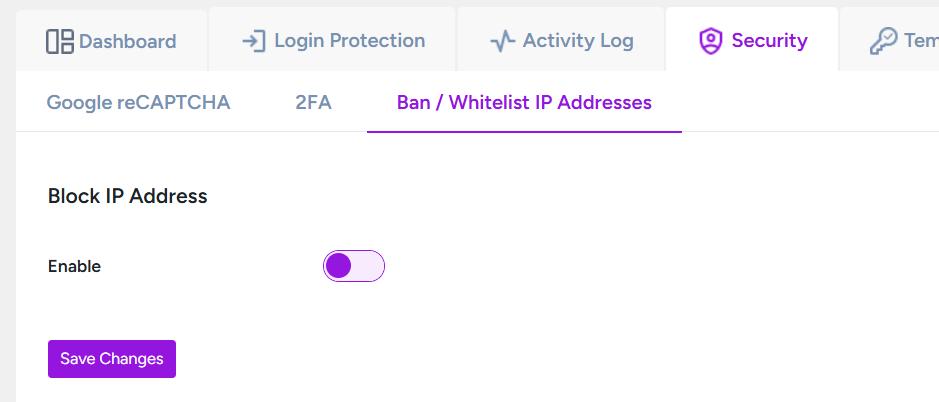
After that, toggle on to enable the feature.
Select the mode to “Whitelist Mode: Allows access to specific IPs, blocking all others.”
Then, add IP addresses. To add multiple addresses, press Enter and type another IP address.
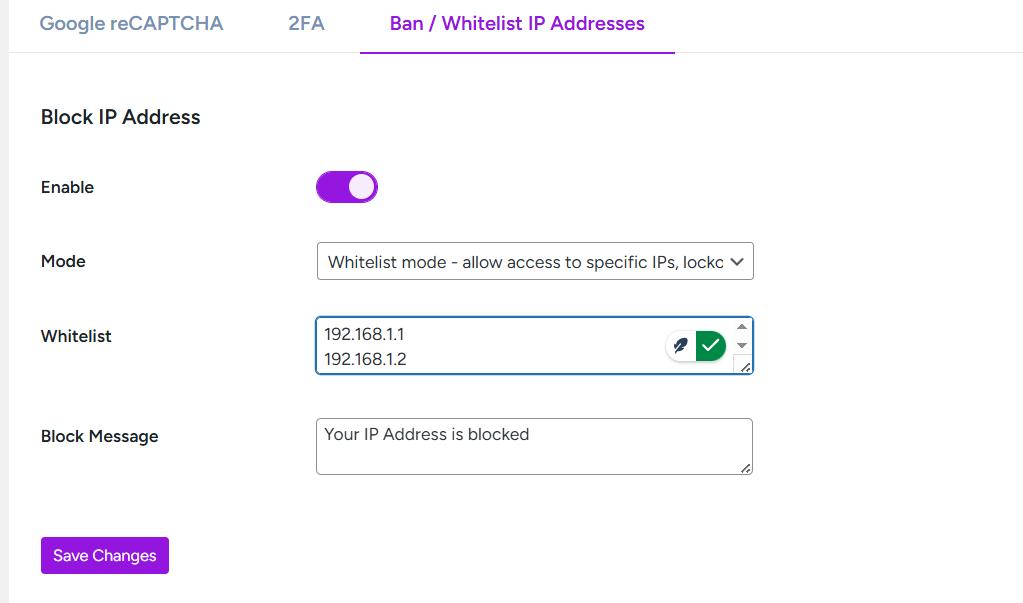
Finally, save the changes.
⚡ Pro Tip: Pairing this with Cloudflare’s free IP access rules adds an extra external layer of control!
Method #8: Use a Web Application Firewall (WAF)
A Web Application Firewall (WAF) acts as a security checkpoint between your website and incoming traffic, filtering out malicious requests, including brute force attempts, before they can reach your WordPress login page.
A WAF doesn’t just block brute force attacks; it can also protect against:
- SQL injections
- Cross-site scripting (XSS)
- DDoS attacks
- Malware payloads
Here are some of the trusted WordPress WAF providers:
- Cloudflare (Free & Pro plans)
- Sucuri Website Firewall
- Wordfence Premium
A properly configured WAF can block thousands of brute force login attempts automatically, and some providers even offer detailed attack logs so you can monitor in real-time.
Method #9: Keep WordPress, Themes, and Plugins Updated
This is probably the most overlooked yet most important part of website security. Outdated WordPress core files, themes, and plugins often contain known vulnerabilities that hackers actively exploit.
A 2021 report by Patchstack found that over 99.42% of WordPress vulnerabilities were related to themes and plugins, and most of them were already patched in newer versions.
WordPress releases security patches regularly. If you skip updates, you’re leaving the door wide open for attackers.
To Stay Updated:
- Enable auto-updates for minor releases.
- Use security plugins like Wordfence or Sucuri for update alerts.
- Regularly log in to your dashboard and review pending updates.
Bonus Tips for Extra WordPress Login Security
Beyond these nine core strategies, here are a few extra steps you can take to harden your WordPress site even further:
🔒 Rename the Default “Admin” Username
The username admin is the first thing hackers try during brute force attacks. If your username is still admin, you’ve basically done half their job for them.
- Create a new admin user with a unique name.
- Delete the old admin account.
- Assign all posts to the new user.
🔒 Force HTTPS (SSL) for Encrypted Logins
Using HTTPS encrypts the data sent between your browser and server, securing your username and password. This protects you from “man-in-the-middle” attacks, especially on public Wi-Fi.
Most hosting providers like Bluehost, SiteGround, Kinsta, etc., offer free SSL certificates via Let’s Encrypt.
🔒 Disable Directory Browsing
When directory browsing is enabled, attackers can view all files and folders in a directory without an index file, which can be a goldmine for gathering intelligence.
Disable it by adding the line to your .htaccess file:
Options -Indexes
🔒 Monitor Login Attempts and User Behavior
Use the Activity Log feature of the All In One Login plugin to track WordPress login activity.

This way, you can stay alert regarding any suspicious behavior before real damage is done.
How to Detect If Your WordPress Site Is Under Brute Force Attack
Even with solid security practices, knowing how to spot an attack in progress can help you act fast.
Warning Signs of a Brute Force Attack:
Look out for the following signs:
- Massive failed login attempts in your logs.
- Sudden, unexplained server resource spikes.
- Slow site performance or backend lag.
- Security plugin alerts about lockouts or suspicious IPs.
Tools for Detecting Attacks:
- Wordfence Security: Real-time threat detection and blocking.
- Sucuri Security: Activity monitoring and firewall logs.
- Your Hosting Control Panel: Look for excessive POST requests to /wp-login.php.
If you notice any of these signs, change all admin passwords, check your server for malware, and restore from a clean backup if necessary.
That’s it! Now, let’s go through some of the frequently asked questions about the brute force attack.
Frequently Asked Questions
What is the main goal of a brute force attack on WordPress?
A brute force attack aims to break into your WordPress site by guessing your username and password, usually using automated bots. Once the attacker gains access, they can deface your site, steal data, inject malware, or even take full control of your web hosting environment.
How do I know if my WordPress site is under a brute force attack?
You’ll often notice:
1. An unusually high number of failed login attempts.
2. A sudden spike in server resource usage.
3. Slow-loading admin pages.
4. Excessive requests to /wp-login.php or /xmlrpc.php in server logs.
Security plugins like Wordfence or Sucuri can also alert you when brute force activity is detected.
Is changing the login URL enough to prevent brute force attacks?
While changing the login URL helps reduce automated attacks, it’s not foolproof. Hackers who scan your site deeply might still find the new path. That’s why it’s best to combine this trick with two-factor authentication, strong passwords, login attempt limits, and a firewall for layered security.
Does using a strong password really make a difference?
Absolutely! According to Verizon’s 2023 Data Breach Investigations Report, over 80% of hacking-related breaches involve stolen or weak passwords. A strong password makes brute force attacks exponentially harder, and often enough to send hackers looking for an easier target.
Can installing too many security plugins slow down my website?
Yes, overloading your WordPress site with too many plugins — security-related or otherwise — can impact performance. Stick with a few reputable, well-maintained security plugins, and always check for compatibility with your WordPress version. Less is often more when it comes to plugins.
Should I disable XML-RPC even if I use Jetpack or other remote services?
If you rely on remote publishing, Jetpack, or mobile apps, you’ll need XML-RPC. However, you can limit its access instead of disabling it entirely by using security plugins like Wordfence to restrict unwanted requests while still allowing trusted services.
Do web hosts offer brute force protection?
Some managed WordPress hosts — like Kinsta, WP Engine, and SiteGround — offer server-level brute force protection as part of their service. However, it’s always best to layer this protection with your own measures, like login attempt limits and two-factor authentication.
Final Words
Securing your WordPress login from brute force attacks isn’t optional — it’s a core part of maintaining a healthy, safe website. As attackers grow smarter and bots grow faster, the only defense is being proactive.
Start with the easiest steps today:
✅ Install and activate the All In One Login plugin.
✅ Change your login URL.
✅ Enable 2FA.
✅ Use strong passwords.
✅ Install a firewall.
✅ Keep everything updated.
Every step you take reduces your risk and strengthens your website’s armor. After all, the time and effort you invest in protecting your WordPress login is nothing compared to the stress and cost of recovering from a hack.
✅ Pro Security Tip: Make website security a routine. Schedule time once a month to audit your WordPress security, check logs, rotate passwords, and review plugin updates. Prevention is always easier and cheaper than recovery.