

WordPress Slack login notifications help you track important login activity without keeping your WordPress dashboard open all day. You can send alerts to a dedicated Slack channel whenever an administrator signs in or someone repeatedly tries to access your website.
And you don’t need to build a complicated monitoring system to get started. All In One Login provides a plugin based approach to login notifications, while a custom PHP integration gives developers more control over which events trigger an alert.
In this guide, you’ll learn how to connect WordPress to Slack, choose the login events worth monitoring, and troubleshoot notifications that don’t arrive. You’ll also learn where Slack alerts fit into a broader WordPress login security strategy.
What Are WordPress Slack Login Notifications?
WordPress Slack login notifications are messages that your website sends to a Slack channel when specific login or security events occur. They help you spot unexpected administrator access, repeated failed login attempts, and other suspicious activity.
For example, a failed login alert might include the attempted username and the source IP address, depending on how you configure the integration.
These notifications usually rely on a WordPress plugin or custom PHP code connected to Slack through an incoming webhook. Slack receives the message and posts it to the channel associated with that webhook.
Keep in mind: A Slack notification reports an event. It doesn’t block an attacker, prove that a login is malicious, or replace a WordPress login attempts log.
Why Send WordPress Login Alerts to Slack?
WordPress login alerts give you another way to notice suspicious activity and coordinate a response. They’re particularly useful when several people manage a website or when you want security messages to reach your team outside the WordPress dashboard.
Catch Brute Force Attacks as They Happen
Brute force attacks involve repeated attempts to guess login credentials. An attacker may try different passwords against one account or test several usernames in quick succession.
Slack alerts for failed login attempts can help you notice unusual activity before it goes unnoticed in your website’s logs. If you receive a burst of failures from one IP address, you can investigate the source and apply suitable restrictions.
But a failed login doesn’t automatically mean an attack is underway. Users forget passwords, automated services make legitimate requests, and shared networks can produce misleading patterns. Look for repeated or unusual activity rather than treating every failure as a confirmed threat.
Slack vs Email Alerts for Failed Login Attempts
Both Slack and email can deliver WordPress login notifications. The better option depends on how you and your team handle security alerts.
| Feature | Slack alerts | Email alerts |
| Team visibility | Multiple team members can view alerts in a shared channel | Messages go to the configured recipients |
| Discussion | Team members can investigate in the same conversation | Team members may need a separate discussion |
| Alert organization | Dedicated channels and message threads help group events | Folders, labels, and filters organize messages |
| Mobile notifications | Available through the Slack app and its notification settings | Available through your email app |
| Setup | Requires a supported integration or webhook | Requires a working WordPress email delivery setup |
Slack works well when your team already uses it to coordinate work. Email remains useful for individual notifications or as a secondary channel.
You can also use both. For example, send routine login events to Slack and reserve email for selected security events that need individual attention.
Keep Your Whole Team in the Loop
A shared Slack channel helps site owners, developers, and security staff see the same login activity. Everyone can review an alert, discuss whether it looks suspicious, and coordinate the next step.
This becomes particularly useful for agency teams that manage several WordPress websites. Separate channels can keep each site’s notifications organized and prevent unrelated alerts from crowding one conversation.
Which WordPress Login Events Should Trigger a Slack Alert?
Choose notification triggers based on the risks you need to monitor. Sending every possible event to Slack can overwhelm your team, so start with the events that help you identify unauthorized access.
1. Failed Login Attempts
A failed login occurs when WordPress can’t authenticate a login attempt. Alerts can include the attempted username, source IP address, and time.
Use these notifications to identify repeated password guesses or suspicious usernames. Set a threshold to reduce unnecessary alerts.
2. IP Lockouts
An IP lockout occurs when a security rule blocks an IP address after it reaches a configured threshold.
Lockout alerts help you track blocked activity. Include the source IP address and reason for the lockout when available.
3. User Enumeration Attempts
User enumeration occurs when someone tries to discover valid WordPress usernames or account information.
Enable alerts for repeated attempts to identify suspicious activity without overwhelming your team with individual requests.
4. Successful Admin Logins
Successful administrator logins deserve attention because admins can change settings, install plugins, and manage users.
Send Slack alerts with the username, login time, and source IP address to help identify unfamiliar access.
Methods to Set Up Slack Alerts for Login Attempts
You can connect WordPress login activity to Slack using a plugin or a custom webhook integration. The best method depends on your technical experience and the login events you want to monitor. Below, we’ll cover two ways to configure Slack alerts for WordPress login attempts.
Method 1: Set Up Slack Notifications with a WordPress Plugin (No Code)
The easiest way to configure WordPress Slack notifications is to use a plugin that supports Slack integration and the login events you want to monitor. All In One Login is the recommended starting point because it focuses on WordPress login security and provides tools for monitoring login activity.
Follow the steps carefully to successfully set up slack alerts for WP Login attempts.
Step 1: Install and Activate All In One Login Pro
To install and activate the All in One login without any hassle, strictly follow the steps in order.
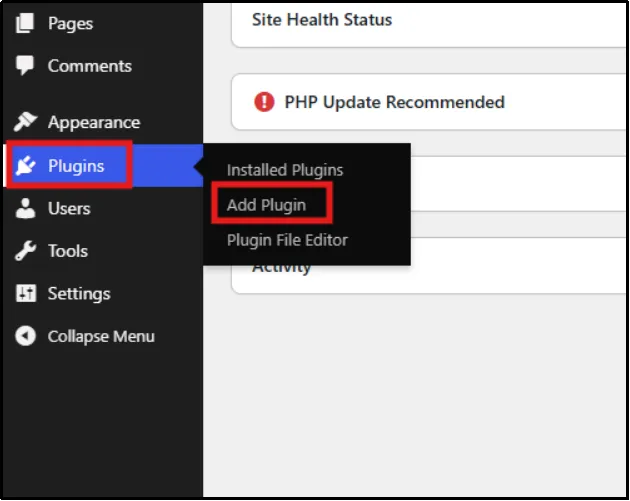
- In your WordPress dashboard, head to Plugins → Add Plugin
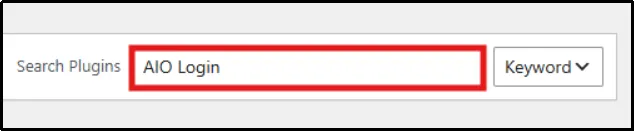
- Enter All In One Login in the search bar.
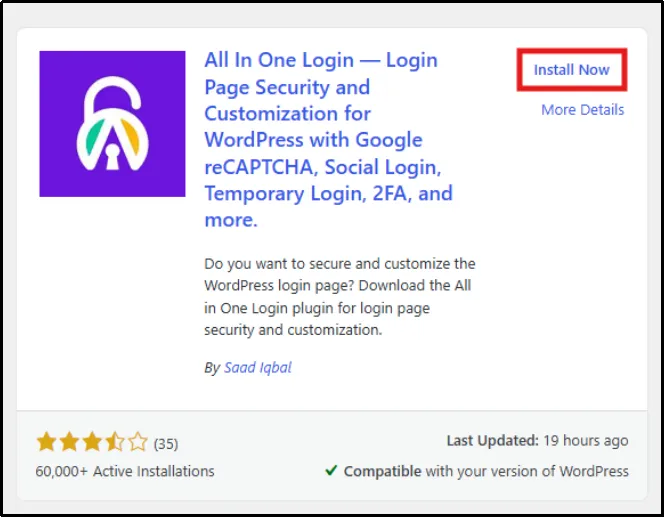
- Click Install Now, then Activate.
Note: The notification options are available in the Business plan
So, you need to install and activate All in One Login Business.
- Navigate to the All in One Login pricing page.
- Purchase an All in One Login Business plan.
- You will get an email that contains a ZIP file and a license key. Download the ZIP file and copy the license key for later use.
- Head back to Plugins → Add Plugin.
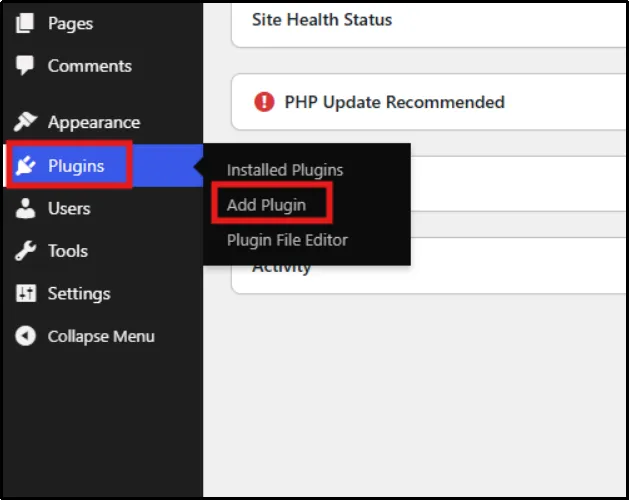
- Now click Upload Plugin, then Choose File to select the appropriate ZIP file.
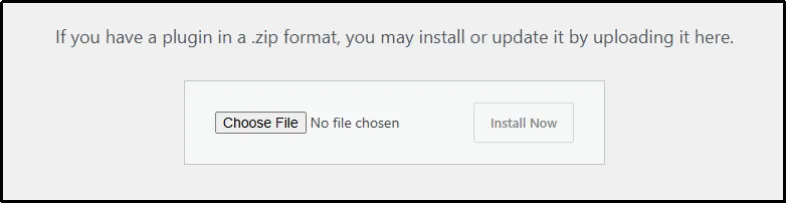
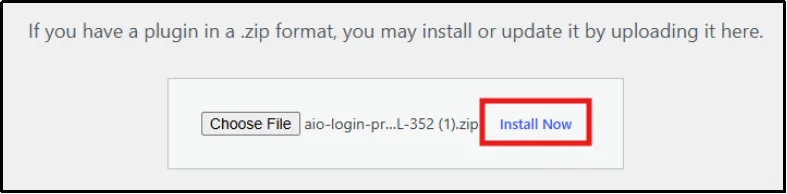
- Click Install Now, and after a few seconds, click Activate Plugin.
- You will be automatically redirected to the Installed Plugins page. Click Activate License under All in One Login Pro.
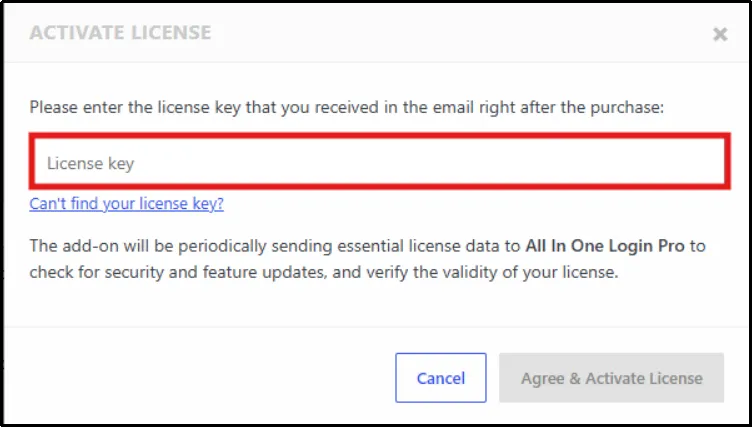
- Paste the License key you copied earlier and click Agree & Activate License.
Congratulations! You have successfully installed and activated All In One Login Pro.
Step 2: Open the Notifications Settings
Next, locate the notification or integration settings in All In One Login.
- Go to All In One Login → Activity Log.
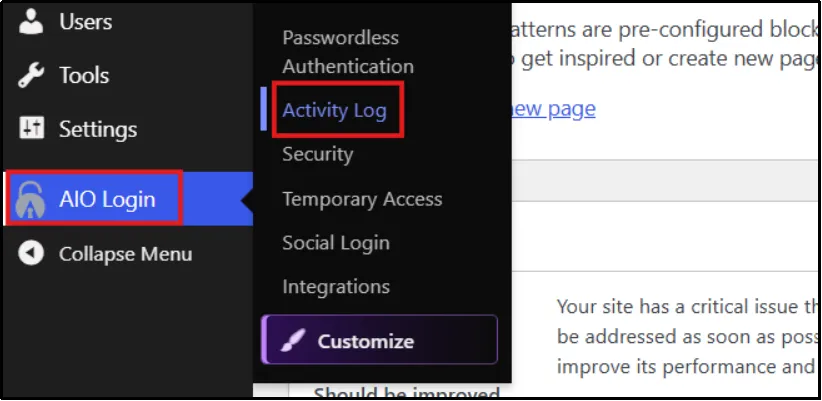
- Look for the notification settings. Click on the exact menu label.
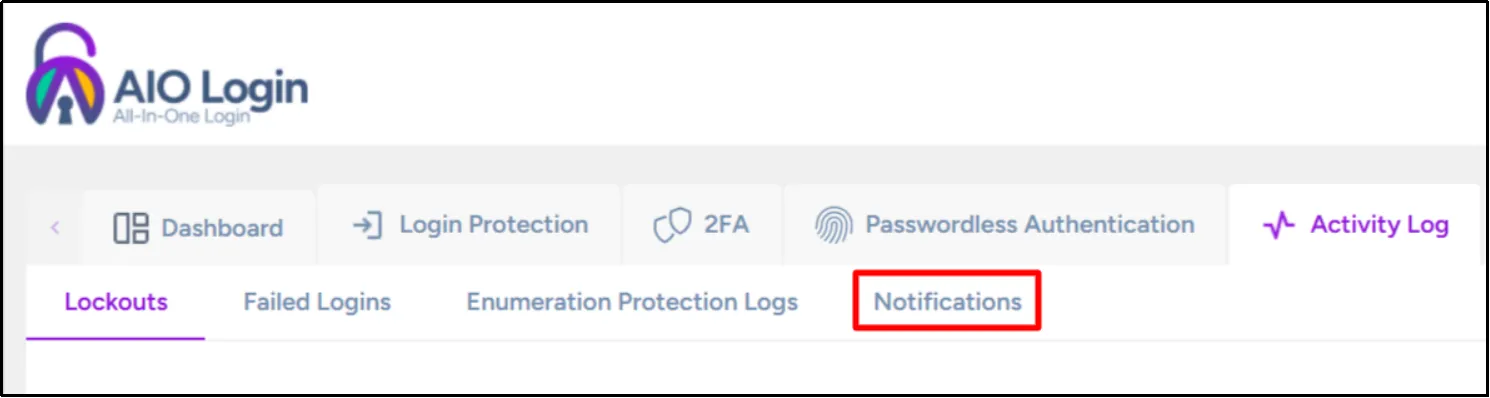
- Open the relevant settings page and check whether Slack notifications are available for your installed plan.
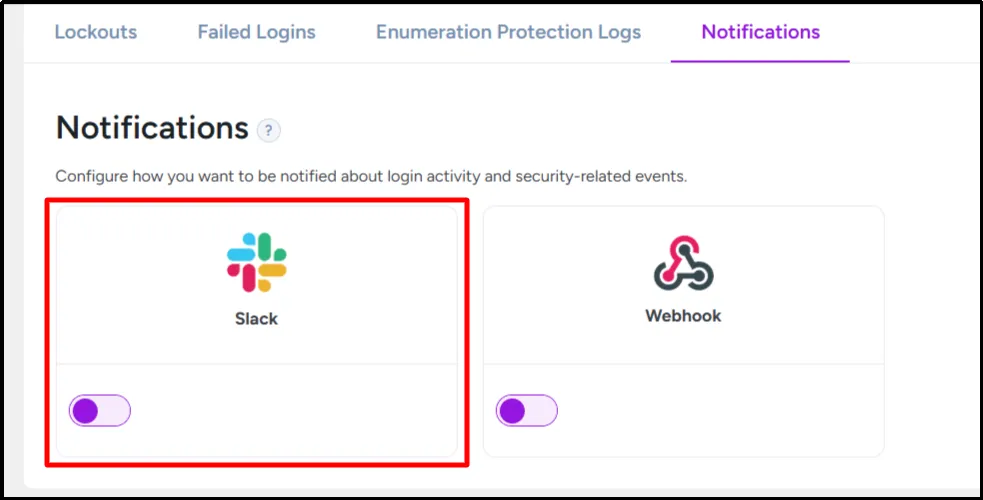
If you can’t find the Slack option, check your plugin version, license, and update the plugin.
Step 3: Enable the Slack Integration and Configure it
Once you locate the Slack settings, enable the integration if the option appears in your dashboard.
- Find the Slack integration toggle option and enable it.
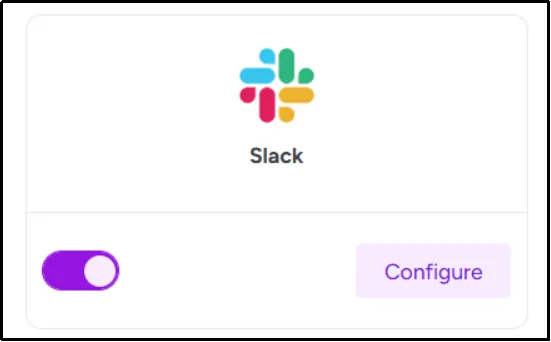
- Enable it and then click on Configure.
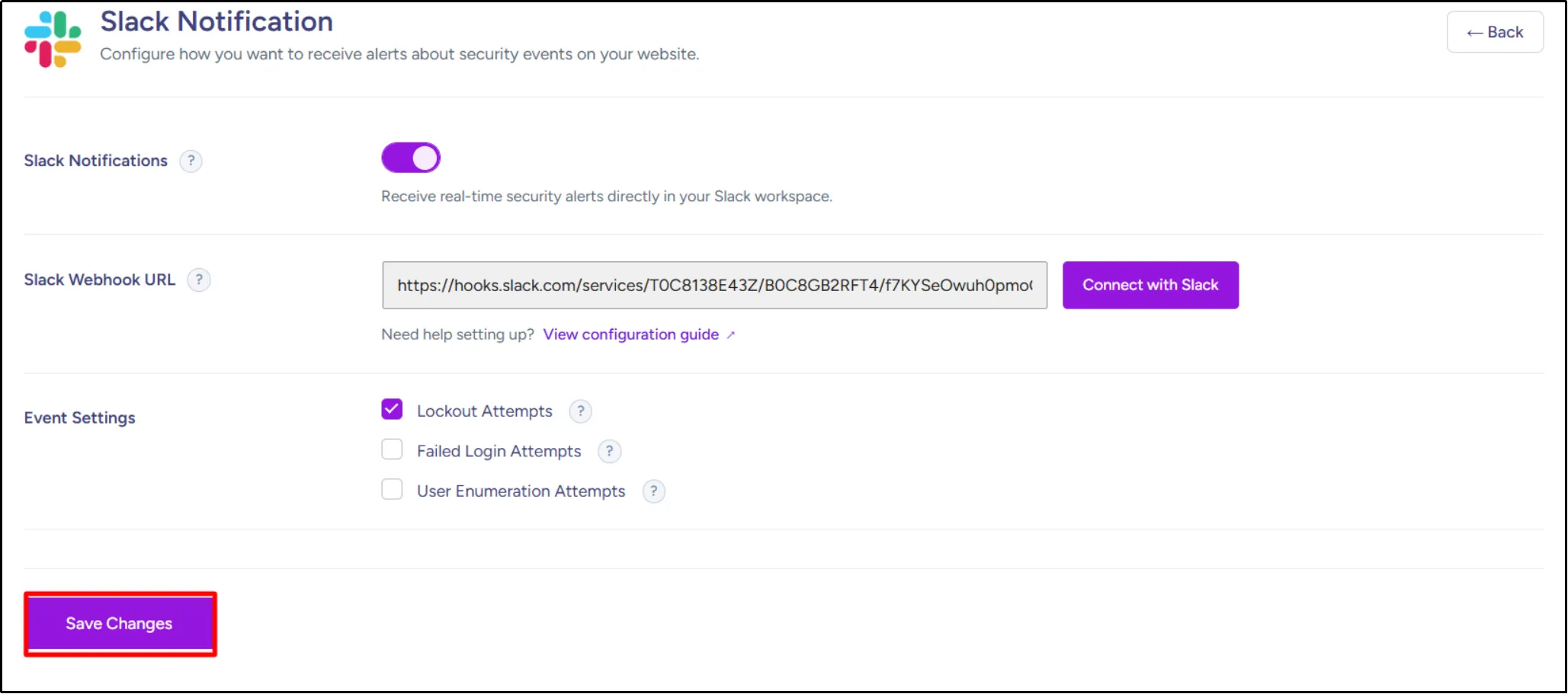
- You will come across three main settings:
- Slack Notifications – To enable or disable real-time security alerts
- Slack Webhook URL – A way to post messages from apps into Slack
- Event Settings – Notification-triggering events.
Some integrations handle the connection through an authorization flow, while others ask you to paste a webhook URL.
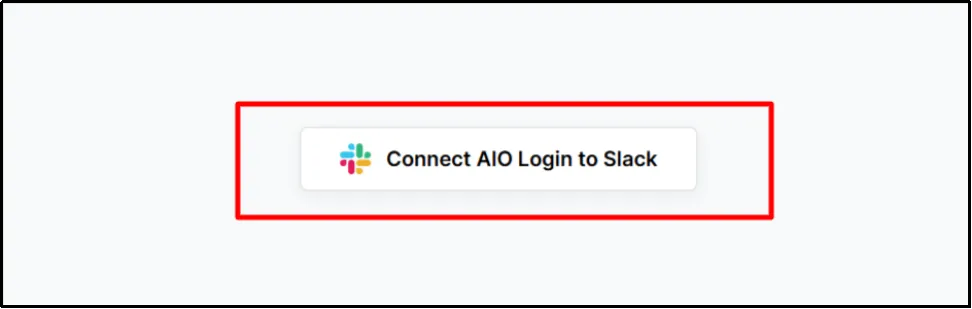
- Click on Connect with Slack to establish a connection between your Slack workspace and All In One Login. Now click Connect All In One Login to Slack.
- Select the Slack workspace where you want to receive All In One Login notifications. Then select a channel for the webhook.
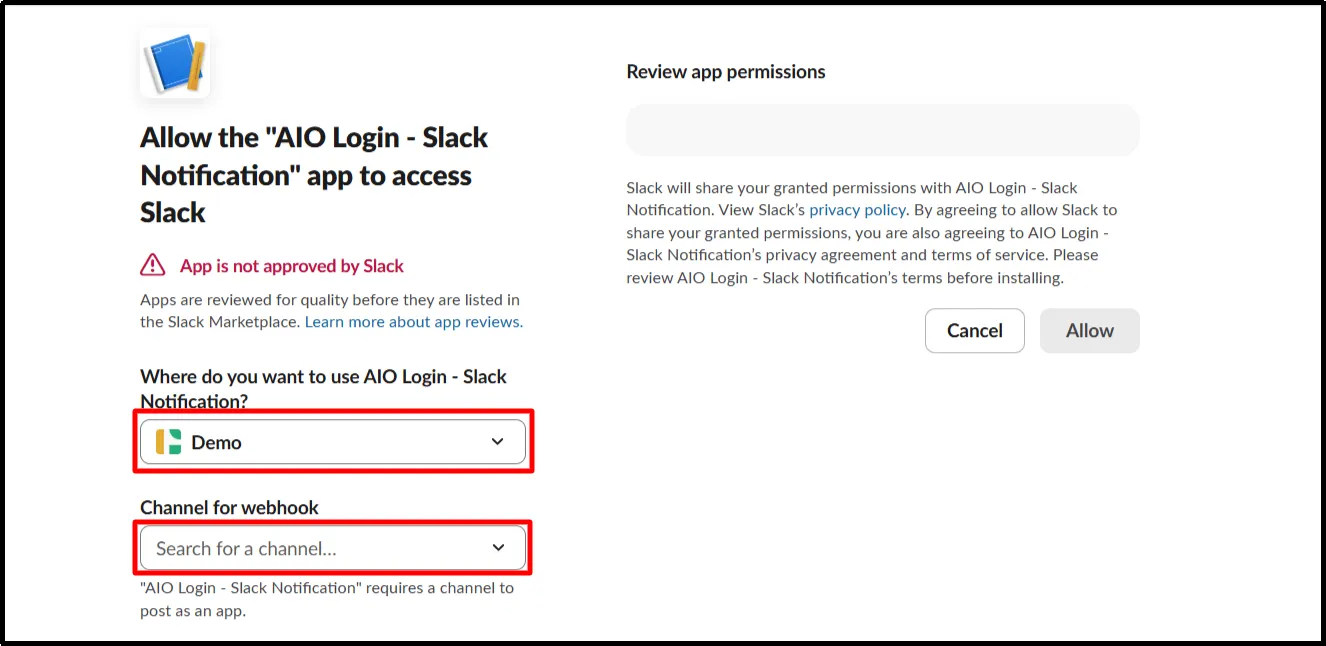
- Click on Allow.
- Once approved, head back to your Slack notification screen and click on Save Settings.
Step 4: Test Your Slack Alerts
Don’t assume the integration works just because you saved the settings. Send a test notification if the plugin provides that option, then verify the actual login events.
- Open your WordPress login page and enter incorrect credentials.
- If you’ve configured Slack alerts for failed login attempts, you’ll receive a notification when someone enters incorrect credentials.
- You will instantly get a message on the selected channel on Slack.
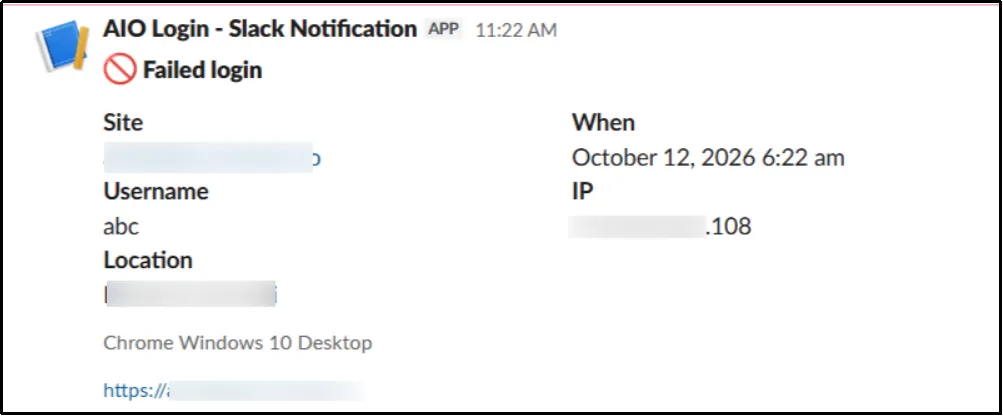
If you don’t receive a message, check the webhook URL, plugin settings, server connectivity, and any delivery errors available in the logs.
What Each Slack Alert Shows
The information in a Slack notification depends on the integration and the event that triggered it. Review the available fields before relying on the alert during an incident.
| Event | Useful details |
| Successful admin login | Username, account identifier, time, and source IP when available |
| Failed login | Attempted username, time, source IP, and failure details when available |
| IP lockout | Blocked IP, lockout time, and reason when available |
| User enumeration | Detected activity, source information, and time when available |
Avoid including passwords, authentication tokens, or other secrets in notification messages. Share only the information your team needs to investigate an event.
Method 2: Send Slack Notifications for WordPress Admin Logins with Code
You can also connect WordPress to Slack with custom PHP. This method suits developers who want to control the notification format and avoid relying on a dedicated notification interface.
The example below sends alerts for successful administrator logins and failed login attempts. It uses WordPress hooks and the WordPress HTTP API instead of a separate cURL function.
This is a basic integration, not a full login security system. It doesn’t automatically implement IP lockouts, user-enumeration detection, rate limiting, or historical login tracking.
Step 1: Create a Slack Incoming Webhook
First, create a webhook that lets WordPress post messages to your chosen Slack channel.
- Go to the Slack API apps page.
- Create a Slack app or open one you can configure.
- Enable Incoming Webhooks.
- Select Add New Webhook to Workspace, choose your notification channel, and authorize the connection.
- Copy the webhook URL and store it somewhere secure.
Don’t publish the URL in a public repository or share it in screenshots. If someone exposes it, revoke or replace it in Slack.
Step 2: Add the Code Snippet to Your Site
Before adding code, back up your website. For ongoing customizations, use a site-specific plugin or a code-snippet manager that supports PHP rather than editing your parent theme’s functions.php file directly.
First, store your webhook URL in wp-config.php, above the line that says /* That’s all, stop editing! Happy publishing. */:
define( ‘MY_SITE_SLACK_WEBHOOK’, ‘PASTE_YOUR_SLACK_WEBHOOK_URL_HERE’ );
Replace the placeholder with your actual webhook URL. Don’t share the file or expose its contents publicly.
Next, add the following code to your site-specific plugin or PHP snippet:
/**
* Send a message to Slack using an incoming webhook.
*/
function ail_send_slack_login_alert( $message ) {
if ( ! defined( ‘MY_SITE_SLACK_WEBHOOK’ ) ) {
return;
}
$webhook_url = MY_SITE_SLACK_WEBHOOK;
if ( ! is_string( $webhook_url ) ||
strpos( $webhook_url, ‘https://’ ) !== 0 ) {
return;
}
$response = wp_remote_post(
$webhook_url,
array(
‘timeout’ => 5,
‘headers’ => array(
‘Content-Type’ => ‘application/json’,
),
‘body’ => wp_json_encode(
array( ‘text’ => $message )
),
)
);
if ( is_wp_error( $response ) ) {
error_log(
‘Slack login notification failed: ‘ .
$response->get_error_message()
);
return;
}
$status_code = wp_remote_retrieve_response_code( $response );
if ( $status_code < 200 || $status_code >= 300 ) {
error_log(
‘Slack login notification returned HTTP status ‘ .
$status_code
);
}
}
/**
* Notify Slack after a successful administrator login.
*/
function ail_notify_successful_admin_login( $user_login, $user ) {
if ( ! ( $user instanceof WP_User ) ) {
return;
}
if ( ! in_array( ‘administrator’, (array) $user->roles, true ) ) {
return;
}
$ip_address = isset( $_SERVER[‘REMOTE_ADDR’] )
? sanitize_text_field(
wp_unslash( $_SERVER[‘REMOTE_ADDR’] )
)
: ‘Unavailable’;
$message = sprintf(
‘WordPress admin login successful. Site: %s | User: %s | IP: %s | Time: %s UTC’,
get_bloginfo( ‘name’ ),
$user->user_login,
$ip_address,
gmdate( ‘Y-m-d H:i:s’ )
);
ail_send_slack_login_alert( $message );
}
add_action(
‘wp_login’,
‘ail_notify_successful_admin_login’,
10,
2
);
/**
* Notify Slack after a failed login attempt.
*/
function ail_notify_failed_login( $username, $error ) {
$ip_address = isset( $_SERVER[‘REMOTE_ADDR’] )
? sanitize_text_field(
wp_unslash( $_SERVER[‘REMOTE_ADDR’] )
)
: ‘Unavailable’;
$attempted_username = sanitize_text_field( $username );
$message = sprintf(
‘WordPress login failed. Site: %s | Attempted username: %s | IP: %s | Time: %s UTC’,
get_bloginfo( ‘name’ ),
$attempted_username,
$ip_address,
gmdate( ‘Y-m-d H:i:s’ )
);
ail_send_slack_login_alert( $message );
}
add_action(
‘wp_login_failed’,
‘ail_notify_failed_login’,
10,
2
);
WordPress runs the wp_login action after a successful login and the wp_login_failed action after a failed authentication attempt. These hooks let the code send different messages for the two events.
Step 3: Test the Admin Login Notification
Now verify that WordPress can send messages to your Slack channel.
- Save and activate the code.
- Open the designated Slack channel.
- Sign in to WordPress with an administrator account.
- Confirm that Slack receives a successful-login alert.
- Test a failed login attempt using a test account or a safe test scenario.
- Check the PHP error log if a message doesn’t arrive.
If both events work, the basic integration is running. Keep in mind that this snippet reports login events. You still need separate controls to limit repeated attempts, block abusive IP addresses, and protect administrator accounts.
Limitations of the Code Method
Custom code gives you control, but it also makes you responsible for maintenance and troubleshooting.
- No settings screen: Changing message formats or event behavior requires editing code.
- No built-in alert filtering: The example sends every failed-login event and may overwhelm busy channels.
- No complete security log: Slack messages don’t replace a searchable WordPress login attempts log.
- No automatic lockouts: The code reports failed attempts but doesn’t block the source IP.
- Limited IP handling: Proxy and CDN configurations may require additional work to identify the correct client address.
- Ongoing maintenance: You need to test the integration after relevant site, server, or security changes.
Choose this method only if you can maintain the code and have a recovery process for troubleshooting it.
Keep Your WordPress Login Activity Under Control With All In One Login
Monitoring login attempts helps you spot suspicious activity, but the right login security measures can help you protect your website more effectively. Configure Slack alerts to stay informed about failed attempts, account lockouts, and successful administrator logins.
Want a simpler way to manage WordPress login page security and customization? Get All In One Login to strengthen your login protection and keep unauthorized access attempts in check.
Frequently Asked Questions
Can WordPress send login alerts to Slack without a plugin?
Yes. You can use Slack incoming webhooks with custom WordPress code to send notifications. However, you’ll need to handle event detection, authentication, and error management yourself.
Can Slack notify me about failed WordPress login attempts?
Yes. A plugin or custom integration can send Slack alerts when WordPress detects failed login attempts. The available event details depend on the implementation.
Can I receive Slack alerts for successful admin logins?
Yes. You can configure an integration to notify you when an administrator logs in successfully, helping you review unfamiliar access.
What information should a WordPress login alert include?
Include the event type, username, timestamp, and source IP address when available. Avoid sending passwords, authentication tokens, or other sensitive information to Slack.
Will Slack alerts prevent unauthorized WordPress logins?
No. Slack alerts provide visibility into login activity but don’t block attacks on their own. Combine notifications with strong passwords, two-factor authentication, login rate limits, and appropriate security controls.
Why are my WordPress login alerts not appearing in Slack?
Check your Slack webhook URL, integration permissions, event triggers, and WordPress error logs. Test the webhook separately to determine whether the issue comes from Slack or your WordPress integration.