

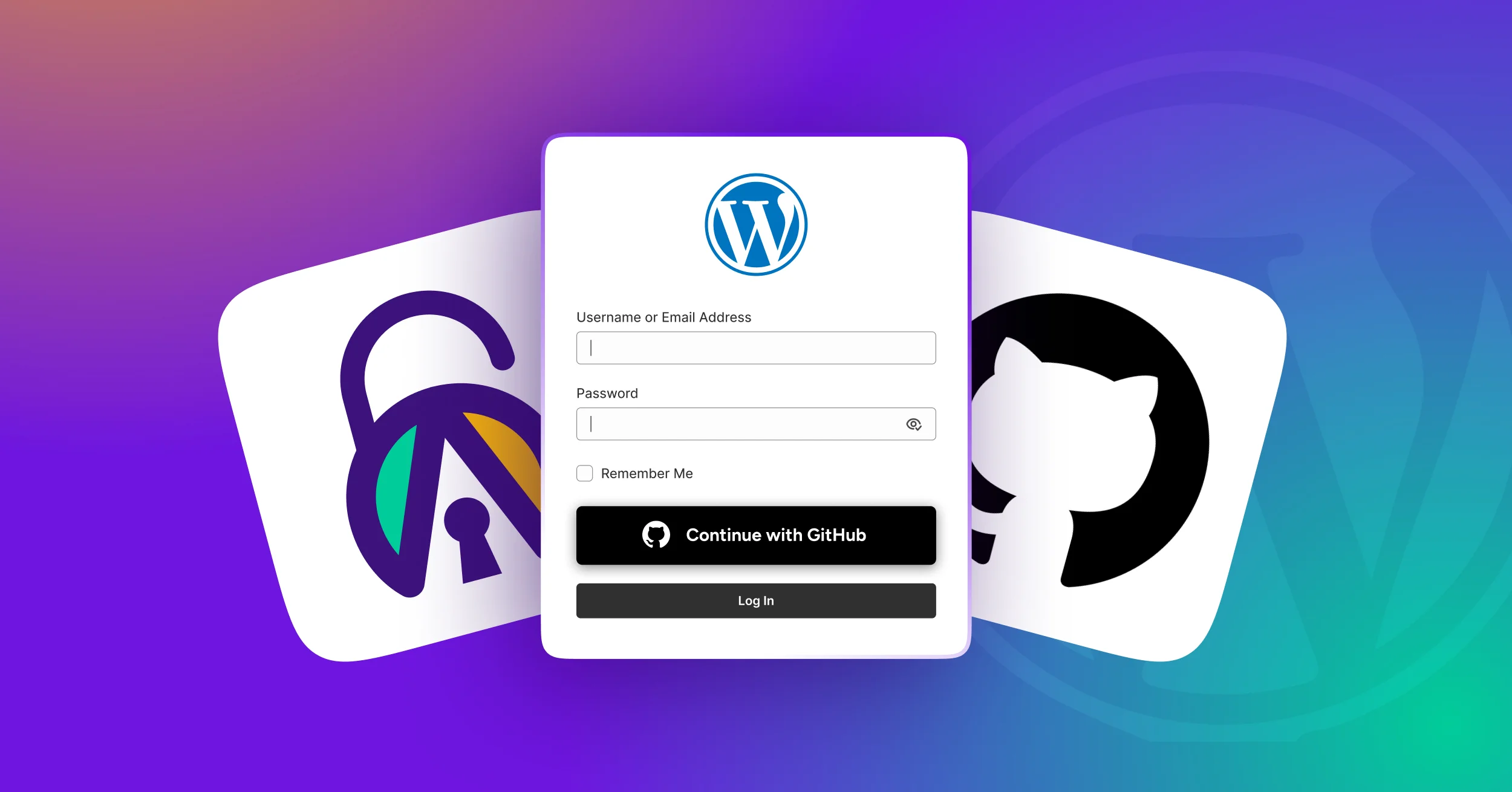
GitHub Social Login allows users to sign in to your WordPress site using their existing GitHub accounts instead of creating and managing separate usernames and passwords. For developer communities, SaaS platforms, documentation portals, and technical membership sites, this creates a faster and more secure authentication experience while reducing registration friction.
Rather than storing user credentials on your website, GitHub Social Login uses OAuth 2.0 authentication to verify identities securely through GitHub. Users simply click a “Sign in with GitHub” button, authorize the connection, and gain access to your site within seconds.
In this step-by-step guide, you’ll learn how GitHub OAuth authentication works, how to create a GitHub OAuth App, how to configure GitHub Social Login in WordPress using All In One Login, and how to troubleshoot common OAuth errors.
What Is GitHub Social Login for WordPress?
GitHub Social Login is a way for visitors to authenticate on your WordPress site using their existing GitHub credentials, instead of creating a separate username and password. Rather than filling out a registration form, users click a button, approve the GitHub connection, and are then returned to your site as a logged-in member.
Under the hood, GitHub Social Login relies on OAuth 2.0, the industry-standard authorization framework used by major identity providers to securely authenticate users without exposing their passwords.
The difference from traditional username-and-password login is significant. With the standard WordPress login, your site stores credentials and bears full responsibility for protecting them. With GitHub-based social sign-in, the credential burden shifts entirely to GitHub, which has an enterprise-grade security infrastructure to handle it. Your site receives authorization data and user profile information from GitHub, allowing WordPress to verify the user’s identity without storing their password.
How GitHub Authentication Works
When a user clicks “Sign in with GitHub,” WordPress and GitHub work together through the OAuth authentication process. Understanding this flow can help you troubleshoot issues and correctly configure settings such as the callback URL.
Here’s how the GitHub OAuth login process works:
- Redirect to GitHub: Your site sends users to GitHub’s authorization page with your application’s Client ID and requested permissions.
- User authorization: GitHub displays a consent screen, and the user approves the login request.
- Authorization code returned: GitHub redirects the user back to your registered callback URL with a temporary authorization code.
- Access token exchange: Your WordPress plugin exchanges this code, along with the Client Secret, for an access token from GitHub.
- User profile retrieval: Using the access token, WordPress fetches the user’s GitHub information to create or match an existing account.
Understanding GitHub OAuth Authentication for WordPress
To set this up correctly, you need to understand three configuration values that tie GitHub to your WordPress site.
Client ID: A public identifier for your OAuth application. This is safe to include in front-end requests. It tells GitHub which registered application is initiating an authorization request.
Client Secret: A private credential that your server uses to exchange authorization codes for access tokens. This must never appear in public code, front-end scripts, or version control. Consider it a password – keep it safe.
Callback URL (Redirect URI): The exact URL on your site that GitHub will redirect users back to after they approve (or deny) the authorization request. This must match the value that you registered in GitHub Developer Settings.
When you register an OAuth App in GitHub Developer Settings, you are essentially establishing a trust relationship. GitHub then enforces that only your registered Callback URL receives the authorization code.
Note to Remember: The OAuth credentials you create are environment-specific.
Who Should Use GitHub Login on Their WordPress Site?
GitHub Social Login for WordPress is a strong fit for specific site types, and a poor fit for others. It is worth being deliberate about this before you invest time in the setup.
GitHub Social Login works particularly well for:
- Developer communities and coding forums
- SaaS dashboards targeting engineers
- API platforms and developer portals
- Open-source project websites
- Technical documentation hubs
GitHub Social Login is usually less suitable for:
- General membership sites
- Lifestyle blogs
- Local business websites
- Non-technical customer portals
If a meaningful portion of your users already have GitHub accounts, this is worth implementing. If most of them do not, opt for email-based social logins, such as Apple, Line, Google, or others.
Benefits of Adding GitHub Login to WordPress
GitHub Social Login simplifies the WordPress user login process by allowing visitors to authenticate with an account they already use every day. There are a few upsides to adding GitHub social login to WordPress.
- Reduced registration abandonment. GitHub login simplifies WordPress user registration by allowing visitors to create accounts using their existing GitHub profiles.
- No password fatigue. Since the login delegates to GitHub, there is nothing for them to forget and nothing for them to reset if they do.
- Stronger baseline identity verification. Most GitHub accounts use verified email addresses, which helps improve account authenticity and reduces the likelihood of fake registrations.
- Single Sign-On (SSO)-like experience. Users can access your WordPress site using an identity they already trust, reducing login friction and improving adoption among developer-focused audiences.
- Smoother registration. If you manage a WordPress-based internal tool or developer dashboard, you can allow users to sign in with GitHub on their first visit and have WordPress automatically provision user accounts during the registration process.
- Improved user experience for returning visitors. After the initial authorization, returning users can log in with a single click. There is no password to type.
- OAuth security model. Because credentials stay with GitHub, your site is not a target for credential theft in the same way it would be with stored passwords. Even if your WordPress database is compromised, there are no passwords to extract.
In our experience, GitHub Social Login works best on developer-focused websites where users already maintain active GitHub accounts. Technical communities often see higher login completion rates because users can access content immediately without creating new credentials.
Prerequisites Before Setting Up GitHub Social Login
Before walking through the GitHub Social Login tutorial, confirm the prerequisites are in place.
- A functional WordPress site
- A GitHub developer account with access to GitHub Developer Settings
- A WordPress social login plugin, such as All In One Login
- A secure connection – A valid SSL certificate and HTTPS-enabled website
- Your site’s Callback URL is ready – The format https://yourdomain.com/?oauth=github or a similar path defined by your plugin.
You will need to enter the Callback URL in GitHub Developer Settings, so find the exact format in your plugin’s documentation before you create the OAuth App.
Setting Up GitHub Social Login for WordPress
GitHub Social Login allows users to sign in to your WordPress site using their GitHub account, eliminating the need to create and manage separate credentials. Before configuring GitHub OAuth, you’ll need to install and activate the All-in-One Login plugin, which handles authentication.
How to Install and Activate All In One Login
To install and activate the All-in-One login without any hassle, strictly follow the steps in order.
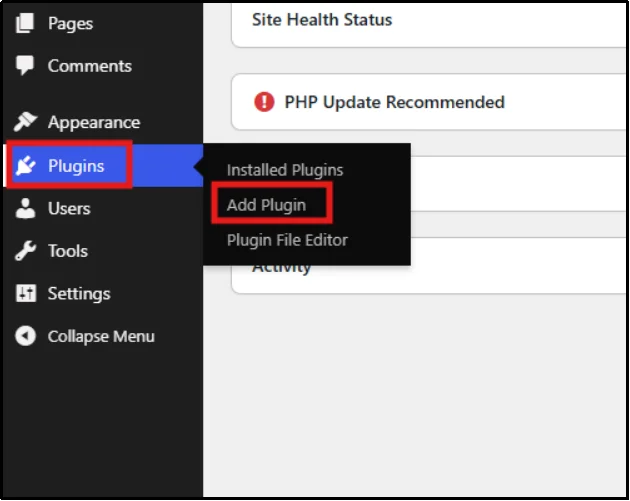
- Go to your WordPress admin, log in, and head to Plugins → Add Plugin
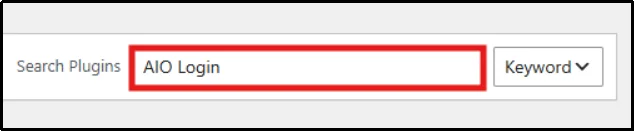
- Type All In One Login in the search bar.
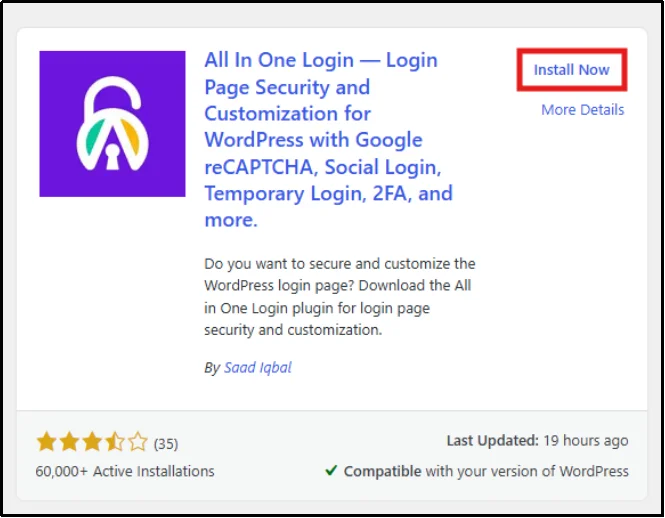
- Click Install Now, then wait a few seconds, then click Activate.
Note: The Social Login feature is available only in the All in One Login Business plan.
So, in order to add GitHub Social Login, you need to learn how to install and activate All in One Login Business.
- Go to the All in One Login pricing page.
- Purchase All in One Login Business plan – either annual or lifetime.
- You will get an email that contains a ZIP file and a license key. Download the ZIP file and keep a copy of the license key for later use.
- Head back to Plugins → Add Plugin.
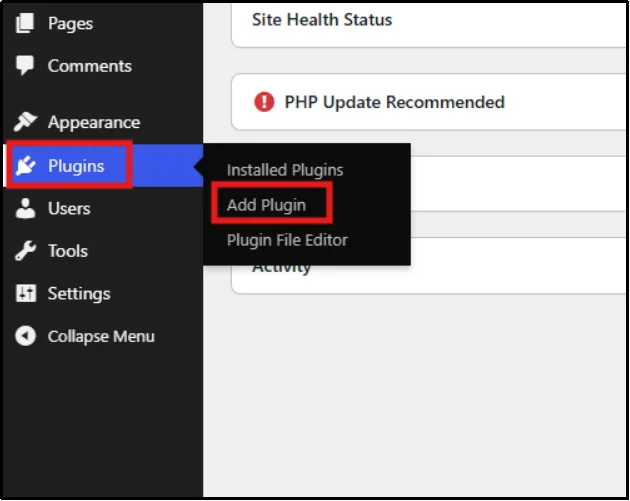
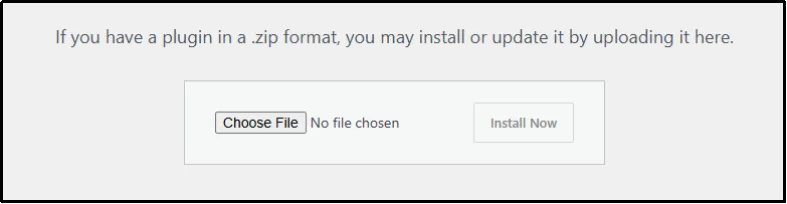
- Now click Upload Plugin, then Choose File to select the appropriate ZIP file.
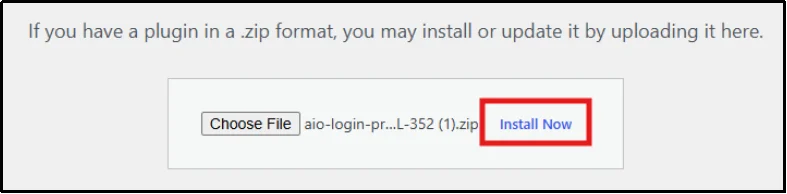
- Click Install Now, and after a few seconds, Activate Plugin.
- You will be automatically redirected to the Installed Plugins page. Click Activate License under All in One Login Pro.
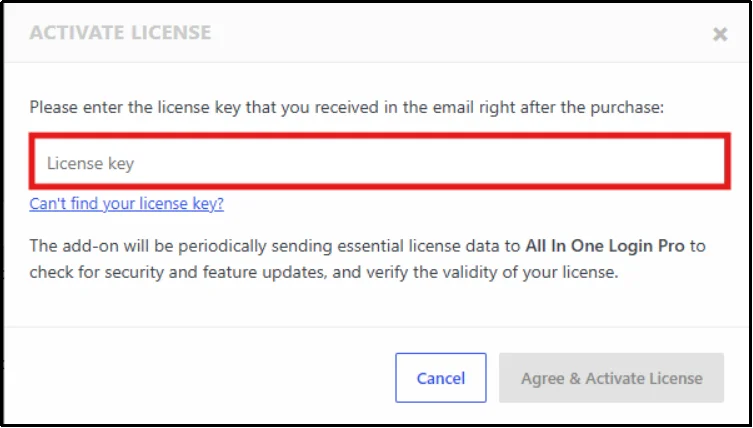
- Paste the License key you copied earlier and click Agree & Activate License.
Congratulations! You have successfully installed and activated the All In One Freemium and PRO.
How to Configure GitHub Social Login in WordPress
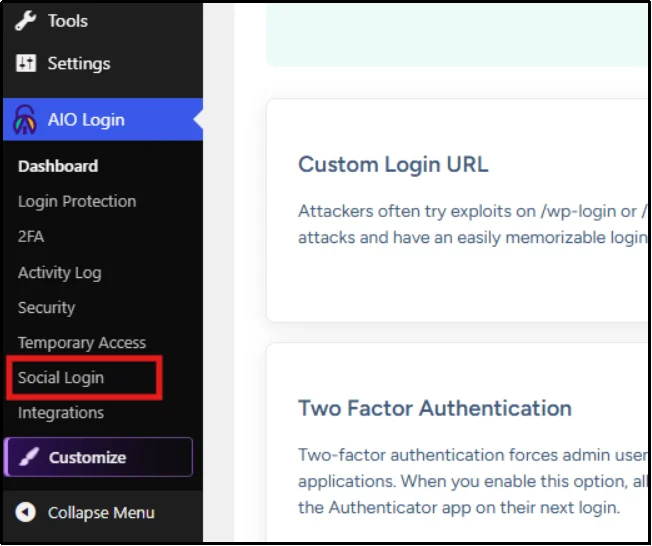
- Navigate to All In One Login → Social Login from the sidebar.
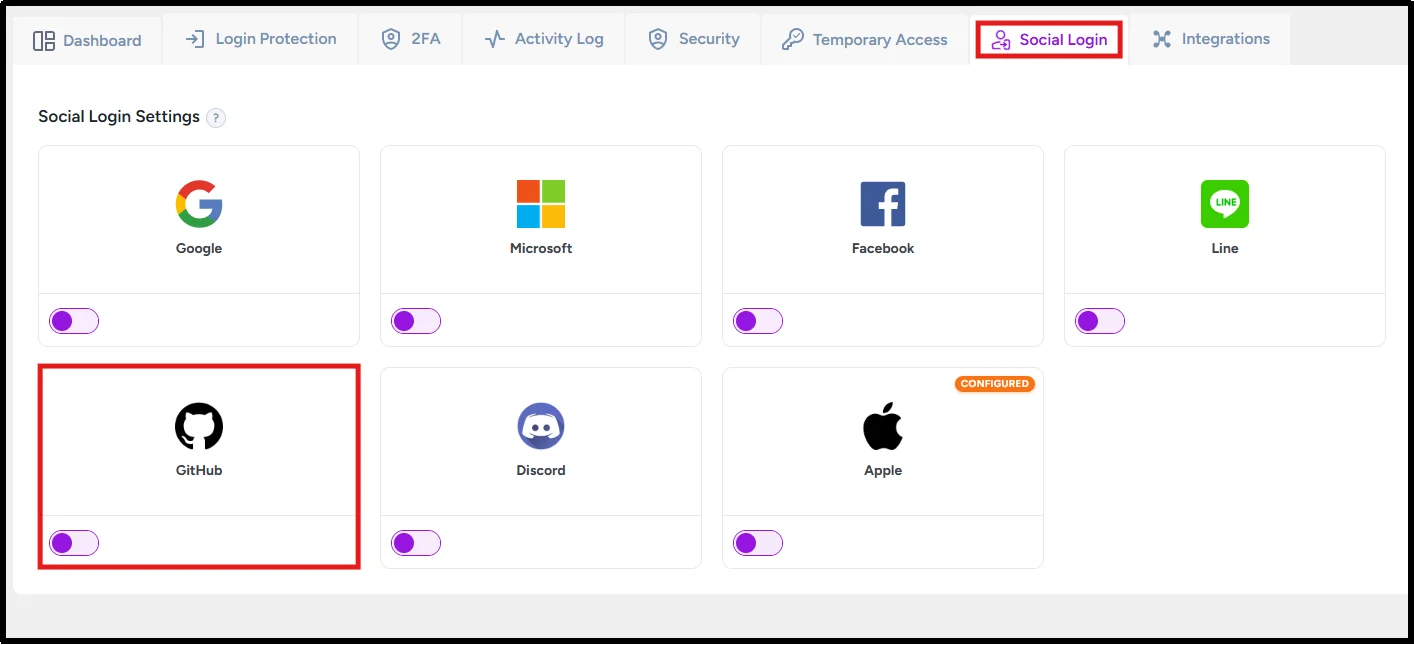
- Click the GitHub Toggle Button to turn it on.
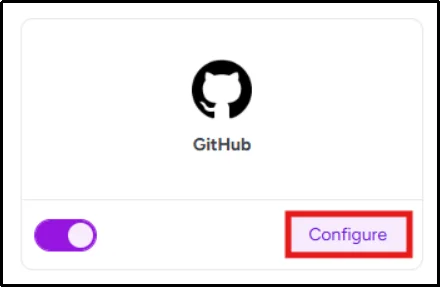
- Now, you will see a new option, “Configure.” Click it.
- A setup wizard will pop up. Follow the instructions carefully.
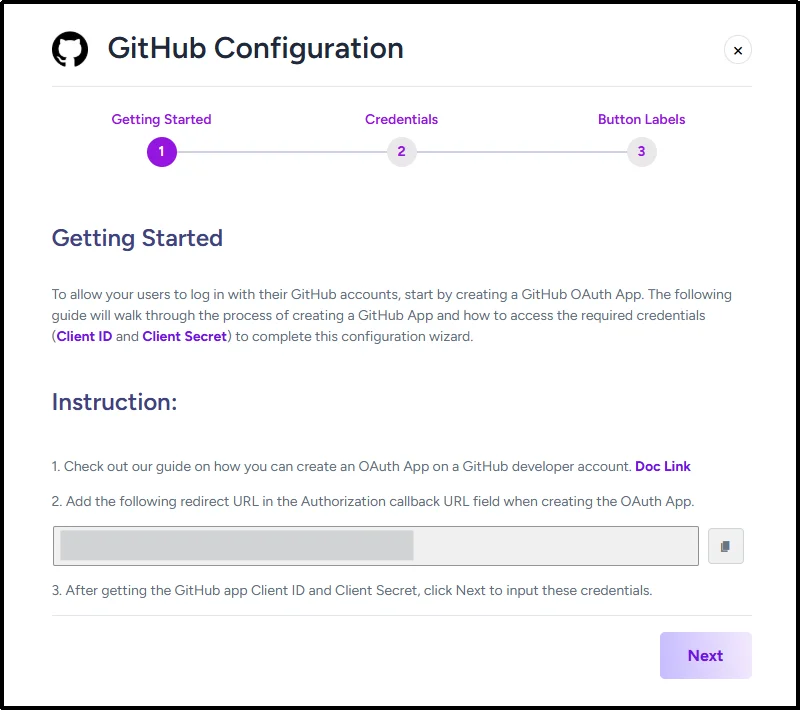
Before connecting GitHub Social Login, create a GitHub OAuth App in GitHub Developer Settings. The OAuth application generates the Client ID and Client Secret required for WordPress authentication. These credentials work with WordPress to establish communication with GitHub’s authentication servers. For the extensive process, check out our GitHub documentation.
- After obtaining the GitHub Client ID and Secret, click Next to proceed.
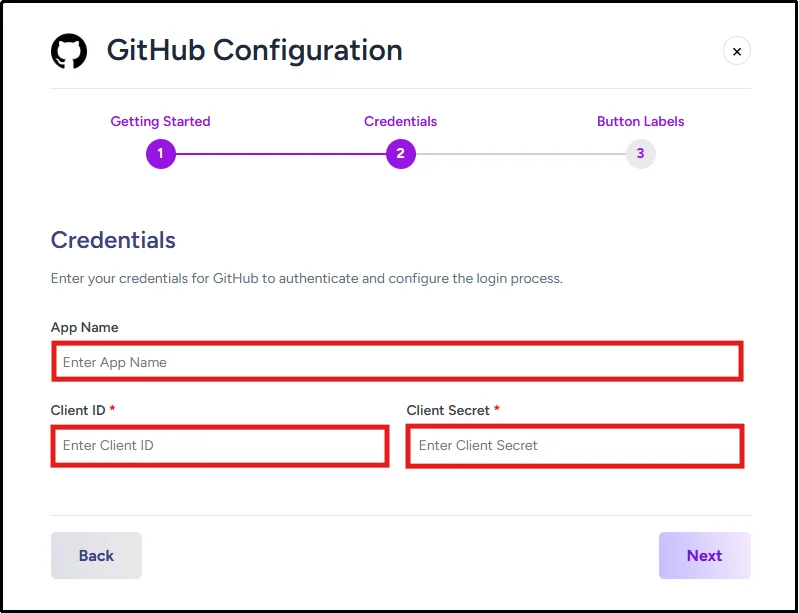
- Enter Client ID and Client Secret, then click Next.
- You can now modify the Login and Logout label text based on your needs.
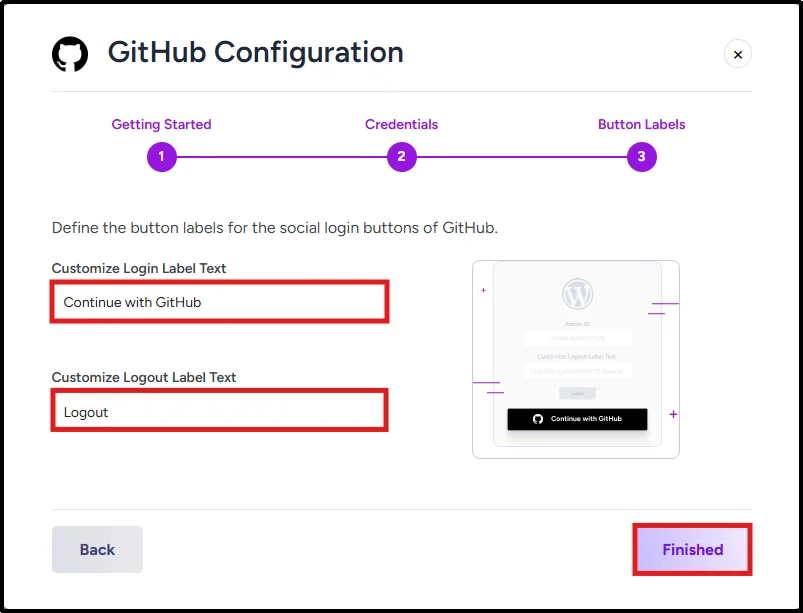
- Click Finished, and you are ready to go.
Don’t celebrate yet; before making GitHub login available to users, test the integration to ensure the authentication flow works correctly.
Testing Your GitHub Social Login Setup
- Log out of your WordPress admin.
- You will see the login screen, and the GitHub Social Login button will appear.
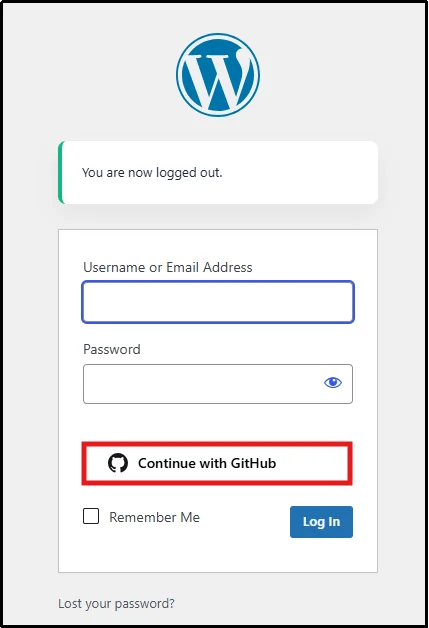
- Click on Continue with GitHub.
If authentication succeeds and WordPress either creates a new account or matches an existing user profile, your GitHub OAuth integration is working correctly.
Congratulations on successfully setting up GitHub Social Login for your WordPress site.
Common GitHub Social Login Errors and Fixes
Most GitHub Social Login issues stem from configuration errors and can be resolved within a few minutes. In case you come across any, we are already prepared. Below are a few of the common errors and their fixes.
- “Invalid Redirect URI” / “redirect_uri mismatch”
The callback URL sent by the plugin doesn’t exactly match the URL registered in your GitHub OAuth App. Copy the Callback URL from the plugin settings and paste it into GitHub. Even a trailing slash mismatch can cause this error.
- “Bad Verification Code”
Authorization codes expire quickly and can only be used once. This often happens if the user refreshes, goes back, or retries the flow. Ensure your server time is synced (NTP) and advise users not to use the browser’s Back button.
- “Client Secret mismatch” / “401 Unauthorized”
The stored Client Secret is incorrect or outdated. Regenerate the secret in GitHub, update it in the plugin settings, and save. Note that existing sessions may be logged out.
- OAuth authorization failed (no error shown)
Usually caused by a hidden PHP/server error during token exchange. Enable WP_DEBUG_LOG, retry the login, and check wp-content/debug.log for details.
- GitHub button does nothing when clicked
Typically, a JavaScript conflict. Check the browser console for errors and temporarily disable other plugins to identify the conflict.
- Duplicate accounts created
The plugin isn’t matching GitHub users to existing WordPress accounts by email. Enable account linking/email matching in the plugin settings. Merge any duplicate accounts manually if needed.
NOTE: If GitHub authentication still fails after checking your Client ID, Client Secret, and Redirect URI, review your server firewall, caching plugins, and security plugins. These tools can block OAuth callback requests or interfere with token exchanges.
Security Best Practices for GitHub OAuth Login
GitHub OAuth improves security and simplifies authentication, but proper configuration remains critical for protecting user accounts and OAuth credentials, which are as follows:
- Use HTTPS: Always serve OAuth requests over SSL/TLS to prevent interception of authorization codes and tokens.
- Protect your Client Secret: Store it only in secure plugin settings or environment variables. If exposed, regenerate it immediately.
- Request minimal OAuth scopes: Only request the GitHub permissions required for authentication and profile retrieval. Avoid unnecessary scopes that grant access to repositories or organizational data.
- Review OAuth Apps regularly: Remove unused or test applications from your GitHub Developer Settings.
- Monitor login activity: Security plugins can help detect unusual authentication patterns that may indicate compromised accounts.
- Keep your plugin updated: Updates often include important OAuth security fixes and compatibility improvements.
These best practices help in the following:
- Stronger protection against account compromise
- Reduced risk of token or credential exposure
- Better privacy through minimal permission requests
- Early detection of suspicious login activity
- Improved long-term security and compatibility
Simplify WordPress Login with GitHub Social Login
Setting up GitHub Social Login is one of the more impactful ways to streamline WordPress authentication for a technical site. It removes password friction, adds a trusted identity layer to your login system, and reduces registration drop-off.
The technical setup involves three key parts: an OAuth App on GitHub, credentials for a social login plugin, and a button on your login page. The most common problems come from Callback URL mismatches and improperly stored Client Secrets, both of which are straightforward to fix once you know what to look for.
Once your GitHub OAuth App is configured and connected to WordPress, ongoing maintenance is minimal. Most website owners can complete the entire setup process in 20 to 30 minutes.
So what are you waiting for?
Upgrade to All in One Login Pro and enable secure GitHub Social Login on your WordPress site in minutes.
Frequently Asked Questions
Is GitHub Social Login for WordPress secure?
Yes. GitHub Social Login uses OAuth 2.0, which allows users to authenticate without sharing their GitHub passwords with your WordPress site. Using HTTPS and protecting OAuth credentials further enhances security.
How do I add GitHub login to WordPress?
Install a WordPress social login plugin such as All In One Login, create a GitHub OAuth App in GitHub Developer Settings, configure the Client ID and Client Secret, and then enable GitHub as a login provider.
Can existing users connect their GitHub accounts?
Yes. Most social login plugins allow existing WordPress users to link their GitHub accounts, enabling them to log in using GitHub in the future.
Can GitHub login work with WooCommerce?
Yes. Many WordPress social login plugins support WooCommerce, allowing customers to register and log in using their GitHub accounts.
Why is my callback URL failing?
Callback URL errors usually occur when the Authorization Callback URL configured in GitHub Developer Settings does not exactly match the URL specified in your WordPress social login plugin.
How does GitHub OAuth authentication work in WordPress?
When users click the GitHub login button, they are redirected to GitHub to authorize access. After approval, GitHub sends an authentication token back to WordPress, allowing users to sign in securely.