

Microsoft Social Login in WordPress is a game-changer that makes logging in easier.
Remembering dozens of passwords is a nightmare, and for site owners, it’s a silent conversion killer. Studies show that 69% of users abandon sign-up forms simply because they can’t remember their credentials. This frustration leads many users to abandon sign-up forms, causing businesses to lose potential customers before they even begin the registration process.
The good news? You can fix this in minutes.
By adding Microsoft Social Login to your WordPress site, visitors can sign in instantly using their existing Microsoft accounts. No new passwords, no forgotten logins, no friction.
In this guide, we will walk you step-by-step through how to add Microsoft Social Login to WordPress.
Why Add Microsoft Social Login to Your WordPress Site?
Adding Microsoft login to WordPress does more than simplify sign-in. It streamlines your entire onboarding process, enhances security, and increases conversions, especially for professional users who already rely on Microsoft accounts daily. Allowing them to log in with those same credentials builds trust and saves time.
Here’s why this feature matters:
- Quick and Easy Logins: Users can sign in with one click using their Microsoft account. No need to fill out long forms.
- Safe and Secure: Microsoft uses OAuth 2.0, a trusted login system that keeps user information protected.
- Higher Sign-Up Rates: Social logins often increase registrations by up to 40% because people prefer faster access.
- Fewer Password Problems: No more “forgot password” issues or reset requests. Users log in with their existing account.
- Accurate User Details: You’ll get real names and verified email addresses directly from Microsoft, which helps keep your user list clean and reliable.
In short, a Microsoft login WordPress integration improves both user experience and site efficiency, especially for B2B, education, or membership-based platforms.
Prerequisites for Microsoft Login in WordPress
Before starting the integration, make sure you have everything ready.
You’ll need:
- WordPress admin access.
- The All In One Login Pro version (If you don’t have it, we will show you how to get it in the following section).
- Microsoft Azure Portal account.
- Your website must be running HTTPS (required for OAuth 2.0).
Once you have these, you’re ready to begin the integration.
4 Easy Steps to Integrate Microsoft Social Login in WordPress
Let’s learn about Microsoft Login Integration for WordPress in detail. We’ll see how to connect your WordPress site with Microsoft Azure App using All In One Login, configure your credentials, and test everything until it works like magic. The best part is that you can do it without any complex coding.
We have chosen the All In One Login for Microsoft Social Login because it’s a no-brainer. It makes adding Microsoft, Google, Facebook, or other social logins to WordPress simple, fast, and reliable with no coding required.
What sets it apart is the combination of security and customization: you can protect your login page with advanced features like two-factor authentication, limit login attempts, and block suspicious users, while also designing a fully branded login experience that matches your site. It’s a complete solution for safe, smooth, and professional user authentication.
Step 1 — Install All In One Login (Free + Pro)
Before you begin, make sure the All In One Login plugin is installed and activated.
- Log in to your WordPress Dashboard.
- Navigate to Plugins → Add Plugin.
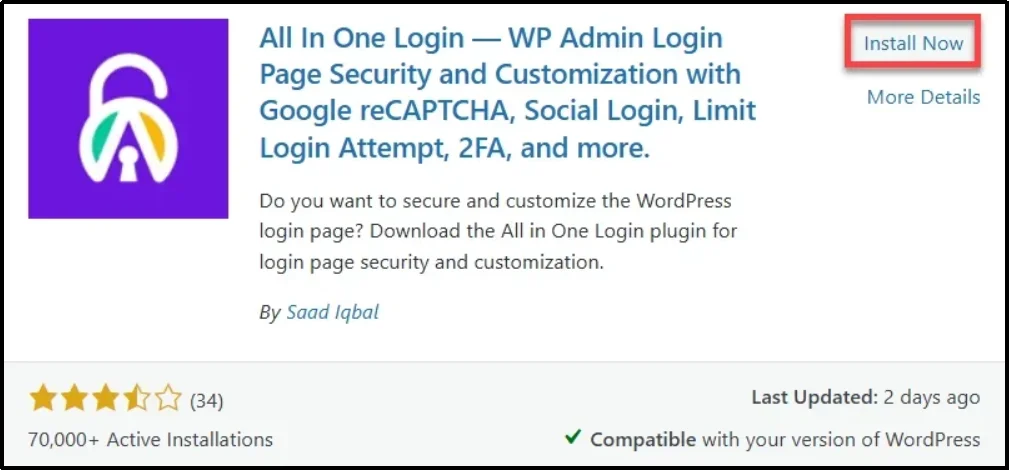
- Search for “All In One Login” by Saad Iqbal.
- Click Install Now, then Activate.
- After activation, select the opt-in option. You’ll be redirected to the All In One Login dashboard.

- Once the opt-in option is clicked, you will be taken to the plugin’s setup page. This completes the installation of the free version.
- To enable premium features, such as Microsoft Login and other social login features, visit the plugin’s official website and choose a premium plan.
- After purchasing the premium plan, you will receive a welcome email containing:
- A zip file with the plugin
- Your license key
- Download the zip file from the email. Then go to your WordPress dashboard. Navigate to Plugins → Add Plugin→ Upload Plugin.
- Upload the .zip file and click Install Now.
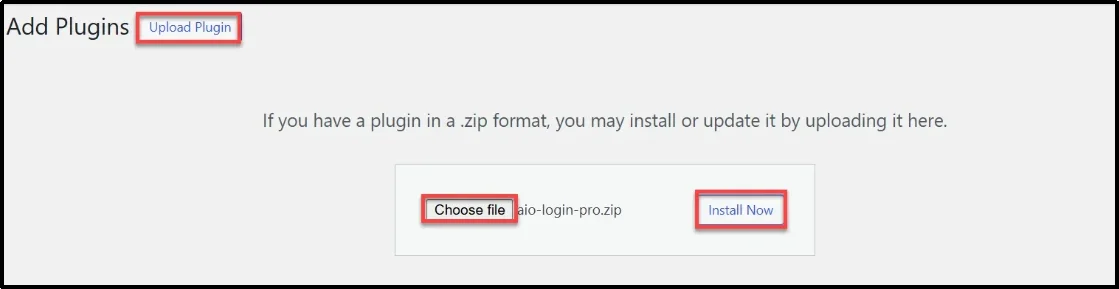
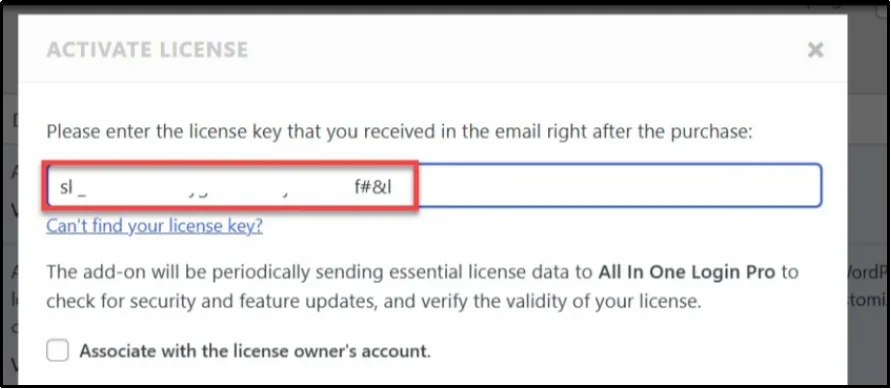
- After installation, click Activate Plugin. You’ll be prompted to enter your license key.
- Copy the license key from the welcome email, paste it into the field, and click Agree & Activate License.
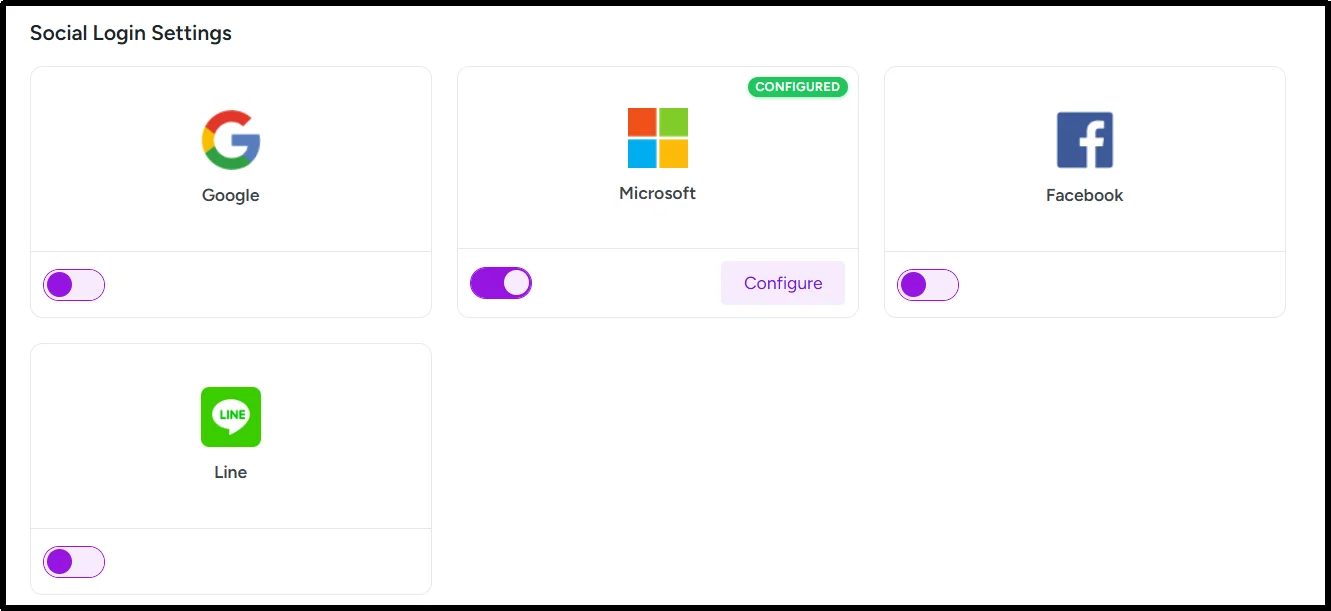
- Once activated, go to All In One Login → Social Login to access all available social login options, including:
- Microsoft
- LINE
Step 2 — Enable Microsoft Login in All In One Login
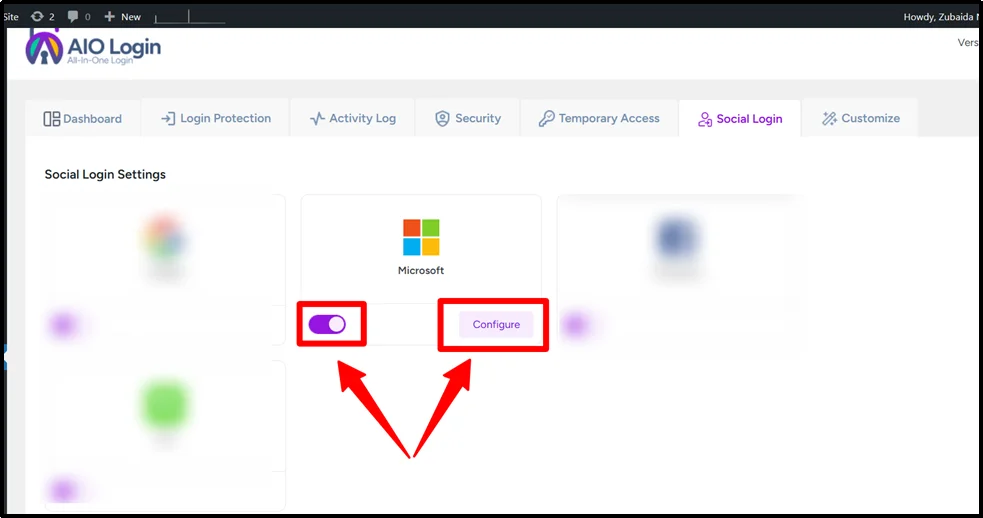
- Navigate to WordPress Dashboard → All In One Login → Social Login.
- Toggle Microsoft to ON, then click Configure.
- A pop-up will appear. Copy the Redirect URL displayed (you will need it for Azure).
- Click Next.
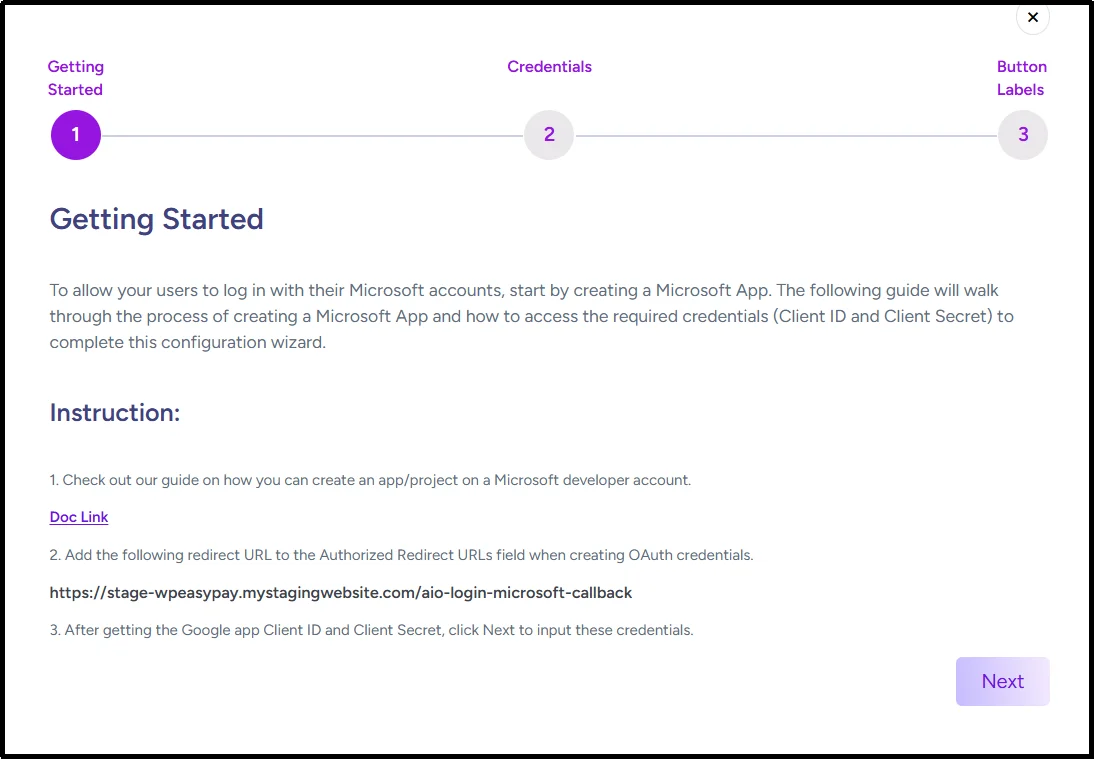
- Keep this page open. You will return to it after generating your Azure credentials.
Step 3 — Create a Microsoft Application in Azure
To generate the required Client ID and Secret, you must register an application in the Azure Portal.
- Log in to your Microsoft Azure Portal account.
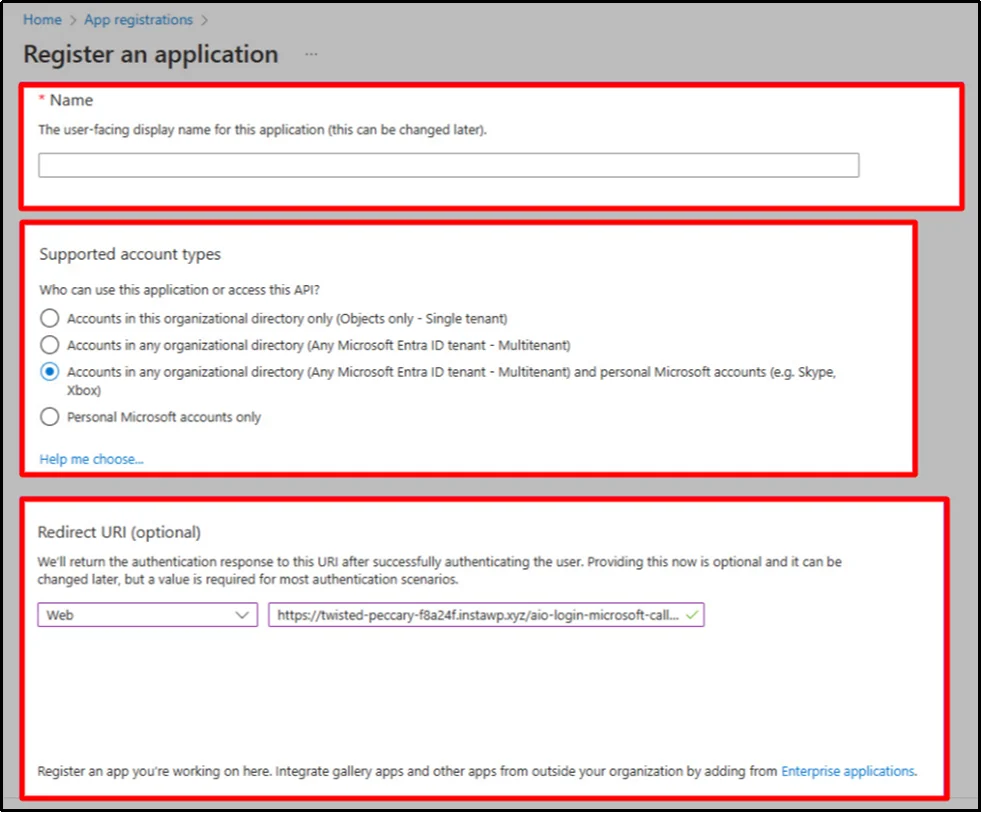
- Search for App Registrations and click it. On the next screen, click “+New Registration”. You will be directed to the “Register an Application” page.

- On the Register an Application page, fill in the following details:
- Name: Any name of your choice (for identification only).
- Supported Account Types: Select Accounts in any organizational directory and personal Microsoft accounts.
- Redirect URI: Choose Web from the dropdown
- Paste the Redirect URL you copied from All In One Login.
- Click Register.
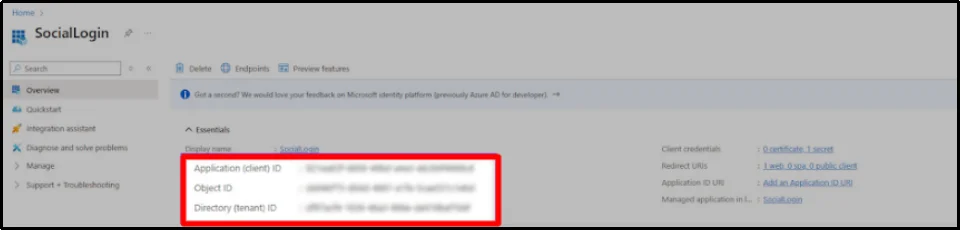
- After registration, you will be redirected to the application’s Overview page. Copy the Application (Client) ID. You will need this for the Microsoft Social Login setup in the plugin.
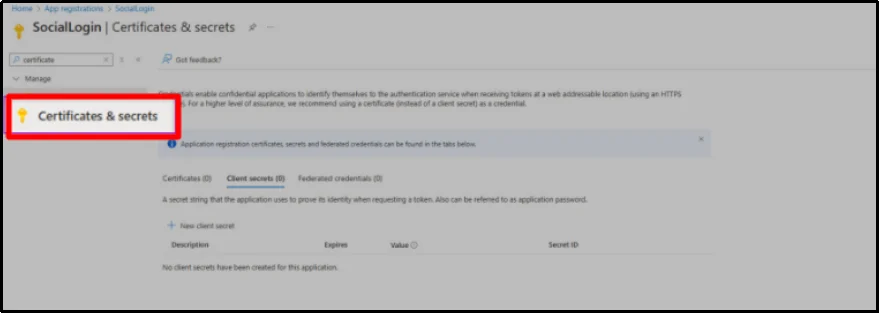
- In the left sidebar, click Manage.
- Click Certificates & Secrets under Manage.
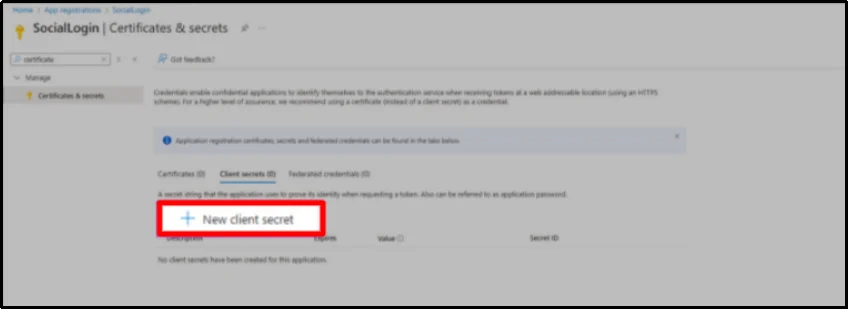
- Under Client Secrets, select New Client Secret.
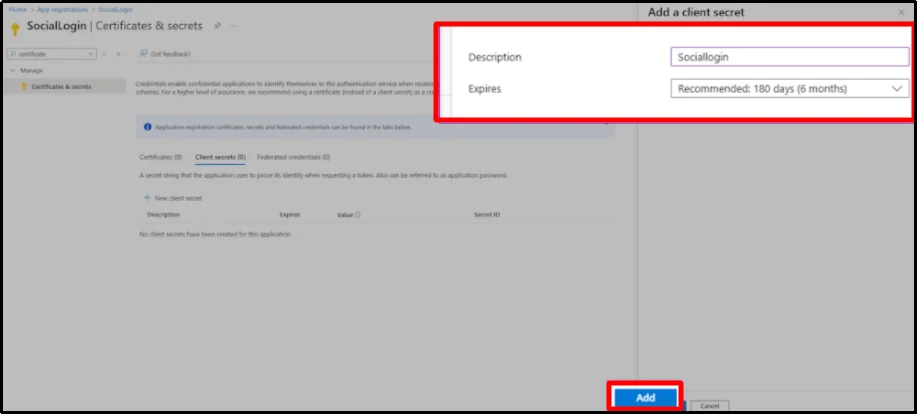
- A popup window with a short form will appear. Complete the form:
- Description: Any label you prefer
- Expires: Choose an expiry period (recommended: 24 months).
- Click Add.
- A Secret Value will appear. Copy it immediately. This is your Client Secret and will be required to enable Microsoft social login in the All In One Login Plugin.

Step 4 — Finalize the Setup in All In One Login
- Return to the All In One Login’s Microsoft configuration pop-up.
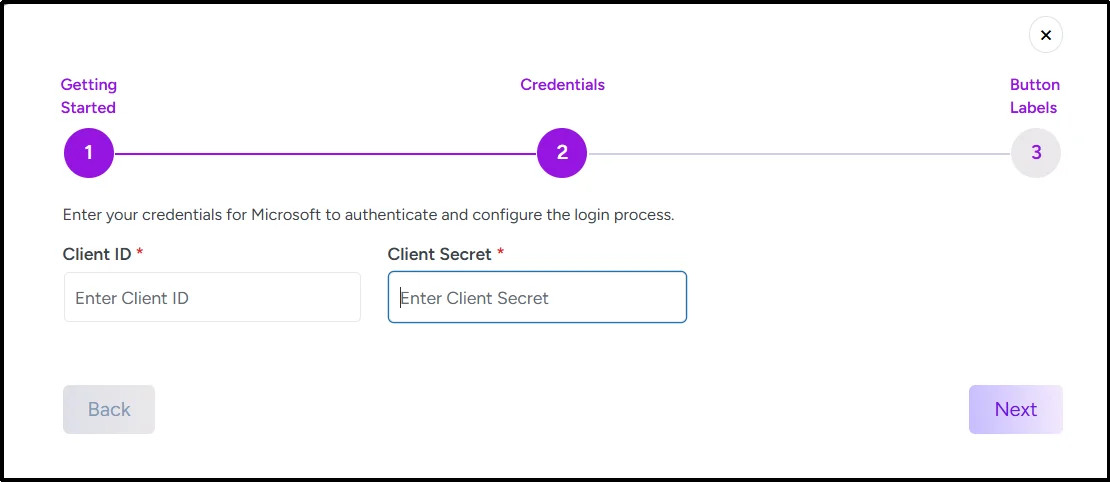
- Paste your Client ID and Client Secret into the respective fields.
- Click Next.
- (Optional) Customize the Login Label Text and Logout Label Text.
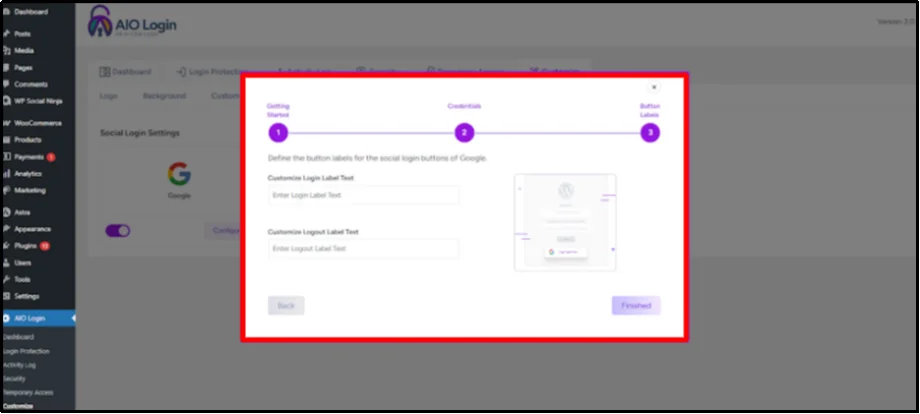
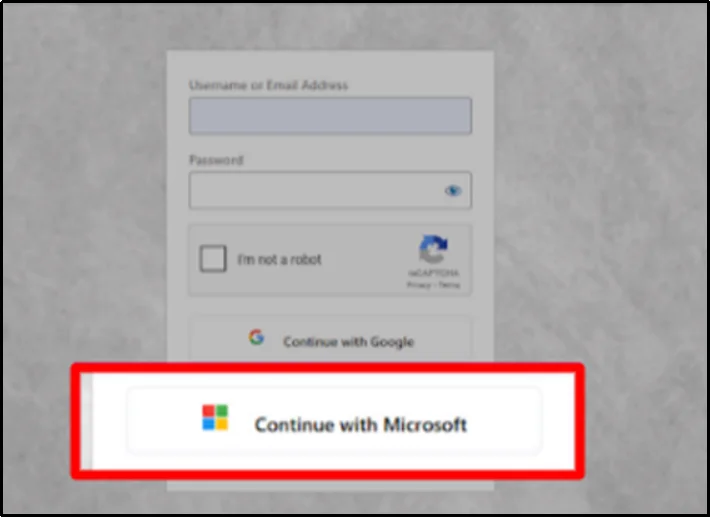
- Click Save to complete the setup. Your Microsoft Social Login button is now active and will appear on your login page or wherever All In One Login is displayed on your website.
Troubleshooting & Common Issues
Even with a perfect setup, small misconfigurations can cause errors. Here’s how to fix the most frequent ones.
1. Redirect URI Mismatch
Ensure your Redirect URI in All In One Login matches exactly with the one registered in Azure, including protocol (https://) and trailing slash.
2. Invalid Client or Unauthorized Client
Usually occurs if your Client ID or Client Secret is incorrect or expired. Regenerate a new secret under Certificates & Secrets and update it in All In One Login.
3. Consent Screen or Permissions Errors
Make sure your app is in Production (not draft) state and that the required permissions have been approved.
4. Local Development Testing
If testing locally, use tools like ngrok to create a secure HTTPS tunnel. Microsoft login requires a valid HTTPS callback.
Quick Fix: Always keep your All In One Login plugin up to date to avoid compatibility issues with OAuth updates.
Who Should Use Microsoft Login for WordPress
Microsoft login isn’t just for corporate websites; it’s useful for a wide range of WordPress applications:
- Membership sites: Simplify onboarding for recurring visitors.
- SaaS and web apps: Streamline logins for users with Microsoft 365 accounts.
- Intranet or enterprise portals: Perfect for organizations using Azure Active Directory.
- eLearning platforms: Ideal for teachers, students, or employees already using Microsoft tools.
- B2B websites: Many professionals prefer Microsoft accounts for business authentication.
Offering Microsoft login alongside Google or Facebook gives users flexibility and improves your sign-in success rate.
Conclusion
Integrating Microsoft Login in WordPress gives users a faster, safer, and more professional way to access your website. With All In One Login Pro, you can implement it in minutes; no coding required. Saying All In One Login is the best WordPress plugin for Microsoft social login would not be wrong.
From simplified sign-ups to enterprise-grade authentication, this plugin ensures a seamless experience for every visitor.
Get All In One Login Pro today and upgrade your WordPress site with the best social login experience, including Microsoft, Google, Facebook, and more.
Frequently Asked Questions
Can I use Microsoft Login in WordPress without a plugin?
Yes, but it requires manual coding with Microsoft’s OAuth SDK. Using a Microsoft social login plugin for WordPress, like All In One Login, is faster, safer, and doesn’t require programming knowledge.
Is Microsoft Login secure for WordPress?
Absolutely. Microsoft uses the OAuth 2.0 protocol, which securely handles authentication on Microsoft’s servers, so your site never stores user passwords.
Can I enable Microsoft and Google Social Login at the same time?
Yes. All In One Login supports multiple WordPress social login options, including Google, Facebook, Microsoft, and LINE, all configurable from a single dashboard.