

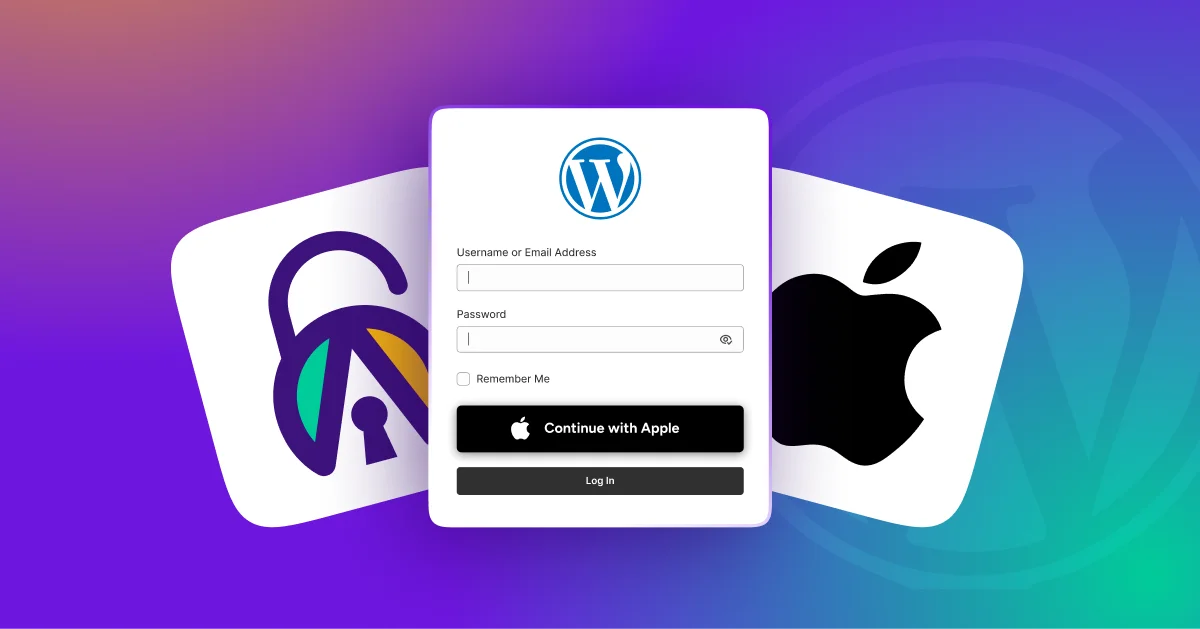
Apple Social Login allows WordPress users to sign in using their Apple ID instead of creating and managing separate website credentials.
By integrating Sign in with Apple, you can simplify user authentication, strengthen WordPress authentication security, reduce password reset requests, and offer a privacy-focused login experience backed by Apple’s identity platform.
In this guide, you’ll learn how to set up Apple Social Login in WordPress using All In One Login, connect your Apple Developer account, configure authentication credentials, and implement social authentication for secure user access.
What Is Apple Social Login?
Apple Social Login is an authentication method that allows users to access a WordPress website using their Apple ID. Instead of creating a separate username and password, users authenticate through Apple’s secure identity platform and access WordPress via OAuth 2.0.
Apple introduced Sign in with Apple to give users greater control over their personal information. It allows users to authenticate securely while limiting the amount of data shared with third-party websites.
How Does Apple Social Login Work in WordPress?
Before configuring Apple social login in WordPress, it’s important to understand how Apple’s authentication process works. Knowing how OAuth 2.0 and Apple’s identity services interact with your WordPress login system can help you troubleshoot issues more effectively during setup.
Here’s how the process works:
- Users click the “Sign in with Apple” button on your WordPress login page.
- Apple verifies the user’s identity through the Apple ID authentication system and built-in security mechanisms.
- Apple returns a secure authorization token and identity information to the WordPress social login plugin.
- The plugin authenticates the user and grants access based on their existing WordPress user role and permissions.
For WordPress administrators, this means simpler account management, fewer password-related support requests, and an additional authentication method that meets Apple’s security standards.
Benefits of Adding Apple Social Login to WordPress
- Faster Access to the WordPress Dashboard: Administrators, editors, and other users can use Apple ID login to access /wp-admin without manually entering credentials each time.
- Improved Login Security Through Apple’s Authentication System: Apple uses industry-standard OAuth 2.0 authentication and identity verification mechanisms to help protect user accounts.
- Reduced Password Dependency and Login Friction: Users can access WordPress using their Apple ID, eliminating the need to create, store, and manage additional website passwords.
- Enhanced User Privacy: Apple prioritizes user privacy by limiting the amount of personal information shared during authentication.
- Simplified User Experience: Social login streamlines the login process, making it easier for authorized users to access the WordPress dashboard.
- Fewer Password Reset Requests: Since users authenticate with their Apple accounts, administrators may see fewer requests for forgotten passwords and account recovery.
- Secure Authentication Through a Trusted Provider: Apple adheres to strict security standards for login authentication and identity verification, helping improve confidence in the login process.
- Quick and Easy Integration: Apple login can be added to the WordPress admin login page using dedicated social login plugins without requiring custom development.
Who Should Use Apple Social Login on WordPress?
Apple Social Login can benefit a wide range of WordPress websites. Here are some of the most common use cases:
- Multi-author blogs: Allow writers and editors to access the dashboard more conveniently.
- Membership sites: Simplify login for moderators and users who need backend access.
- Businesses with multiple administrators: Reduce password-related issues for team members.
- Agencies managing client websites: Streamline dashboard access for clients and internal teams.
- Educational websites: Help instructors and administrators sign in securely.
- Non-technical website owners: Provide an easier login experience without remembering another password.
- Teams looking for stronger authentication: Add an extra layer of security using Apple’s trusted authentication system.
Why Use Apple Login Instead of Traditional WordPress Logins?
Traditional WordPress logins rely on usernames and passwords that users must remember and manage. Apple Social Login replaces this process with secure Apple ID authentication.
Benefits include:
- Faster account access
- Reduced password reset requests
- Improved user privacy
- OAuth-based authentication
- Support for Hide My Email
- Better user experience on Apple devices
3 Steps to Add Apple Social Login to Your WordPress Site
Adding Apple Social Login to WordPress doesn’t require extensive technical expertise. In just three simple steps, you can enable admins and team members to sign in using their Apple IDs and enhance both security and convenience on your website.
Before You Start: Requirements
- Active SSL certificate
- Apple Developer Account ($99/year)
- All In One Login Business License
- Administrator access to WordPress
Follow the steps below carefully to avoid any errors.
Note: We tested this setup using WordPress 6.9, All In One Login Premium (Business Plan), and an active Apple Developer account. The screenshots and configuration steps in this guide reflect Apple’s current Sign in with Apple requirements at the time of writing.
Step 1: Install and Activate the All in One Login
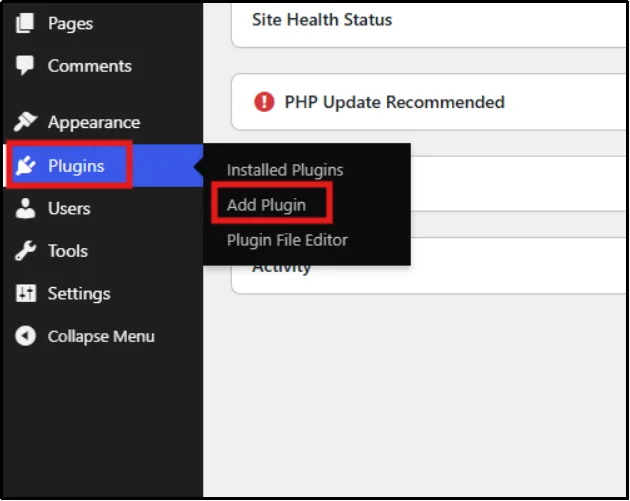
- Log in to your WordPress dashboard, and head to Plugins → Add Plugin
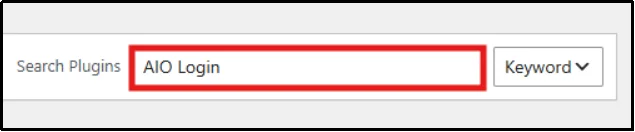
- Enter All In One Login in the search bar.
- Click Install Now to begin installing the plugin, then click Activate.
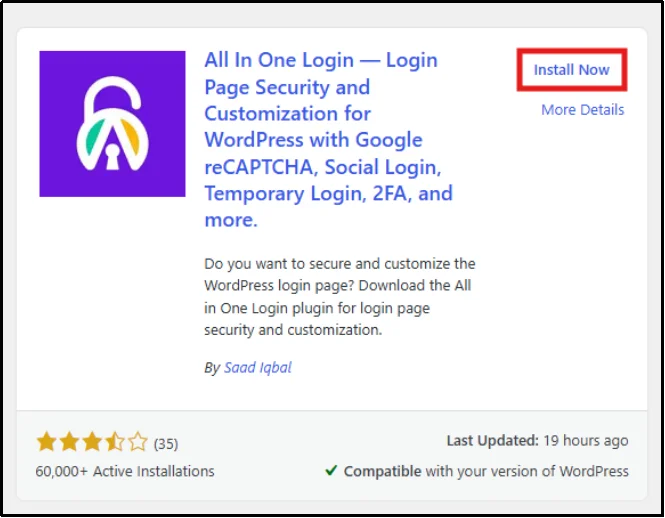
Please note: The Social Login feature is available only in the All in One Login Business plan.
Here’s how you can install and activate All in One Login Business.
- Head to the All in One Login pricing page.
- Purchase All in One Login Business plan.
- You will receive an email containing the ZIP file and license key. Download the file and copy the license key for later use.
- Navigate to Plugins → Add Plugin.
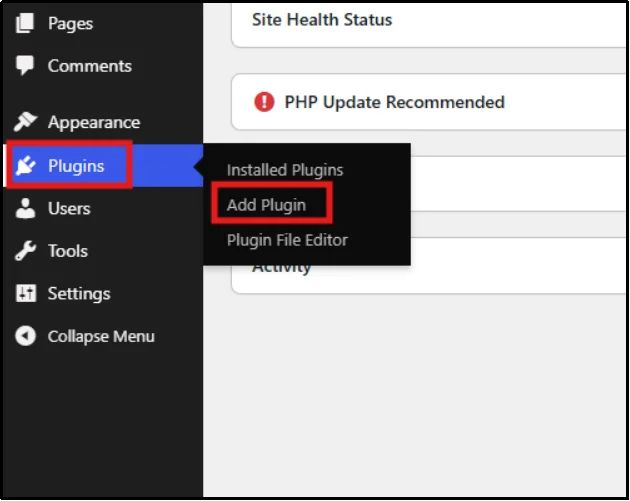
- Click Upload Plugin, then Choose File to select the appropriate ZIP file.

- Click Install Now, and after a few seconds, Activate Plugin.

- You will be redirected to the Installed Plugins page. Under All in One Login Pro, click Activate License.
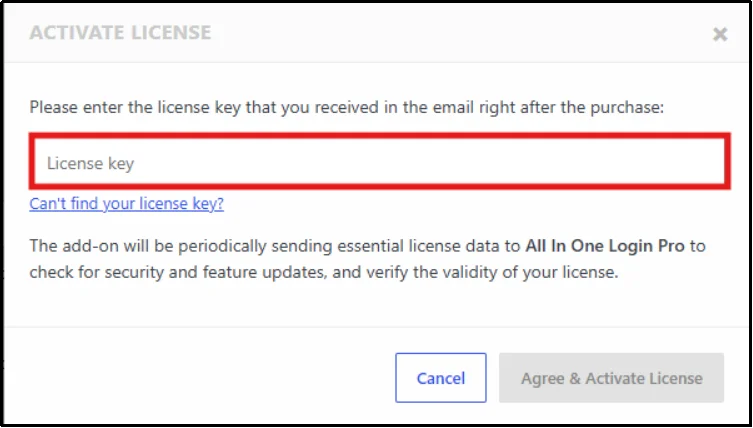
- Paste the License key and click Agree & Activate License.
Congratulations! You have successfully activated the All In One Pro.
Step 2: Activate and Configure Apple Social Login
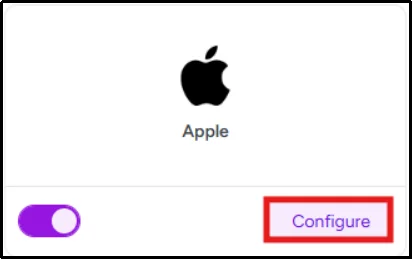
- Go to All In One Login → Social Login from the sidebar.
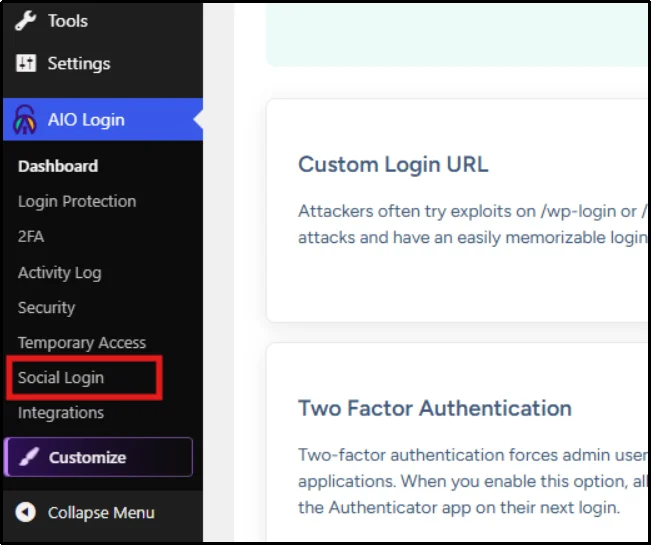
- Click on the Toggle Button for Apple to turn it on.
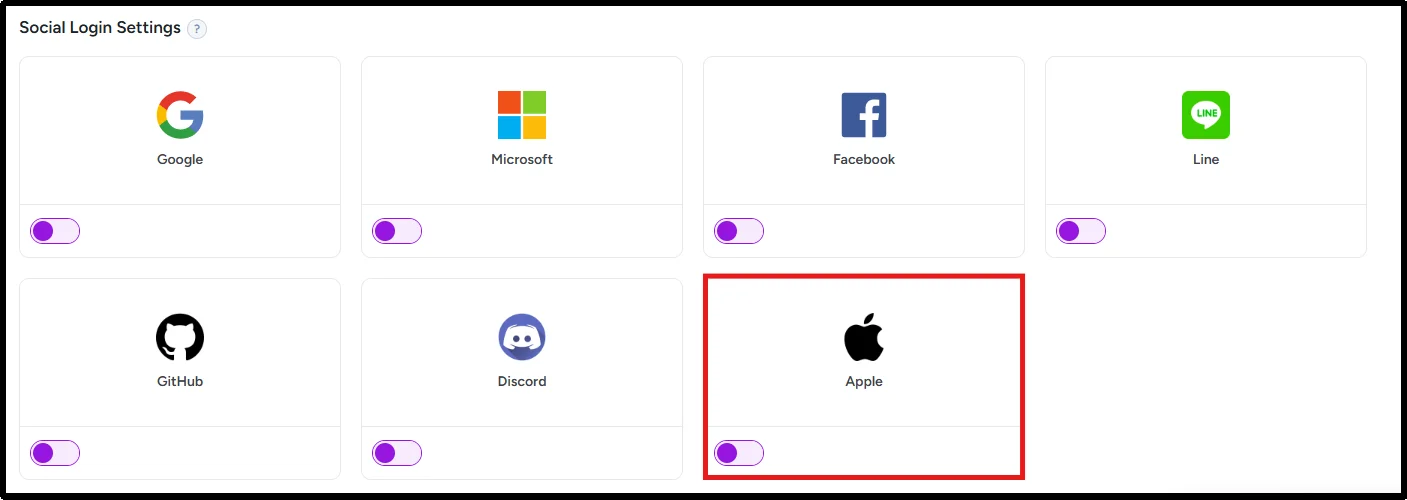
- After turning it on, you will see a new option, “Configure”; click on it.
- A setup wizard will pop up. Follow the instructions carefully.
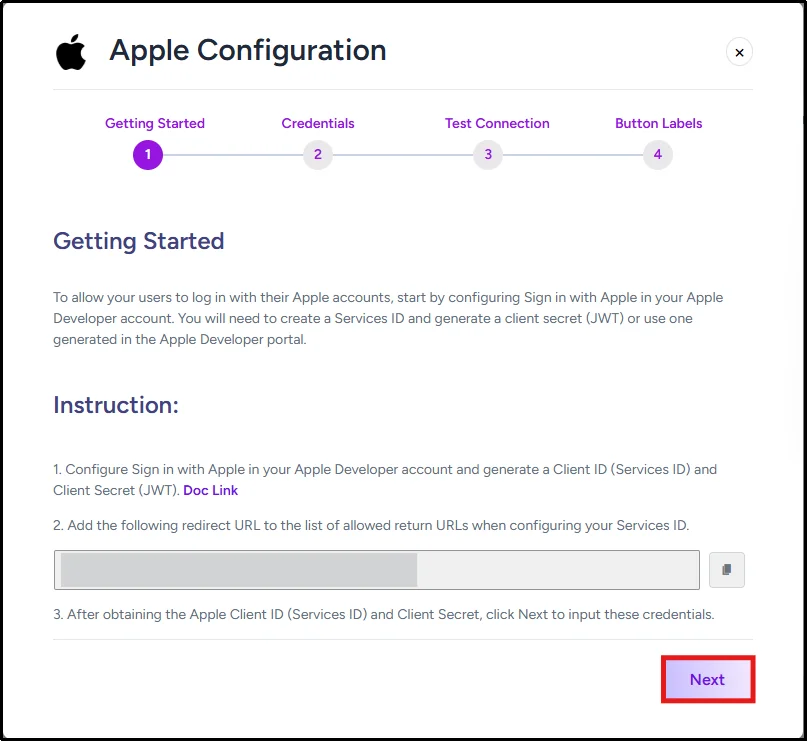
Before connecting Apple Social Login, create a Service ID, an authentication key, a .p8 key file, and a Team ID via the Apple configuration in the Apple Developer Console. These credentials allow WordPress to communicate securely with Apple’s authentication servers. For the step-by-step process, check out our detailed documentation.
- Once you have obtained the Apple Client ID and Secret, click Next.
- Enter Service ID, Key ID, Team ID, and Private Key, then click Next.
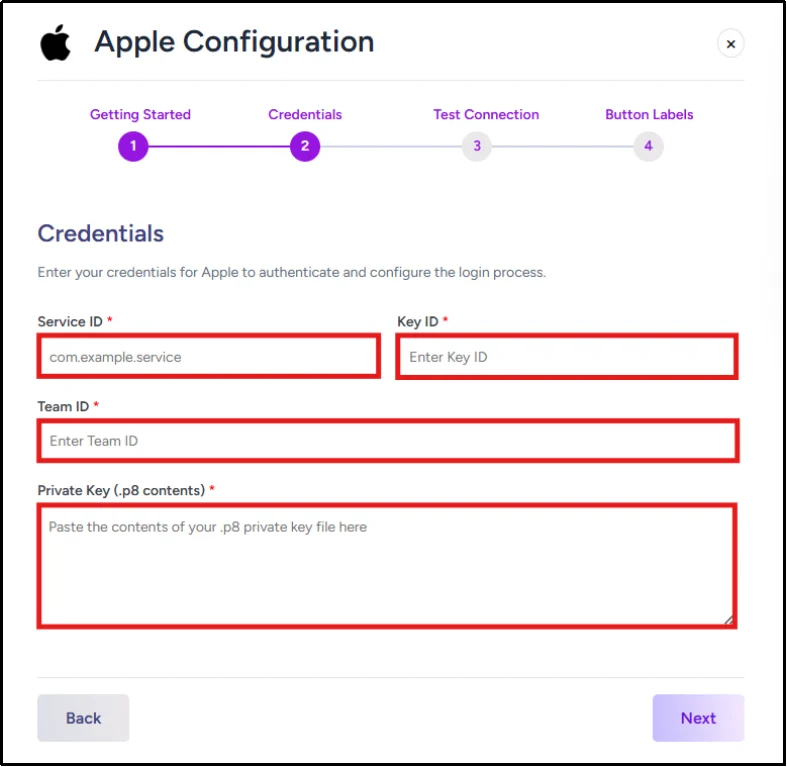
After entering your Apple credentials, test and verify the connection before enabling Apple Social Login for users.
Step 3: Test and Verify Apple Social Login Authentication
- Click Test Connection to verify Apple settings.
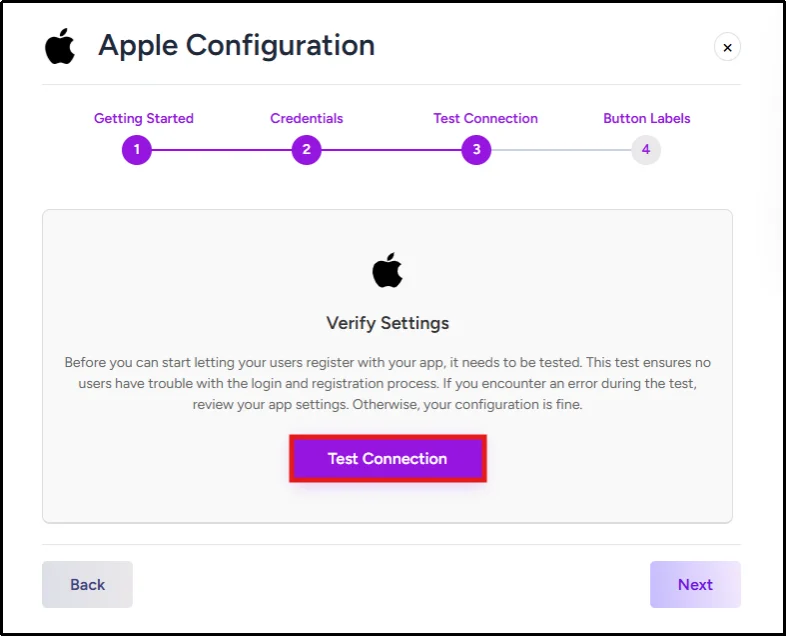
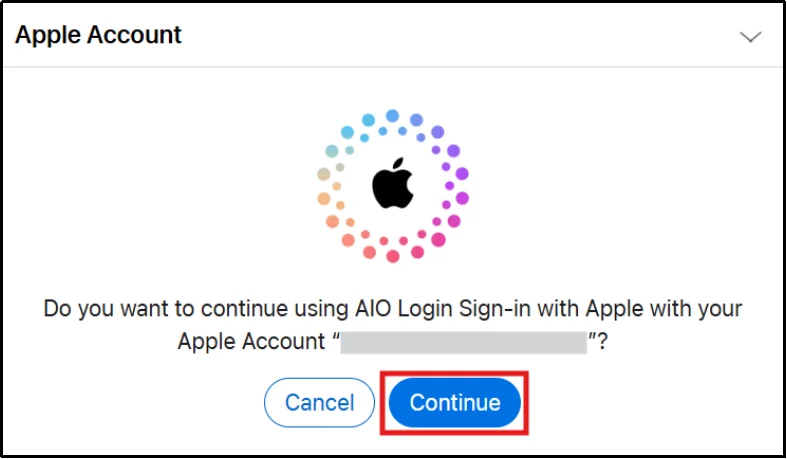
- An Apple Sign-in pop-up will appear. Log in to your Apple Account.
- Click Continue on All In One Login Sign in with Apple.
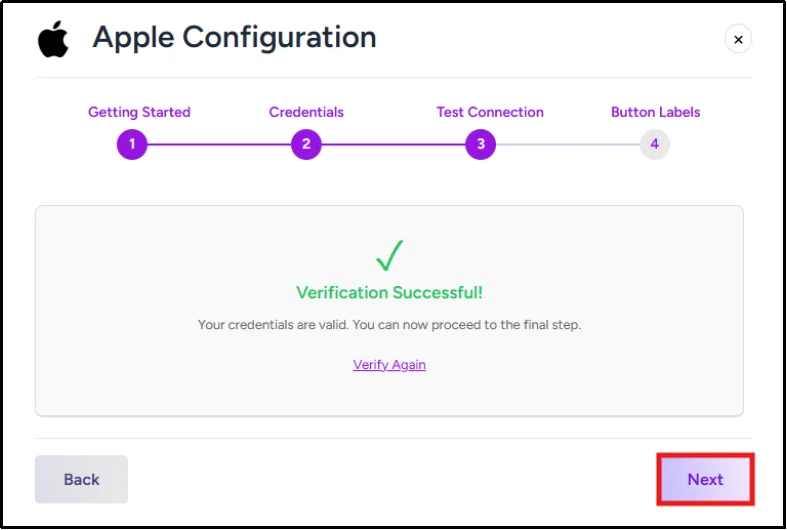
- Check whether the verification results are successful, then click Next.
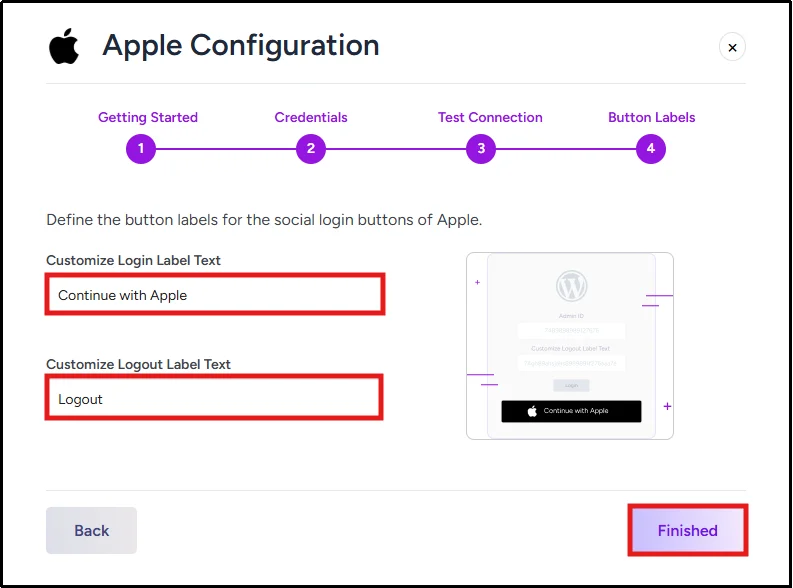
- Customize your Apple social login buttons to your preferences, then click Finished.
That’s it! Apple Social Login is now configured on your WordPress website.
Before making it live, test the social login to verify it works correctly. You can also add other social logins to your WordPress login page.
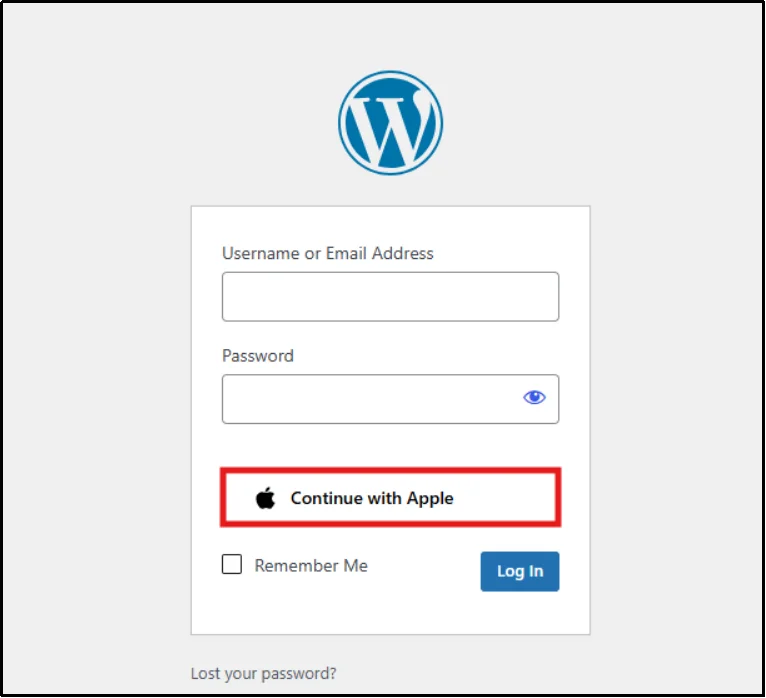
Here’s what your Apple social login looks like:
Troubleshooting Common Apple Login Errors
While setting up Apple Social Login for WordPress, you might come across a few errors. Firstly, don’t panic; there are a few common errors people encounter when configuring Apple Social Login. We’ve compiled these errors and their fixes to help you if you encounter any difficulties.
1. Invalid Client Error
The “invalid_client” error occurs when Apple cannot verify the client credentials your WordPress plugin sends during authentication.
Causes:
- Incorrect Service ID entered in the plugin settings.
- Mismatched Client ID and Service ID.
- Incorrect Team ID or Key ID.
- Expired or revoked authentication credentials.
Solution:
Verify that the Service ID, Team ID, Key ID, and private key configured in your WordPress plugin exactly match the values from your Apple Developer account. If the issue persists, generate a new private key and update the plugin settings before testing the login process again.
2. redirect_uri Invalid Error
The “redirect_uri invalid” error appears when the callback URL configured in WordPress does not exactly match the Return URL registered in Apple Developer Console.
Causes:
- Callback URL mismatch.
- Typographical errors in the Return URL.
- HTTP and HTTPS inconsistencies.
- Missing slashes.
Solution:
Copy the callback URL directly from your Apple login plugin and paste it into the Return URLs section of the Service ID configuration in Apple Developer Console. Double-check for spelling mistakes, protocol mismatches, or extra characters before saving the changes.
3. Invalid Redirect URL Error
This error occurs when Apple rejects the redirect URL specified during authentication because it does not meet Apple’s validation requirements. In most cases, the configured Return URL is missing or associated with the wrong domain.
Causes:
- Return URL not configured in Apple Developer settings.
- Invalid URL format.
- Using non-public or localhost domains.
- Missing HTTPS protocol.
Solution:
Ensure that your website’s callback URL has been added exactly as provided by the plugin within the Service ID settings. The URL should use HTTPS and belong to a publicly accessible domain that matches your WordPress site.
4. Private Key Format Errors
Private key format errors occur when the .p8 authentication key has been altered, corrupted, or incorrectly copied into the plugin settings. Apple requires the key to retain its original structure for successful authentication.
Causes:
- Missing private key headers or footers.
- Incorrect formatting during copy and paste.
- Uploading the wrong .p8 file.
- Corrupted key contents.
Solution:
Download the private key directly from Apple and ensure it includes the complete BEGIN PRIVATE KEY and END PRIVATE KEY sections. If you suspect the key has been modified or lost, generate a new key and update the configuration accordingly.
5. Invalid Grant Error
The “invalid_grant” error indicates that the authorization grant used during authentication is invalid, expired, or improperly generated. It often points to issues with client secret generation or credential mismatches.
Causes:
- Expired authorization code.
- Incorrect private key usage.
- Mismatched Team ID, Key ID, or Service ID.
- Server time synchronization issues.
Solution:
Review all Apple credentials to ensure they belong to the same Apple Developer account and are correctly configured in WordPress. Additionally, verify that your server time is accurate, as significant time differences can invalidate authentication requests.
6. Team ID Mismatch Errors
A Team ID mismatch error occurs when the Team ID configured in WordPress does not correspond with the Apple Developer account used to create the Service ID and authentication key. This prevents Apple from validating the login request.
Causes:
- Incorrect Team ID entered in plugin settings.
- Credentials generated from different Apple Developer accounts.
- Typographical errors during configuration.
Solution:
Locate the Team ID in your Apple Developer account and verify that it matches the value entered in your WordPress plugin settings. All credentials, including the Service ID and private key, should originate from the same developer account.
7. Apple Login Button Not Displaying
If the Apple login button does not appear on your website, the plugin configuration or display settings may be incomplete. Theme compatibility issues or caching mechanisms can also prevent the button from rendering correctly.
Causes:
- Apple login feature is not enabled.
- Button placement settings not configured.
- Theme compatibility problems.
- Caching or JavaScript conflicts.
Solution:
Check that Apple login has been enabled within the plugin and that the button is assigned to the appropriate login or registration pages. If the issue continues, clear your website cache and temporarily switch to a default WordPress theme to identify potential conflicts.
8. Users Cannot Complete Authentication
This issue occurs when users successfully initiate the Apple login process but cannot finalize authentication or return to the website. It often results from incorrect configuration settings or external factors affecting the login flow.
Causes:
- Incorrect redirect URL configuration.
- Expired Apple Developer membership.
- Browser extensions are interfering with authentication.
- Firewall or security plugin restrictions.
Solution:
Review your Apple Developer settings and WordPress plugin configuration to confirm that all credentials and redirect URLs are correct. Testing the login process in an incognito browser window can also help identify browser-related or extension-based issues.
9. SSL Certificate Problems
Sign in with Apple requires websites to use a valid SSL certificate to secure authentication requests. Missing or improperly configured SSL certificates can prevent Apple login from functioning correctly.
Causes:
- Missing SSL certificate.
- Expired SSL certificate.
- Mixed content issues.
- Improper HTTPS configuration.
Solution:
Verify that your website uses a valid SSL certificate and that all pages involved in authentication are served over HTTPS. If necessary, renew the certificate and resolve any mixed content warnings before testing Apple login again.
Add Apple to Your WordPress Site’s Login
Apple Social Login gives WordPress administrators a secure and user-friendly way to authenticate users through Apple IDs. By combining Apple’s privacy-focused authentication system with All In One Login, you can reduce password-related support requests, improve login security, and streamline access to your WordPress dashboard.
Whether you manage a membership site, agency website, online community, or multi-author blog, Sign in with Apple helps create a faster, more secure login experience while reducing password-related friction.
Ready to get started? Install All In One Login Business, connect your Apple Developer account, and enable Apple Social Login on your WordPress site today.
Frequently Asked Questions (FAQ)
Is Sign in with Apple Secure?
Yes. It uses OAuth 2.0 and encrypted tokens, giving users a safe, password-free login option. Apple also lets users hide their email for extra privacy.
How Much Does the Apple Developer Program Cost?
The program costs $99 per year. This membership is required to enable Sign in with Apple on WordPress sites.
Can I Use Sign in with Apple Without an Apple Developer Account?
No. You need an Apple Developer Account to create IDs, keys, and configure login settings. Without it, integration isn’t possible.
Does Apple Social Login Require SSL?
Yes. Apple requires HTTPS and a valid SSL certificate before Sign in with Apple can be enabled on a website.
Which WordPress Plugins Support Apple Login?
Popular plugins include All In One Login, MiniOrange Social Login, Digits, and Nextend Social Login. Each offers different security login features.
Why Am I Seeing an “invalid_client” Error?
This error means your Service ID or private key is misconfigured. Check redirect URIs, key validity, and IDs in your Apple Developer settings.
Can Users Hide Their Email Address with Sign in With Apple?
Yes. Apple offers a Hide My Email feature that lets users authenticate without sharing their real email address. Apple generates a unique relay email address that forwards messages to the user’s actual inbox.
Does Apple Social Login Work With WooCommerce?
Yes, the All In One Login plugin supports social logins for WooCommerce, including Apple Social Login.
Can I Use Multiple Social Login Providers Alongside Apple?
Yes. Many WordPress social login plugins allow Apple Login, Google Login, Facebook Login, Microsoft Login, and other authentication providers to work together.