


You log into your WordPress all excited, but as soon as you log in, there is an “Error establishing a database connection WordPress.”
Pretty frustrating.
But don’t worry! The problem can easily be fixed. And we are here to help you with that.
This article will list six potential fixes to help you eliminate this pesky issue. But before that, let’s find the underlying cause of this problem and what you should do to get rid of it.
Understanding Error Establishing a Database Connection WordPress Issue
This error occurs when your WordPress site fails to retrieve information from the database or the system files. Most of the time, the culprit is the wp-config file. Any kind of misconfiguration, such as invalid credentials, data corruption, malware, viruses, worms, etc., can cause this problem.

This issue is crucial because it also impacts the front end of the website. This means your visitors will also not be able to access your WordPress and will see an error message instead of the actual content of your website.
Leading Causes for “Error Establishing a Database Connection WordPress” Issue
Let’s learn more in detail about the main causes behind the issue so that you can better perceive the problem, enabling you to understand the solutions better.
- Incorrect login credentials in the wp-config file: The login credentials you set for your WordPress are stored in the wp-config file. If you change your login credentials from the SQL database, the old credentials in the wp-config will be invalid, which might cause database connection problems.
- Database corruption: Outdated or problematic themes and plugins can also cause database connection problems.
- Web host’s infrastructure issues: Sudden traffic spikes or permission problems can also lead to database connection problems, such as the “error establishing a database connection WordPress.”
- Core file corruption: This is pretty self-explanatory. Anything that can cause corruption of core files can lead to database issues.
Now that you understand the error let’s jump into the fixes.
06 Easy Fixes for the Error Establishing a Database Connection WordPress Issue
This section will list six ways to fix the error establishing database connection problem.
NOTE: Before we jump into the solutions, we recommend creating a backup because the following recommendation requires changing core files, which can break your WordPress or cause further problems.
Done with the backup? Let’s begin!
Fix #1: Point the domain to the host provider
If you recently switched host, there is a high chance this is the problem behind your site’s closure. After a domain switches hosts, all the files are transferred to the new host. However, sometimes, the nameservers may cause problems, such as not letting the domain point to the new domain.
In such a case, you will have to do it yourself.
Go to your host’s settings and look for your nameservers. In a new tab, use a tool like WHOIS to check if the domain has been shifted or not. Now, match the information. If the nameservers are not a match, that’s probably causing the problem.
You can easily change them from your domain settings. If you are unsure, contact your host.
Fix #2: Check out the database server
If you have checked everything else on this list and still can not find the issue, your database or MYSQL might be down. This usually happens when you experience a sudden spike in traffic. Traffic surges may cause your host to malfunction, resulting in database server errors.
If so happens, rush to your hosting provider and interrogate if your SQL is responsive, if it is not, ask them to look into the matter. If you have multiple sites running on a single server, take a look at them as well and ensure they are doing fine.
To combat the problem, access your phpMyAdmin and connect the database. If you can’t connect, that definitely means SQL is down and is, hence, causing the ‘error establishing a database connection’ problem. However, if you can connect, it might be permission issues. In simpler terms, your database user might not have sufficient permission.
To check the permissions, you need to create a new file named testconnection.php and paste the following code:
| <?php $link= mysqli_connect(‘localhost’, ‘username’, ‘password’);if(!$link){die(‘Could not connect: ‘ . mysqli_error());}echo’Connected successfully’;mysqli_close($link);?> |
Fix #3: Check the database login credentials.
This issue also usually occurs when you change your host. In fact, this one is one of the most common issues behind the infamous problem. So, if you recently moved your WordPress, you must be extra vigilant.
As stated earlier, the WordPress database credentials are stored in the wp-config.php file. Wp-config is one of the most crucial files for WordPress; it stores all the major files that are essential for the content management system.
To find the problem, look for the following lines:
| /** The name of the database for WordPress */define(‘DB_NAME’, ‘database_name_here’ );/** MySQL database username */define(‘DB_USER’, ‘username_here’ );/** MySQL database password */define(‘DB_PASSWORD’, ‘password_here’ );/** MySQL hostname */define(‘DB_HOST’, ‘localhost’ ); |
Make sure the credentials (database name, password, username, and database host) are correct.
You should also confirm this information. To do so, log in to your hosting account dashboard and navigate to MySQL databases. Roll over to the database management page, here, you will see your database name and username, along with a link to change them.
Fix #4: Fix the corrupted themes or plugins.
Not only the databases but the themes and plugins can also be the culprit behind the infamous “error establishing a database connection WordPress” issue. This issue is more likely to occur if you use a nulled theme or plugin.
Since you can’t access your WordPress, changing the themes or plugins might not be as straightforward as it is otherwise. But it’s still relatively easy.
To do so, access your File Manager and navigate to public_html ⇒ wp_content ⇒ themes.
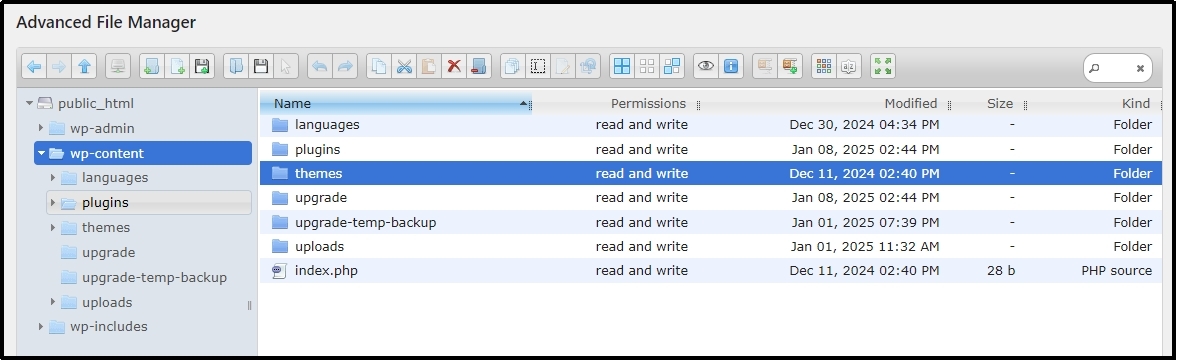
Note: You can access your WordPress file via cPanel or an FTP client. We recommend using a file manager plugin, such as Advanced File Manager.
Change the name of the “themes” to something else. For instance, you can rename it to “themes-backup.” By changing the name, you restrict WordPress from accessing the folder, which will coerce the CMS to load a default theme like the Twenty-Twenty-Two.
Once you regain access, you can simply change and activate the themes one by one and find the culprit.
In the same way, carry out the operation with the ‘plugins’ folder as well until you find and eliminate the problem.
Do not forget to change the folder’s name back to normal so the operations can get back to normal again.
Fix #5: Repair the corrupted database.
In the following section, we will learn to create a new database, but you can save the hassle by repairing the corrupted database. If you do, WordPress will show an error such as “One or more database tables are unavailable. The database may need to be repaired.”
If you see this error, there is a high chance you can repair your database by adding the following line at the bottom of your wp-config file:
| define(‘WP_ALLOW_REPAIR’, true): |
Fix #6: Create a new database as a last resort.
If none of the solutions work, it’s finally time to create a new database. In some scenarios, the file is corrupted beyond repair and thus can only be fixed by replacing it with a new database.
Here, we must remind you of the importance of a backup again. This section requires alteration with the core files, and the tiniest of mistakes may force your WordPress to close. Thus, always create a backup before jumping right into it.
For creating a new database, navigate to Databases from your cPanel and navigate to MySQL Databases. At the top of the page, you will see a “Create New Database” button. Once selected, it would require you to enter a desired name for your new database—you can name it whatever—and click the “Create Database” to create the new database.
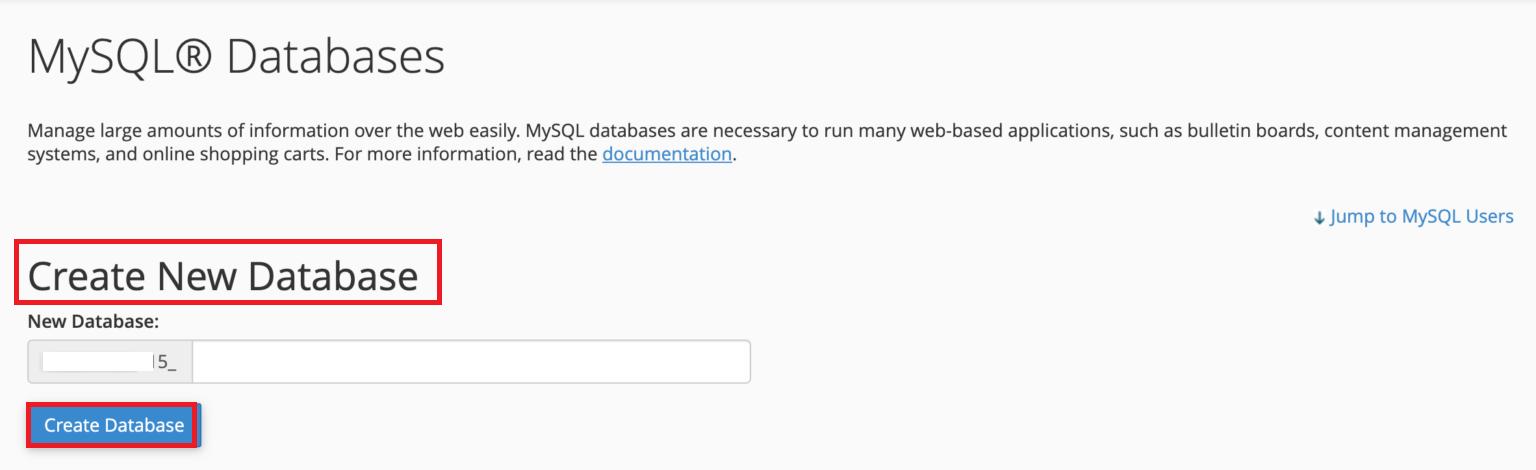
Once the new database is created, you will need to assign a new user with full permissions. To do this, scroll down to the ‘Add New User’ section. Create a new user by setting a username and a strong password, then click ‘Create User.’ Next, link this user to your new database by selecting both the database and the user from the dropdown menus under ‘Add User to Database.’ Ensure you grant all privileges to the user so they can fully manage the database.
After this, update the wp-config.php file with the new database name, username, and password you just created. This ensures WordPress can now communicate with the fresh database. If everything is correctly configured, the error should be resolved, and your site should be up and running again.
Conclusion
Encountering the ‘Error Establishing a Database Connection’ in WordPress can feel overwhelming, but as you’ve seen, it’s often a fixable issue with the right approach. From checking your wp-config credentials to creating a new database, the solutions provided can help you get your WordPress back online.
Remember, always back up your website before making any significant changes to avoid data loss. If you’re still unable to resolve the issue, don’t hesitate to contact your hosting provider for further assistance—they can often resolve server-related problems more efficiently.
With these steps, your WordPress site should be back to running smoothly, ensuring a seamless experience for both you and your visitors.
To enhance your WordPress login security, try All-in-One Login.