


Your WooCommerce login page is more than just a gateway to your store. It’s the first thing users see when they stumble on your store.
Simply put, it can make or break your first impression. And we all know the importance of the first impression. Therefore, welcoming your customer with a default WooCommerce page with a massive WordPress logo at the top is surely not going to help.
The solution for that is—a customized WooCommerce login page.
This guide will explore the key benefits of customizing the WooCommerce login page, provide step-by-step instructions to customize the WooCommerce login page using the All-in-One Login plugin and share best practices to help you make the most of this customization.
Let’s get started!
Why Customize WooCommerce Login Page?
Customizing the WooCommerce login page offers several benefits that can enhance the user experience and brand consistency. Here’s how you and your customer can benefit from a customized WooCommerce login page:
- Enables Consistent Branding
Customizing the login page allows you to match it with your store’s branding, ensuring a professional and consistent appearance throughout the store. You can adjust colors, logos, and backgrounds to reflect your brand’s identity.
- Enhances User Experience
If you customize the WooCommerce login page, you can tailor the webpage to your store’s specific needs. For instance, if your store needs an additional field other than the traditional username and password field, you can do that as well.
Adding custom fields, simplifying the login process, or providing helpful messaging can reduce friction and improve customer experience. A well-designed login page can help users access their accounts faster and more efficiently without creating unnecessary complications.
- Increases Customer Trust
A branded and customized login page makes your customers feel safe and secure by ensuring that they are indeed on the website they intend to and not on a phishing site that is trying to steal their sensitive information.
- Allows Brand Promotion
Customizing the WooCommerce login page gives you the flexibility to add additional brands and deals on your login page. Ensuring your customers take note of the deal while entering your store. Showcasing your best deals here will enhance conversions and will significantly impact your business.
You can also take this one step further by offering incentives, such as discounts or deals, for returning customers. This personalized approach will make it tempting for customers to purchase more in fear of missing out on a personalized deal or discount.
- Mobile Optimization
With mobile commerce on the rise, a customized login page can be optimized for mobile devices, ensuring that users on mobile screens can have a smooth and responsive experience on your website. This is particularly important, especially with the escalating numbers in mobile usage.
How to Customize WooCommerce Login Page With All-in-One Login
Let’s transform that default boring design into something breathtaking with All in One Login—a security plugin that also offers complete WooCommerce login page customization.
To begin customization, let’s download the plugin by navigating to the WordPress dashboard >> Plugins >> Add New Plugin >> AIO Login.
Install and activate the plugin by using the activate button that appears after successful installation.

Alternatively, you can upload the premium plugin directly by navigating to the
Afterward, navigate to Plugin’s settings >> Customize. That will redirect you to a screen that looks like this:
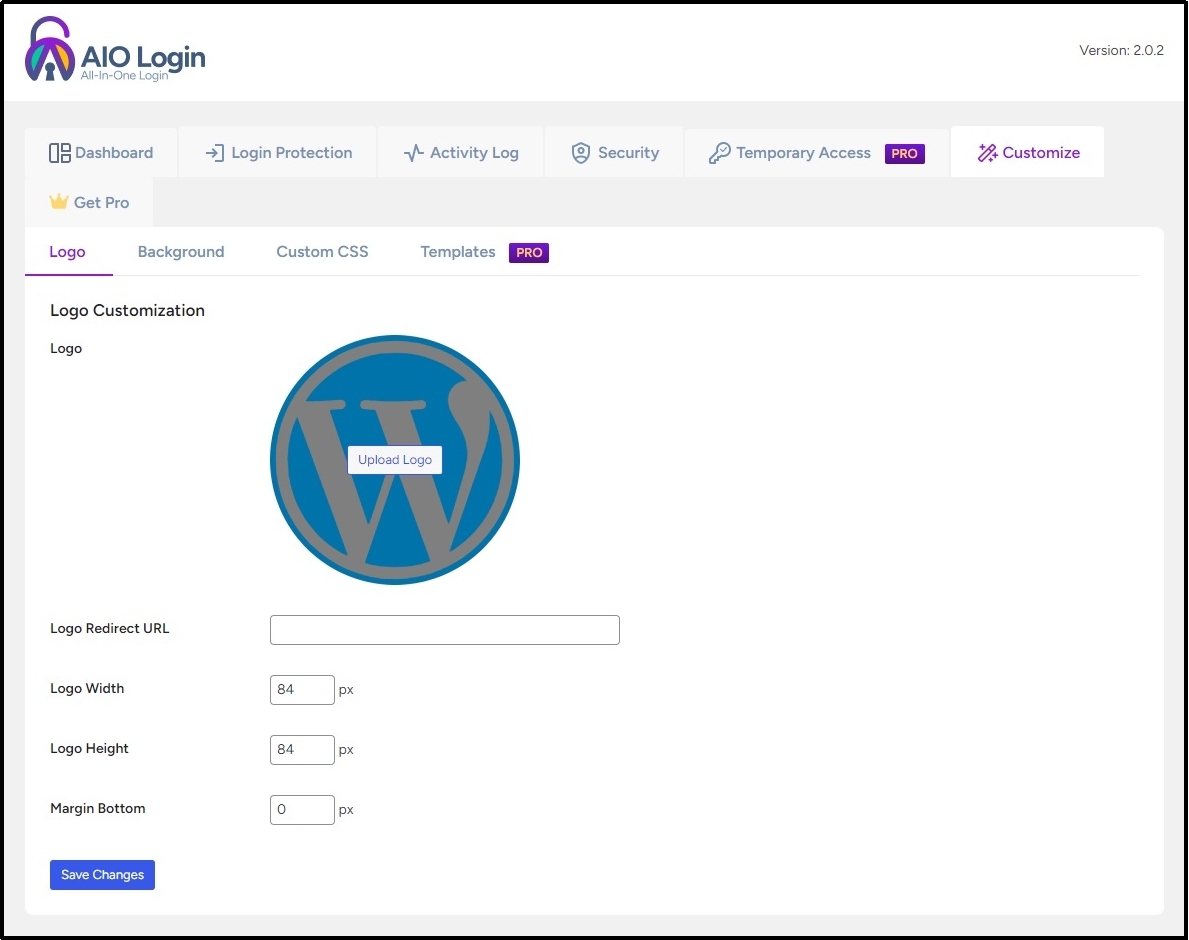
Here, you can see four tabs, including Logo, Background, Custom CSS, and Templates. We will walk you through each one of them. Please read on to learn how you can use these to create a page that reflects creativity and branding.
The first tab, Logo, allows you to eliminate the default and boring WordPress logo and replace it with your own brand’s logo.
To change, use the “Upload Logo” button and select or upload your logo from the Media Library.

The next box, the Logo Redirect URL box, is to help you send a visitor to a certain address if they click the logo on the WooCommerce login page.
The best practice is to add your homepage’s URL here. That will redirect the visitor to your website’s homepage.
The next three Logo Width, Logo Height, and Margin Buttons help with alignment. You can play around with them to move your logo around the WooCommerce login page.
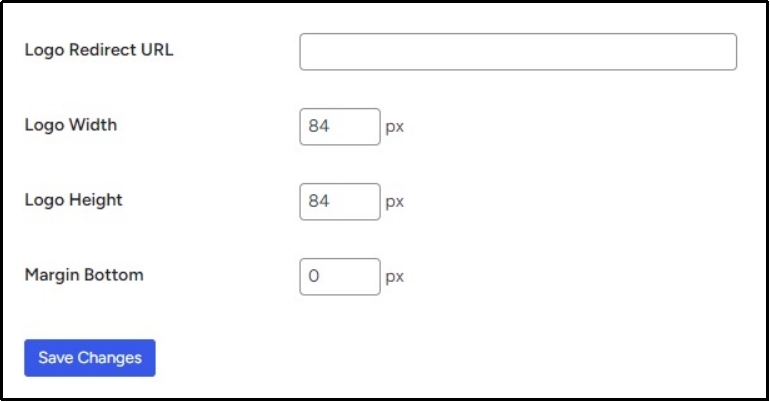
Once done, save your progress with the Save Changes button.
Let’s switch to the next tab, which is Background.

This tab consists of two further customization options: Background Color and Background Image.
As the name suggests, Background Color allows you to change the color to match your brand’s aesthetics.

Conversely, Background Image allows you to add any image of your choice as the background of the WooCommerce login page.
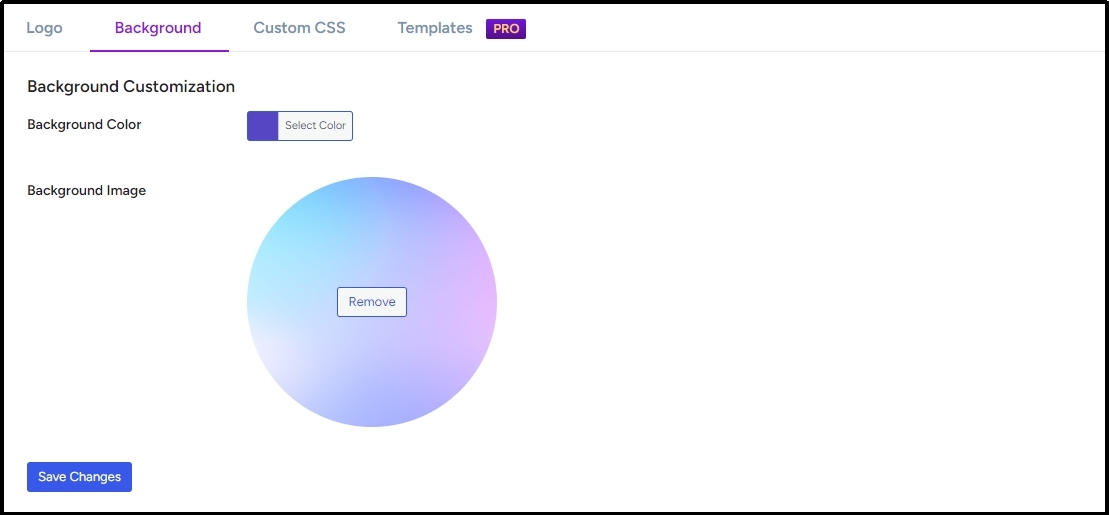
Once again, save changes using the button at the bottom to avoid losing any progress.
Let’s move on to the third tab, Custom CSS.
If the discussed customization options are not enough, you can always use Custom CSS to further customize the WooCommerce login page with additional elements and functionalities. Just enter your custom CSS code without adding a <style></style> tag, and the code should work just fine.

The final tab of the documentation, Templates, is a premium feature and can only be accessed by purchasing the All-in-One Login Premium.
This option literally makes customization of your WooCommerce login page a one-click option. This feature enables you to choose from multiple templates, making customization easy and rapid.
Let’s test these beautiful templates. Select one and save changes to apply changes.

Now, let’s see how it looks.

There you go! Just by selecting a template, we completely transformed a dull and lifeless page into something lively.
But if you don’t want to go for the premium option, you still have adequate customization options to create something super amazing.
Let’s see how it looks after changing the background and adding our customized All-in-One Login logo.
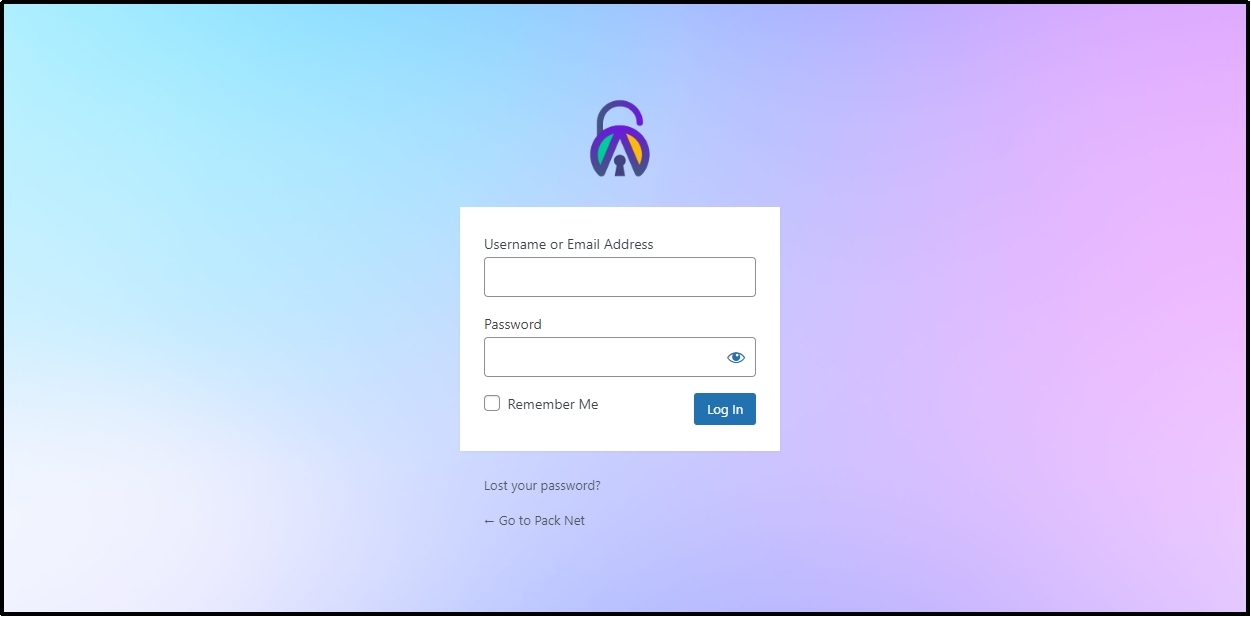
Not bad, either!
That way, you can easily customize your WooCommerce login page and transform it into something energetic and amazing.
That’s pretty much it.
Enhance WooCommerce Login Page Security
Although appearance is vital for a brand, so is security. Securing your WooCommerce login page prevents unnecessary login attempts, unauthorized access, and other cybersecurity problems. Here’s how you can enhance the security of your login page with All in One Login.
- Add 2-Factor Authentication
You can enhance your login page security by implementing 2FA on your login page. Two-factor authentication requires the user to authenticate their login attempt using another verification factor, which is why it’s called two- or multi-factor authentication.
Nowadays, when data breaches and hacks are so common, adding a 2FA is simply not a choice anymore but a necessity. Because it helps even if your password is leaked or hacked. If the attacker enters the correct login credentials, they still will not be able to enter your website unless they authenticate their login attempt with the second verification factor, which is through the owner’s mobile phone.
???? To set up 2FA for your WooCommerce login page, check out our guide on How to Set Up Two-Factor Authentication (2FA) for WordPress [3 Easy Steps]
- Enable Captcha
reCAPTCHA is one of the greatest tools created to differentiate between bots and humans. With 42% of web traffic accounting for bots, it is no surprise that a successful store may get hundreds of thousands, if not millions, of bot login attempts every single day.
reCAPTCHA can help you get rid of them. It adds a test that requires the user to select certain objects from given photographs. These relatively easy tests for humans are almost impossible for robots.
Even if they code one that can pass the test, such a robot will still not be able to enter the website because the reCAPTCHA also verifies the browsing history to ensure it actually is the human trying to access the WooCommerce store and not a bot.
To learn more, check out this guide ???? How to Add CAPTCHA to WordPress Login in 03 Easy Steps.
- Change Your WordPress Login URL
WooCommerce or WordPress’s default URL is yourdomain/wp-login.php/. This URL will let you enter any WordPress login page unless changed. Cyber attackers love those web pages that use the default and vulnerable login page because it makes their job easier to gain unauthorized access using password-guessing attacks, such as brute force or credential stuffing.
You can prevent that by changing your default login URL to something more confidential and hard to guess. For instance, yourdomain/confidential-wordpress-login/ is better than just changing it to /login or /admin.
???? Here’s the guide on How to Find and Secure Your WordPress Login URL.
Customize WooCommerce Login Page: Best Practices
If you plan to customize your WooCommerce login page, do not forget these best practices that are sure to enhance user experience and help you create a better WooCommerce landing page.
- Avoid Redundancy: Keep the design sleek and straightforward. Do not overload the page with unnecessary elements. Every element or piece of code can be a distraction and may impact your login page’s loading speed. Always remember customers will choose a faster process over an appealing design any day.
- Keep the Theme Consistent: Ensure the theme of your WooCommerce login page is consistent with the overall theme of your website. Use your brand’s color palette and typography to ensure the page goes well with the overall aesthetics of your website. This helps establish trust and brand consistency.
- Focus on Mobile Responsiveness: We already discussed this in the benefits section. There is irrefutable evidence that mobile phones accommodate most internet traffic. In fact, 59% of traffic comes from mobile phones.
- Enhance Security Features: We discussed this as well. Using All-in-One Login implements necessary measures to enhance the overall security of your login page and store.
Conclusion
Customizing your WooCommerce login page is a simple yet powerful way to enhance your store’s branding, user experience, and security. By transforming the default page into a personalized, visually appealing, and functional gateway, you make a lasting impression on your customers while ensuring a seamless and secure login process.
While you customize the WooCommerce login page, remember to adhere to best practices like maintaining a consistent theme, optimizing for mobile devices, and avoiding unnecessary clutter.
Start customizing your WooCommerce login page today, and create a welcoming, secure, and brand-aligned experience for your customers with All-in-One Login today!
???? You might want to read this ???? How to Customize WordPress Reset Password Page [Easy Way]
Frequently Asked Questions
How to customize the WooCommerce login page?
You can easily customize the WooCommerce login page using the All-in-One Login WordPress plugin. It enables you to change the logo, background, color, and more while also offering the world’s best admin page protection.
Can CAPTCHA be added to the WooCommerce login page?
Yes! You can add reCAPTCHA to the WooCommerce login page using All in One Login. The plugin also offers other security features to enhance your login security further.
Can you track login attempts on the WooCommerce login page?
Yes! You can track login attempts with All-in-One Login. The WordPress plugin allows you to monitor your login activity enabling you to block suspicious IPs to prevent unauthorized access.