

WordPress is the most used content management system in the world. Thus making it the prime target for cyberattacks. Password-guessing attacks are one of the most common problems because the default WordPress login URL makes it effortless for bad actors to perform such attacks.
The good news is that you can easily get rid of such attacks by changing your WordPress login URL. Fortunately, changing it is fairly simple, especially with the right tools.
This article explores two common ways to create a custom WordPress login URL that is safe, secure, and confidential. At the end of the article, we will also discuss the best practices for doing so. Let’s jump right in!
Why Change the Default WordPress Login URL?
We just said that having an insecure login URL can exacerbate WordPress security. But you might be wondering how it worsens the situation.
Basically, the default WordPress login URL is easily guessable. One can simply add /wp-login.php/ or /wp-admin/ ahead of the website’s domain, and that would allow access to the login page, where cybercriminals can perform automated password-guessing attacks, enabling the bad actors to gain unauthorized access to WordPress.
What are password-guessing attacks?
Let’s take a moment to understand this horrific type of cyberattack.
Password-guessing attacks, as the name suggests, are the types of brute force attacks where cyber attackers use thousands of random password combinations using automated bots or manually. These passwords work tremendously well on websites or accounts using easy-to-guess passwords, such as password123, 123456, qwerty, etc. A study of commonly used passwords found that such credentials can be cracked in less than a second, making brute force attacks one of the go-to techniques for attackers trying to gain unauthorized access.
Furthermore, sometimes, cyber attackers may also use credential stuffing, which is when the attackers use credentials stolen from previous data breaches to attempt a login. This approach can be successful for users who use similar passwords for multiple accounts.
Additionally, perpetrators also use the leetspeak (1337) substitution attack, where letters are substituted with similar-looking symbols. Such as “p@ssword” instead of “password” and “1337sp3@k” instead of “leetspeak” are used to crack complicated passwords.
To protect WordPress login URLs, one must be vigilant about such attacks to secure WordPress. A custom login page in WordPress keeps the hackers guessing about the login page URL, making it relatively challenging for the attacker to run a cyberattack.
02 Easy Methods to Create a Custom WordPress Login URL
Now that you understand the dangers of an unsecured login page, here are two ways to change the wp-admin URL. Let’s jump right in!
| ⚠️ We recommend creating a backup of your site before proceeding further. A backup enables you to restore WordPress to a previous state in case of critical or fatal errors. |
Method #1: Using the All-in-One Login plugin [Recommended]
Let’s start with the most straightforward one. This one is fairly simple. The All-in-One login plugin makes it super simple to hide the WordPress login URL. Follow the steps below, and let’s create the custom WordPress login URL together.
First and foremost, install the All-in-Login plugin. Once installed, activate the plugin and head over to the plugin’s settings.

Here’s how the plugin will look from the inside.

Switch to the Login Protection, and toggle the Enable button on.
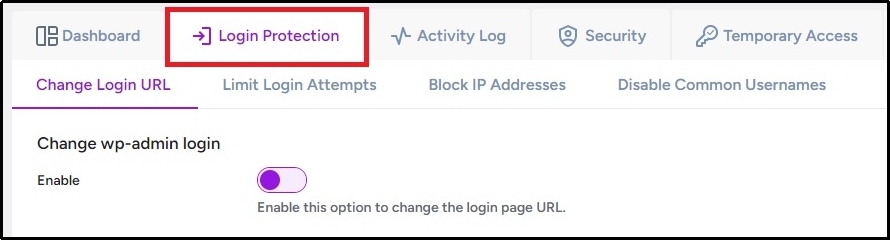
Enabling the button will reveal additional input fields, such as Login URL and Redirect URL.
The first box, labeled Login URL, is where you have to put your new login URL, and the Redirect URL is the destination where the user who attempts to access /wp-login.php or /wp-admin will be redirected. Leave it empty if you want the user to return to the homepage.

After making the changes, ensure saving progress using the Save Changes button.
That’s how simple it is with All-in-One Login.
Method #2: Create a custom WordPress login URL manually.
Before you proceed with this method, know that it is not recommended and may break your WordPress. Also, core updates may revert these changes, leaving you second-guessing every time there is an update unless you create a new login page and use a child theme.
However, if you can bear the consequences, we want to remind you again about creating a backup. This method requires the alteration of the WordPress core files. Thus, creating a backup beforehand is vital.
If you are ready, navigate to your WordPress core file via an FTP client or use a file manager plugin. We at All-in-One Login recommend a WordPress file manager plugin such as Advanced File Manager for its ease of use.
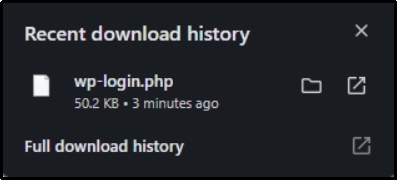
Find the ‘wp-login.php’ and download a copy of it onto your device. You can simply double-click the file to do so in Advanced File Manager.

Afterward, navigate to the file’s destination and open the file in any text editor offering a find-and-replace feature.
Depending on the text editor you use, the UI might differ, but it will look something like the image below.

Once there, utilizing the find and replace feature, find all the instances that have “login-page.php” and replace them with the login page that you wish to change to. For instance, “your-new-confidential-login.”
After the changes are done, save the changes to the file and upload the file back to the core file.
However, it will restore to default every time there is an update of the theme you use. To combat that, as stated earlier, use a child theme.
Navigate to wp-content >> themes, and locate the folder for your active child theme.

Inside, you will find a “functions.php” named file. Open the file and add the following code before the “END ENQUEUE PARENT ACTION” line:
| add_filter( ‘login_url’, ‘custom_login_url’, PHP_INT_MAX );function custom_login_url( $login_url ) {$login_url = site_url( ‘access.php’, ‘login’ ); return $login_url;} |
Remember to change the “access.php” to the name of your new WordPress login file. This signals WordPress to use the determined file to load the login URL instead of the default one.
That should be enough to help you create a custom WordPress login URL.
Best Practices For Custom WordPress Login URL
No matter which method you choose, these are the best practices for creating a custom WordPress login URL:
- Don’t use an easy-guessable URL. Changing the URL from /wp-login.php to something easy-guessable, such as custom-login or new-login, is not going to help. Thus, you must try to come up with a phrase that hackers can not guess.
- Enable Multi-factor authentication (2FA). Adding 2FA or MFA can be another excellent strategy to prevent unauthorized access. Two-factor authentication demands multiple authentication factors before allowing access, often requiring a check-in from the owner’s mobile phone or email address, making it more challenging for hackers. Here’s how to add 2FA with All-in-One Login: How to Set Up Two-Factor Authentication (2FA) for WordPress [3 Easy Steps]
- Enable reCAPTCHA. Given that hackers often use automated bot attacks to perform brute force attacks, this strategy helps prevent bot logins. You can add reCAPTCHA with All-in-One Login as well. Here’s how: How to Add CAPTCHA to WordPress Login in 03 Easy Steps.
- Use a firewall. Always use a firewall to test and filter the incoming traffic and set strict rules to avoid letting in malicious actors and bad traffic.
Final Thoughts
To secure a WordPress login URL, creating a custom WordPress login URL is essential, and not breaking your site in the process is vital as well. Therefore, we recommend using the safer method and go with the All-in-One Login. The plugin offers login URL customization, login page customization, multiple security features, and much more!
If you are uncertain about which plan to choose, try the free version, which offers ample protection and fantastic features. Download now!
Frequently Asked Questions
Why should I change the default WordPress login URL?
Changing the default WordPress login URL enhances security by making it harder for hackers to target your site with automated brute-force attacks. The default URL is widely known, making it an easy target. A custom login URL keeps your site more secure.
What is the easiest way to change my WordPress login URL?
The easiest way is to use a plugin like All-in-One Login, which allows you to customize your login URL without modifying core files. This method is user-friendly and ensures that changes persist even after WordPress updates and doesn’t break your site.
Can I manually change my WordPress login URL without a plugin?
Yes, you can manually change your login URL by editing the wp-login.php file and modifying functions in your theme’s functions.php file. However, this method is not recommended because updates can overwrite your changes, potentially breaking your site.
Will changing my WordPress login URL affect my website’s performance?
No, changing your login URL does not affect website speed or performance. However, if done incorrectly, it may lock you out of your website. Using a plugin like All-in-One Login ensures a smooth and safe process.
What additional security measures should I take after changing my login URL?
Besides customizing your login URL, enable two-factor authentication (2FA), reCAPTCHA, and a firewall. These measures help protect against brute-force attacks, automated bots, and other threats.