


Want to set up custom WordPress login credentials? You are at the right place. WordPress’s default login credentials are very weak, as it is set to ‘admin.’ This is very vulnerable because cyber attackers can easily guess your password and gain unauthorized access to your WordPress.
Therefore, to maintain your website’s security and integrity, you must set up custom login credentials in WordPress.
In this article, you will understand the risks of default credentials, the benefits of setting up new ones, and finally, how to set up custom WordPress login credentials. Let’s jump right in!
Why Customize WordPress Login Credentials?
WordPress login credentials include a username and password. Having any one of them weak from the two can be problematic because it makes it easier to execute brute force attacks. Before moving on to the next section, let’s take a moment to understand the type of cyberattacks that we just discussed.
A brute force attack is a type of cyberattack that uses trial and error to crack login credentials. For example, the attacker will try common password combinations, such as ‘password,’ ‘admin,’ ‘123456,’ etc., before moving on to more complex combinations. And having one easier login credential makes it easier for the other one to be guessed.
In fact, a study shows that easier passwords, such as those mentioned above, can be guessed in less than one second.
Furthermore, even if your password is strong, a weak username can still be detrimental to your WordPress security because attackers may use a leetspeak or a hybrid attack that substitutes common letters with similar-looking characters, such as “E” will be changed with 3, and “I” will be changed with “1,” etc. For instance, the “password” will be changed to “p@ssw0rd.”
These techniques can guess even complex passwords. Therefore, custom login credentials in WordPress are necessary.
Setting up Custom WordPress Login Credentials: Prerequisites
Remember, before changing your custom WordPress login credentials or making any changes to your WordPress, you must create a backup of your site. To do so, you can use a plugin such as UpdraftPlus or BackupBuddy. Reliable backup plugins such as those mentioned above can also create automatic backups, making it one less thing for you to take care of.
Moreover, regular backups can also be handy in case of a malware attack or a virus spread, as you can simply load your previous backup, which the plugin automatically created before infection. Furthermore, backups can protect you from a wide range of malware attacks, including ransomware, which encrypts your data and demands heaps of cryptocurrencies in exchange for the decryption key.
Lastly, before jumping into the setup, ensure you have administrative access. Administrators have access to all the administrative features on the website. If you are not the administrator, you will have to request access to someone who is an admin.
If you already have access, let’s jump right into the process!
How to Set up Custom WordPress Login Credentials in 3 Easy Steps
You can create custom WordPress login credentials based on user roles on your website. User roles define how much control a user can have on your website. WordPress allows the following user roles:
- Subscriber: These users can only manage their profile.
- Contributor: Contributors can write or manage their posts but can not publish them.
- Author: Similar to contributors, they can publish or delete their posts.
- Editor: Editors can manage or publish their posts and those of other users.
- Administrator: The admin or the administrator with access to all the features within a single site.
So, based on these roles, you can create custom WordPress login credentials for each one. Now that you know the user roles and what they mean, here’s how to start creating custom WordPress login credentials in three easy steps.
Step #1: Log in to Your WordPress.
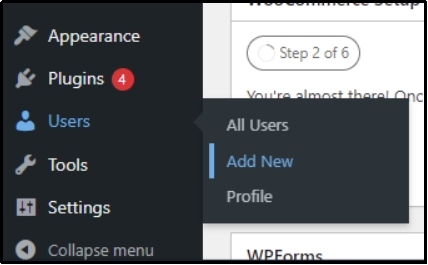
Firstly, log in to WordPress, hover over Users, and click Add New from the sub-tab.
Step #2: Fill in the User Information.
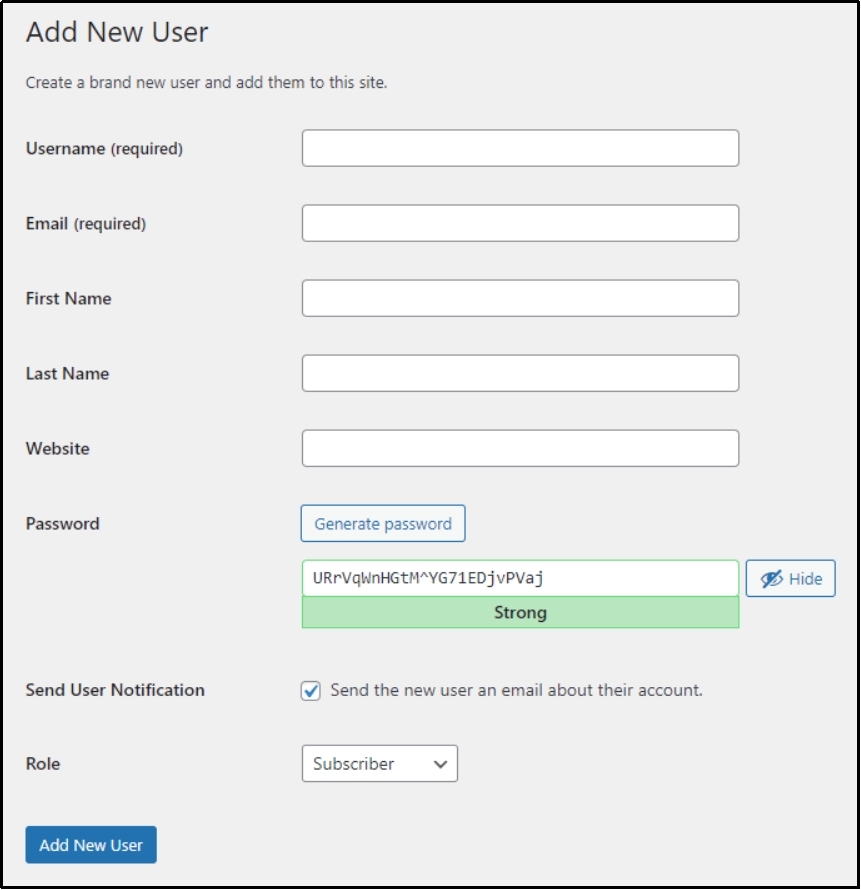
Afterward, you will land on a screen, as you can see in the screenshot below, with the following fields:
- Username: You can set a custom username for the new user.
- Email: Enter the user’s email.
- First Name: Self-explanatory
- Last Name: Self-explanatory
- Website: Since this field is optional, you can leave it blank as it is usually used for authors or contributors, and that link goes to their personal blogs or the website they are usually associated with.
- Password: Although you can set a custom password, WordPress already recommends a strong password that can not be guessed.
- Role: Here, you can choose the role that you want to assign to the visitor from the drop-down menu. We already discussed these roles.
Step #3: Add New User
Double-check the given information and remember that an incorrect role may pose a threat to your WordPress security. Thus, it is essential to make sure the roles are correct. Also, unless you completely trust someone, do not allow admin access to anyone. Just to remind you again, administrators can make any kind of change to your WordPress.
Finally, if the information is correct, save changes by clicking the Add New User button at the bottom of the screen.

There you go! You just added a new user with custom WordPress login credentials.
This way, you ensure everyone uses strong passwords, which can be significant for WordPress security. In fact, SolarWinds (an IT services company) sustained a significant cyberattack because one of its internees used a weak password. Read about the incident here.
Although enforcing this policy is necessary to enhance your WordPress security further, you can protect the most vulnerable aspect of your WordPress: the login page.
Protect Your Login Page with All-in-One Login
All-in-One Login is a complete solution for wp-admin or login page security. As discussed earlier, cyberattackers can perform brute force attacks on login pages, and they use automated bots that try millions of password combinations in minutes, cracking open even the hardest of credentials. Thus, deploying safety measures is necessary, such as:
- Add Limit Login Attempts: Given that the cyberattacks use bots, you can stop them by limiting the total number of attempts. You can implement this feature with the All-in-One Login plugin. Here’s how to Implement Limit Login Attempts.
- Change Your Admin URL: By default, the WordPress admin URL is accessible at www.example.com/wp-login.php/ or /wp-admin/, which is easily accessible by cyber attackers. Therefore, you can change the login URL to enhance your login protection further.
- Add Two-Factor Authentication (2FA): Two-factor authentication or 2FA requires authentication from two factors before allowing access. This prevents unauthorized access even if your password is leaked or hacked. Here’s how to set up two-factor authentication (2FA.)
- Implement reCAPTCHA: reCAPTCHA keeps bots away, which is absolutely necessary when almost half of the internet traffic is bots. Learn how to add reCAPTCHA to WordPress login.
Related: How To Enhance Your WordPress Login Security: 8 Effective Tips
Conclusion
Setting up custom WordPress login credentials is a crucial step to protect your website against cyberattacks like brute force attempts. By creating unique usernames and strong passwords for each user role, you significantly reduce the chances of unauthorized access to your site.
While this measure strengthens your security, pairing it with additional protections, such as limiting login attempts, changing the admin URL, implementing two-factor authentication, and using reCAPTCHA, provides a complete defense mechanism against pesky cyberattacks.
Remember, securing your login credentials can protect the integrity of your website and the trust of your audience. Don’t wait until it’s too late! If you need help, contact our support.
Frequently Asked Questions
What are custom WordPress login credentials?
The custom login credentials are the credentials that you can create for users on your WordPress. Setting up custom WordPress login credentials enhances safety and maintains the integrity of your WordPress.
How do I set up custom WordPress login credentials?
You can set up custom WordPress login credentials by navigating to the User >> Add New and then creating a new user with a custom username, email, first name, last name, website, password, and role.
What are the recommended practices for creating custom WordPress login credentials?
The best practices for creating custom WordPress login credentials include using a unique username that should also be memorable, and the password should be a combination of uppercase and lowercase letters with numbers and special characters in between. It should be 14-16 characters and should not be easy to remember. In case of uncertainty, you can try online strong password generators.