

A passwordless login plugin for WordPress lets users sign in without entering a traditional password. Depending on the plugin, users can authenticate with a passkey, email magic link, one-time password (OTP), or social account.
These methods can reduce login friction and remove some password-related risks. However, they do not provide the same level of security or work the same way.
Passkeys use public-key cryptography and provide phishing-resistant authentication. Magic links and OTPs offer a simpler login experience but depend on the security of the user’s email account, phone number, or authentication channel. Social login delegates authentication to an external identity provider, while temporary login links solve a different problem by giving trusted users short-term access.
In this guide, we’ll compare eight WordPress plugins that support passwordless or password-free authentication. We’ll explain what each plugin does best, which authentication methods it supports, its WooCommerce compatibility, important security considerations, pricing, and who should use it.
What Is Passwordless Login in WordPress?
WordPress passwordless login lets users authenticate without entering a traditional password. Depending on the method, the site can verify a passkey, one-time code, magic link, social account, or temporary login token.
However, “passwordless” covers several different authentication models.
Passkeys use public-key cryptography. The website stores a public key, while the user’s device or passkey provider protects the private key. Users can unlock a passkey with Face ID, Touch ID, Windows Hello, a device PIN, or a security key.
Magic links work differently. The user enters an email address and receives a unique login link. The site authenticates the user when they open the link before the token expires.
OTP authentication uses a temporary code. A plugin may send the code through email or SMS, or generate it through an authenticator app.
Social login removes the need to create a separate WordPress password, but the user still authenticates through an external identity provider such as Google, Facebook, Apple, or Microsoft.
Temporary login links solve another problem. They give developers, support staff, contractors, or clients short-term access without requiring you to share a permanent WordPress password.
Types of Passwordless Authentication
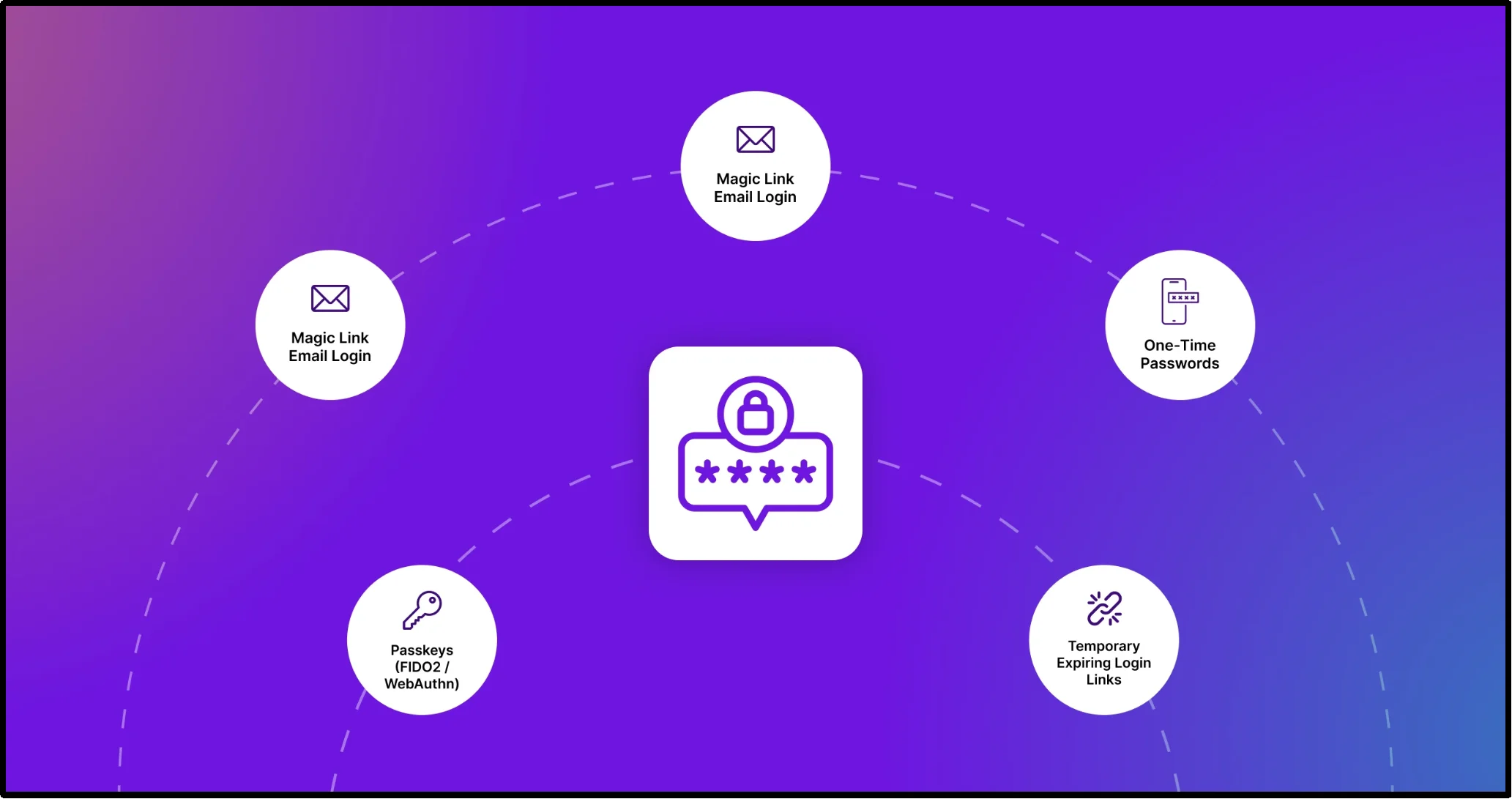
Each passwordless method has a different security model and use case.
| Method | Password required? | Phishing resistance | Best use |
| Passkeys | No | High | Customer and administrator login |
| Magic links | No | Lower | Simple member login |
| Email OTP | No | Lower | Simple password-free access |
| SMS OTP | No | Lower | Phone-based verification |
| Social login | No WordPress password | Depends on provider | Fast registration and login |
| Temporary login links | No | Depends on implementation | Developer and support access |
Passkeys (FIDO2 and WebAuthn)
Passkeys use WebAuthn and FIDO authentication standards to authenticate users with public-key cryptography instead of a traditional password.
The website stores the public key, while the user’s device or passkey provider protects the private key. Users can approve a sign-in with Face ID, Touch ID, Windows Hello, a device PIN, or a hardware security key.
Passkeys provide strong phishing resistance because the authentication process binds the credential to the website’s domain. The biometric check itself does not travel to the website. The device uses the biometric or local PIN to unlock the credential and complete the authentication process.
Magic Link Email Login
Magic link login lets users enter their email address and receive a unique link to sign in.
When the user clicks the link, the WordPress site validates the token and creates an authenticated session without asking for a password.
Magic links usually use short expiration periods and may limit each link to one use. However, the security of a magic link depends heavily on the user’s email account. Anyone who gains access to the inbox or an active login link may be able to sign in.
One-Time Passwords (OTP)
OTP login uses a temporary verification code instead of a traditional password.
A plugin may send the code through email or SMS, or generate it through an authenticator app. You can use OTP as the primary login method or as an additional authentication factor.
Email and SMS OTP can simplify login, but they inherit risks from the underlying authentication channel. Email account compromise can expose email OTPs, while SMS authentication can face risks such as SIM swapping.
Temporary Expiring Login Links
Temporary login links give a trusted user password-free access for a limited period.
Developers, support staff, contractors, and clients commonly use this approach when they need temporary access to wp-admin.
Important: temporary login links solve a different problem from customer passwordless authentication. They provide short-term access rather than replacing the normal login experience for visitors or members.
Social Login
Social login lets WordPress users authenticate with an existing account from a supported identity provider instead of creating a separate WordPress password.
Google, Facebook, Apple, Microsoft, and other providers can handle the authentication process.
Social login is passwordless from the WordPress site’s perspective, but the user may still authenticate with the identity provider using a password, passkey, or another credential.
Why Use Passwordless Login on Your WordPress Site?
Passwordless authentication can make WordPress login faster and easier. It can also remove some risks associated with weak or reused passwords.
However, the security benefits depend on the authentication method you choose.
- Faster login: Users can sign in with a passkey, biometric unlock, magic link, or short verification code instead of typing a password.
- Lower password credential-stuffing risk: Passkeys remove reusable passwords from the authentication flow. Magic links and OTPs also avoid password reuse, although they introduce other authentication-channel risks.
- Less password guessing: Passwordless authentication removes password guessing from that particular login flow. Attackers can still abuse login endpoints, request OTPs repeatedly, or exploit authentication flaws, so rate limiting remains important.
- Fewer password-reset requests: Passkeys, magic links, and OTPs reduce the need for users to remember and reset traditional passwords.
- Better mobile experience: A passkey, biometric prompt, or email link can require less effort than typing a long password on a mobile device.
- Lower support overhead: Sites that receive many password-reset requests can reduce some account-access support work by offering passwordless authentication.
How We Evaluated These WordPress Plugins
We compared these plugins using publicly available WordPress.org information, plugin documentation, feature lists, update history, compatibility information, pricing information, and support activity.
We also considered the authentication method each plugin provides and the type of access it targets. A plugin that provides passkeys for customer accounts solves a different problem from a plugin that creates temporary administrator access.
Our evaluation focuses on:
- Authentication methods
- Security model
- Passwordless login capabilities
- Passkey and WebAuthn support
- Magic-link and OTP support
- WooCommerce compatibility
- WordPress compatibility
- Multisite support
- Maintenance and update activity
- Active installations
- Pricing and free features
- Account recovery options
- Best-fit use cases
We give more weight to phishing-resistant authentication, transparent documentation, active maintenance, practical compatibility, and clear security controls.
Note: Plugin versions, active installation counts, features, and pricing can change. Check the linked plugin and developer pages before installing a plugin or purchasing a license.
8 Best Passwordless Login WordPress Plugins Compared
Here’s a quick comparison before we examine each plugin in detail.
| Plugin | Authentication | Best For | WooCommerce | Free Version |
| All in One Login | Email OTP, SMS OTP, magic link | All-in-one login security | Yes | Yes |
| Temporary Login Without Password | Temporary login links | Developers and support teams | Yes | Yes |
| Nextend Social Login | Social login and OAuth | Social sign-in | Pro | Yes |
| WP-WebAuthn | Passkeys and WebAuthn | Developers and power users | Not its main focus | Yes |
| Secure Passkeys | Passkeys and WebAuthn | WooCommerce and membership sites | Yes | Yes |
| Devch Passkey Login | Passkeys and WebAuthn | Lightweight passkey setup | Not its main focus | Yes |
| Magic Login | Magic links | Email-based passwordless login | Limited | Yes |
| Passwordless Login by Cozmoslabs | Magic links | Simple passwordless login | Not built-in | Yes |
1. All in One Login
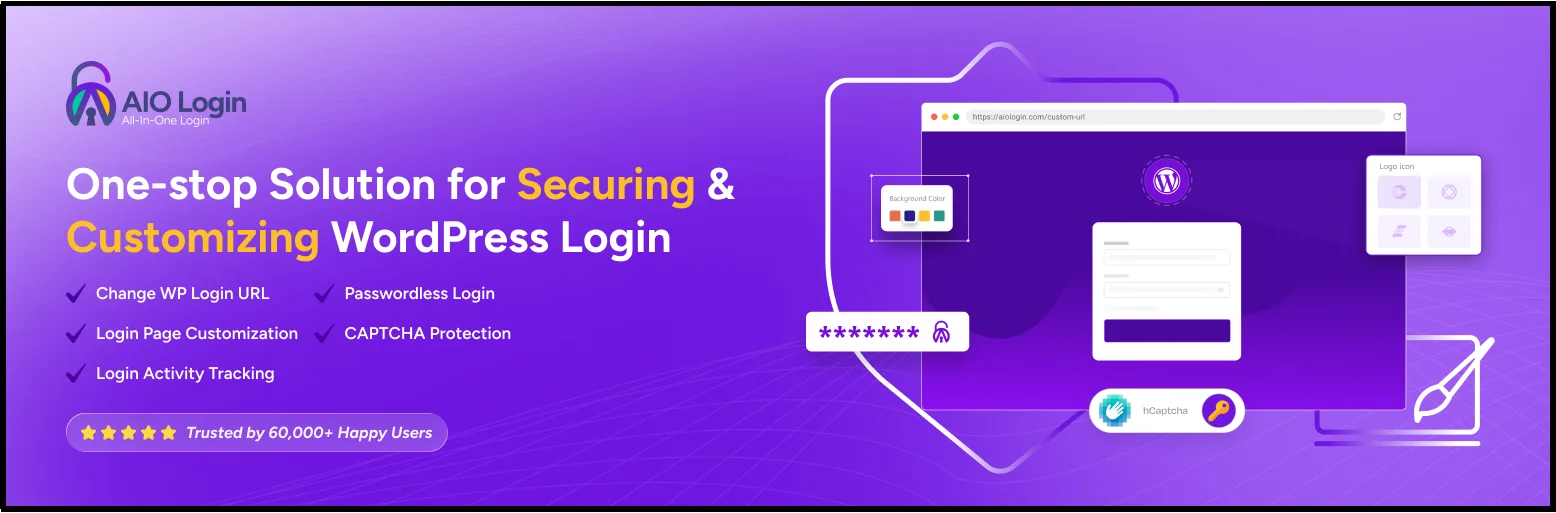
All in One Login started as a WordPress login security and customization plugin and has expanded its authentication features to include passwordless login.
Its current passwordless features include Email OTP, SMS OTP, and Login Link (Magic Link). It also combines these options with login protection, 2FA, social login, CAPTCHA integrations, temporary login tools, and login-page customization.
With more than 60,000 active installations, it suits site owners who want passwordless authentication alongside broader WordPress login security.
Best For
WordPress site owners who want passwordless authentication and broader login security features in one plugin.
Key Features
- Change WP-Admin URL
- Google reCAPTCHA integration
- Limit login attempts and lockouts
- Custom login redirection rules
- Login page customization with templates
- User enumeration protection
- Email OTP login
- SMS OTP login with Twilio
- Login Link (Magic Link)
- Disable common usernames
- Password strength checker
- User and IP address blocking
- App-based 2FA
- Temporary login URLs with visit and expiration controls
- IP address whitelisting
- Social login with Google, Facebook, Microsoft, Apple, GitHub, Discord, and LINE
- hCaptcha integration
- Google Fonts integration with 1,900+ fonts
- Email-based 2FA
- 2FA backup codes and grace periods
- Slack security notifications
- Webhook notifications for Zapier, Make, n8n, and custom APIs
- Login templates
- WooCommerce login integration with social login and passwordless Login Links
Pros
- Combines email OTP, SMS OTP, and magic-link authentication
- Includes comprehensive WordPress login security and customization tools
- Supports social login with multiple providers
- Offers app-based and email-based 2FA with backup codes
- Provides temporary login URLs with visit and expiration controls
- Supports WooCommerce account and checkout login integration
- Includes multiple CAPTCHA options for bot protection
- Provides login redirection, user enumeration protection, IP controls, and login attempt limits
- Supports Slack and webhook security notifications for advanced monitoring
Cons
- SMS OTP requires a Twilio account and SMS service
- Most advanced authentication, social login, WooCommerce, and security features require Pro
Pricing
A free version is available through WordPress.org. Premium plans and current pricing can change, so check the official pricing page before purchasing.
2. Temporary Login Without Password
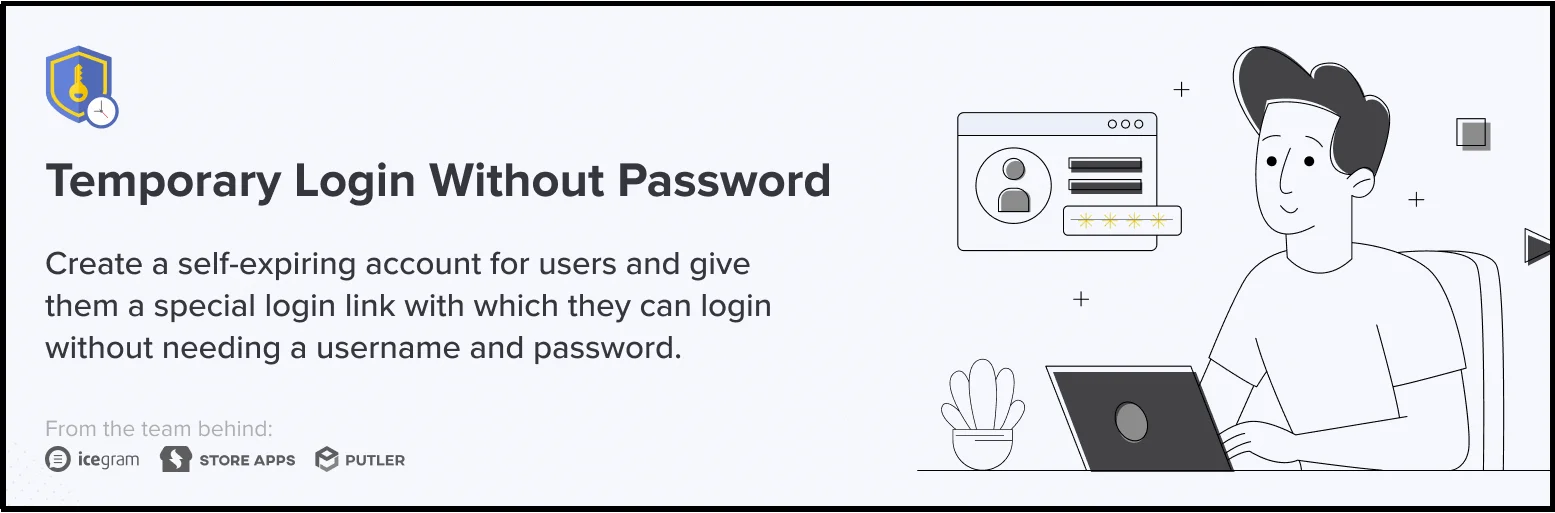
Temporary Login Without Password solves a different problem from regular customer passwordless login.
It lets an administrator create a temporary login link for a developer, support agent, contractor, or client. The link can expire automatically, so you don’t need to share a permanent WordPress password.
The plugin has more than 100,000 active installations and has been available in the WordPress ecosystem for years.
Best For
Developers, agencies, support teams, contractors, and clients who need temporary WordPress access.
Key Features
- Password-free temporary login links
- Automatic expiration
- Role selection
- Temporary user accounts
- Link deactivation
- Activity tracking
- Administrator controls
Pros
- Purpose-built for temporary access
- Eliminates the need to share a permanent WordPress password
- Large active user base
- Free version available
Cons
- Not designed as a regular customer passwordless login system
- Does not focus on passkeys or OTP authentication
Pricing
A free version is available on WordPress.org. Premium features and current license pricing can vary.
3. Nextend Social Login

Nextend Social Login lets users register and log in with supported social accounts instead of creating a separate WordPress password.
The free version supports Facebook, Google, and X. Its Pro addon adds more providers, including Apple, Microsoft, LinkedIn, GitHub, Discord, and others.
Nextend also integrates with WooCommerce through its Pro addon.
Best For
Sites that want fast social registration and login rather than dedicated passkey authentication.
Key Features
- Facebook login
- Google login
- X login
- OAuth-based authentication
- Login buttons for the WordPress login page
- Account linking
- Customizable login buttons
- Shortcodes and widgets
- Additional providers through Pro
- WooCommerce compatibility through Pro
Pros
- Familiar login experience for users
- Supports several major identity providers
- Large WordPress user base
- Simple integration with existing WordPress login forms
- WooCommerce support through Pro
Cons
- Authentication depends on the external identity provider
- Social login does not provide the same phishing resistance as passkeys
- Many providers and WooCommerce features require Pro
Pricing
The free version supports the core social-login providers. Pro adds additional providers, WooCommerce compatibility, and other advanced features. Check the current developer pricing before purchasing.
4. WP-WebAuthn

WP-WebAuthn focuses on WebAuthn-based passkey authentication rather than trying to provide a broad collection of login features.
Users can register passkeys through their browser’s credential manager and authenticate with platform authenticators such as Face ID, Touch ID, and Windows Hello, or with supported security keys.
Best For
Developers and power users who want a focused WebAuthn/passkey implementation.
Key Features
- Passkey registration
- WebAuthn authentication
- FIDO2 support
- Platform authenticators
- Hardware security keys
- Multiple passkeys
- Usernameless authentication
- Multisite support
- Open-source codebase
Technical Requirements
WP-WebAuthn requires a compatible HTTPS environment or localhost and relies on PHP extensions such as GMP and mbstring. At the time of writing this article, its current WordPress.org listing describes Multisite support as beta.
Check the plugin’s current installation requirements before deploying it on a production site.
Pros
- Focused on WebAuthn and passkeys
- Uses a standards-based authentication model
- Free
- Suitable for technical users
- Avoids unrelated login features
Cons
- Less suitable for users who want magic links or OTP
- Requires more technical setup than a basic email login plugin
- Multisite support currently carries a beta designation
Pricing
Free on WordPress.org.
5. Secure Passkeys

Secure Passkeys adds WebAuthn-based passkey authentication to WordPress and integrates with platforms such as WooCommerce, MemberPress, Easy Digital Downloads, and Ultimate Member.
Users can authenticate with supported passkeys, which may use a device biometric, device PIN, or hardware security key to unlock the credential.
Best For
WooCommerce stores and membership sites that want passkey authentication.
Key Features
- WebAuthn passkey registration
- Passwordless login
- WooCommerce integration
- MemberPress compatibility
- Easy Digital Downloads compatibility
- Ultimate Member compatibility
- Multiple passkeys
- User role controls
- Activity logging
- Login forms and shortcodes
- Multisite support
Security Consideration
Passkeys provide stronger phishing resistance than email links or SMS codes because the authentication process uses public-key cryptography.
The plugin also provides security-related controls such as activity logging and passkey management.
Pros
- Focuses on modern passkey authentication
- WooCommerce support
- Membership-plugin integrations
- Supports multiple passkeys
- Supports hardware security keys and platform authenticators
Cons
- More specialized than a general WordPress login-security plugin
- Passkey setup may require more user education than a magic-link login
Pricing
Check the developer’s current listing and licensing information for the latest pricing and feature availability.
6. Devch Passkey Login

Devch Passkey Login provides WebAuthn/FIDO2 passkey authentication while allowing the existing WordPress password login to remain available.
It supports WordPress Multisite, user passkey management, network settings, an audit log, and REST API endpoints.
Best For
Developers and technical site owners who want a focused passkey plugin for WordPress or Multisite.
Key Features
- WebAuthn/FIDO2 passkey authentication
- Passkey registration and management
- WordPress Multisite support
- Network administrator settings
- Audit log
- REST API endpoints
- Existing password login remains available
Important Maturity Note
Devch Passkey Login is a newer plugin. Its current WordPress.org listing shows fewer than 10 active installations and version 1.0.1.
That does not automatically make the plugin unsafe, but the small user base means you should test it carefully on a staging site before using it for production authentication.
Pros
- Focused on passkeys
- Supports WordPress Multisite
- Includes an audit log
- Keeps password login available
- Free
Cons
- Very small active user base
- Limited track record compared with established WordPress plugins
- Focuses mainly on passkeys
Pricing
Free on WordPress.org.
7. Magic Login
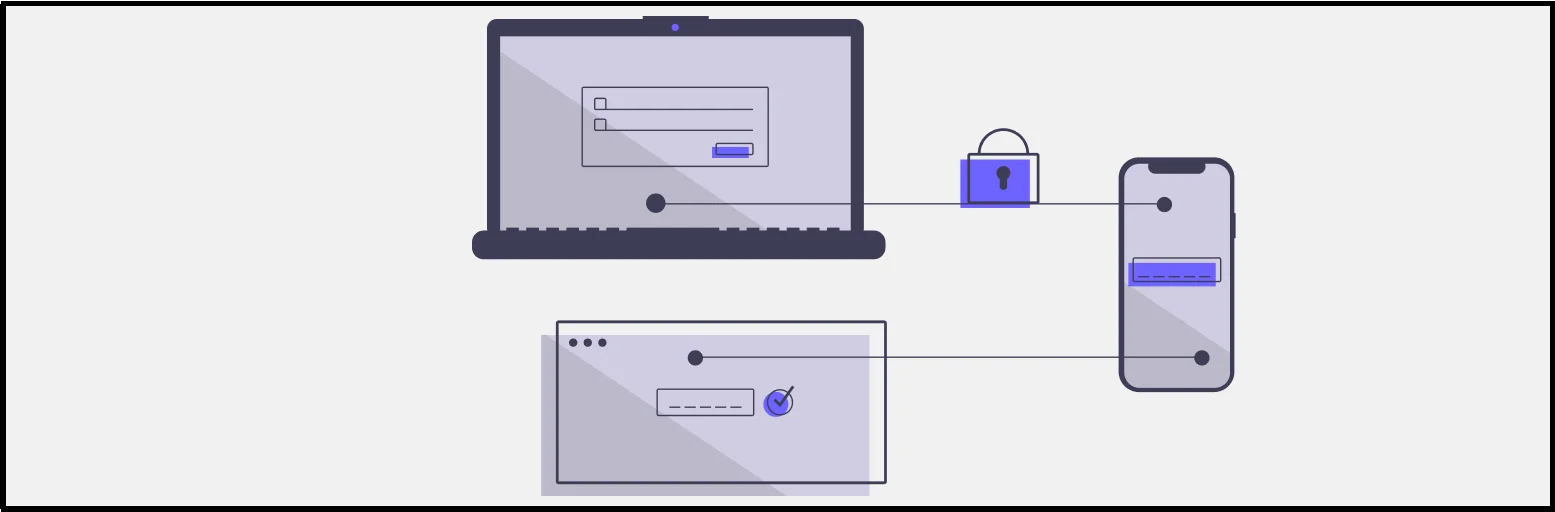
Magic Login focuses on email-based passwordless authentication.
Users enter their email address and receive a unique login link. Clicking the link authenticates the user without requiring a WordPress password.
The plugin also supports features such as auto-login links, native honeypot protection, and additional security controls.
Best For
Blogs, content sites, communities, and other websites that want simple email-based passwordless login.
Key Features
- Email magic links
- Passwordless authentication
- Auto-login links
- Native honeypot protection
- Login forms
- Shortcode support
- Settings import and export
- WP-CLI tools
- SMS login through Pro
- QR code login through Pro
- Registration features through Pro
Security Considerations
Magic Login has added several security improvements in recent releases, including nonce validation, login redirect validation, stronger randomness for email login codes, and controls that limit repeated login-email requests.
The plugin also added native honeypot protection in version 2.8.
Pros
- Simple email-based login
- Focused feature set
- Native honeypot protection
- Active development
- Pro adds SMS and QR-code login
Cons
- Email remains a critical part of the authentication process
- Passkey authentication is not its primary focus
- Advanced features require Pro
Pricing
A free version is available. Premium features and current pricing depend on the developer’s current plans.
8. Passwordless Login by Cozmoslabs

Passwordless Login by Cozmoslabs provides a simple magic-link authentication workflow.
Users enter their username or email address, and the plugin sends a temporary login link. The user clicks the link to authenticate without entering a password.
The plugin works through a shortcode and can coexist with the standard WordPress password login.
Best For
Small websites that want a simple email-based passwordless login form.
Key Features
- Passwordless login shortcode
- Email login links
- Temporary authorization tokens
- Token expiration
- Single-use authentication links
- Compatibility with the standard WordPress login flow
- Profile Builder integration
Important Technical Note
The plugin’s current changelog says it moved away from WordPress transients and now stores the authorization data in user_meta with an expiration value.
This matters because older descriptions of the plugin may still say that it stores the token in a WordPress transient.
Pros
- Simple setup
- Focused on magic-link authentication
- Shortcode support
- Works alongside normal password login
Cons
- No passkey authentication
- No built-in OTP authentication
- No built-in WooCommerce integration
- Smaller active user base than some established WordPress login plugins
Pricing
Free on WordPress.org.
Passwordless Login for WooCommerce Stores
Passwordless authentication can reduce friction during customer registration and login, but WooCommerce stores should choose the authentication method carefully.
A shopper who has to create, confirm, and remember another password may abandon the process. A passkey, social login, magic link, or OTP can reduce the amount of information the customer needs to enter.
However, the plugins in this list provide different levels of WooCommerce support.
Best WooCommerce Options
Secure Passkeys is a strong option if you want WebAuthn-based passkey authentication for WooCommerce.
All in One Login is better suited to store owners who want passwordless authentication alongside broader login security and customization tools.
Nextend Social Login can add social login to WooCommerce through its Pro addon.
Before choosing a plugin, check whether its WooCommerce integration affects only the account-login page or also registration and checkout-related workflows.
Are Passwordless Logins More Secure Than Passwords?
It depends on the authentication method.
Passkeys generally provide stronger protection against phishing and credential theft than traditional passwords because they use public-key cryptography instead of sending a reusable secret through the authentication process.
Magic links and OTPs also remove reusable passwords from the login flow, but they depend on the security of the user’s email account, phone number, or authentication channel.
For example, an attacker who compromises an email account may be able to use an active magic link or email OTP. SMS OTP also carries risks such as SIM swapping.
Passwordless authentication does not eliminate every security risk. It changes the risk model.
Passkeys
Passkeys provide the strongest phishing resistance among the methods covered in this guide.
Magic Links
Magic links provide a simple experience but depend on email security and token protection.
Email OTP
Email OTP removes password reuse but depends on the security of the user’s email account.
SMS OTP
SMS OTP provides convenient phone-based verification but inherits risks associated with mobile-number security.
Social Login
Social login delegates authentication to a third-party identity provider. The provider’s security controls therefore become part of your authentication model.
What Happens If a User Loses Their Passkey?
Passwordless authentication still needs an account-recovery plan.
If a plugin supports multiple passkeys, encourage users to register more than one. For administrator accounts, consider registering multiple authenticators so one lost device does not lock you out of the site.
You should also review the plugin’s recovery and fallback options before removing password login completely.
For email-based passwordless login, users need access to the associated email account. For SMS OTP, they need access to the registered phone number.
For high-value administrator accounts, recovery should receive the same attention as the initial login method.
How to Choose a Passwordless Login Plugin for WordPress
The best plugin depends on the authentication experience you want to provide.
1. Choose the Authentication Method
Decide whether you need:
- Passkeys
- Magic links
- Email OTP
- SMS OTP
- Social login
- Temporary login links
Do not choose a plugin simply because it uses the term “passwordless.”
2. Check Phishing Resistance
If security is your highest priority, prioritize WebAuthn-based passkeys.
Magic links and OTPs provide different security properties and depend on external channels.
3. Check Account Recovery
Find out what happens when users lose access to their device, email account, phone number, or passkey.
4. Check WooCommerce Compatibility
If you run an online store, verify whether the plugin supports the exact WooCommerce login, registration, or checkout flow you want to change.
5. Check WordPress Multisite Support
Multisite administrators should verify whether the plugin supports network activation and network-level configuration.
6. Check Maintenance
Look at:
- Latest plugin release
- Recent changelog activity
- WordPress compatibility
- Security fixes
- Support activity
- Active installations
A security plugin should receive regular maintenance.
7. Check Pricing
Some plugins provide core passwordless functionality for free and place advanced integrations behind Pro plans.
Compare the features you actually need instead of choosing a plugin based only on its advertised discount.
8. Test Recovery and Fallbacks
Test what happens if a user loses their passkey or cannot access their email or phone.
Authentication should never depend on a recovery process you have not tested.
Which Passwordless Login Plugin Should You Choose?
The right option depends on your website and authentication requirements.
- Best all-in-one login security: All in One Login
- Best for temporary developer access: Temporary Login Without Password
- Best for social login: Nextend Social Login
- Best for focused WebAuthn authentication: WP-WebAuthn
- Best for WooCommerce passkeys: Secure Passkeys
- Best newer passkey option for technical users: Devch Passkey Login
- Best for simple email magic links: Magic Login
- Best lightweight magic-link option: Passwordless Login by Cozmoslabs
If you want phishing-resistant authentication, start with passkeys.
If you want the simplest possible password-free experience, consider magic links or email OTP.
If you want customers to sign in through an account they already use, social login may fit better.
If you need to give a developer or support agent temporary access, use a dedicated temporary-login solution instead of changing your normal customer authentication flow.
Final Thoughts
Passwordless login can make WordPress authentication faster and easier, but not every passwordless method offers the same security benefits.
Passkeys provide strong phishing resistance and work well when security matters most. Magic links and OTPs offer a simpler experience but depend on email, SMS, or another authentication channel. Social login can reduce registration friction, while temporary login links work best for short-term administrator and developer access.
The best WordPress passwordless login plugin depends on your users, authentication requirements, integrations, and security priorities.
Before you switch away from passwords, test the complete login and recovery process on a staging site. Check the plugin’s maintenance history, security updates, compatibility, and current pricing. Then choose the authentication method that gives your users the right balance of convenience and security.
Want a broader WordPress login security toolkit? All in One Login combines passwordless authentication with 2FA, social login, CAPTCHA, temporary access, login protection, and login-page customization. Review its current features and pricing before choosing the right plan for your site.
Frequently Asked Questions
What is passwordless login?
Passwordless login lets users authenticate without entering a traditional password. Depending on the implementation, the site may use a passkey, magic link, OTP, social account, or temporary login token.
How does passwordless login work?
The authentication process depends on the method. A passkey uses a cryptographic challenge and a private credential. A magic link uses a temporary token sent to the user’s email. An OTP uses a temporary verification code, while social login delegates authentication to an external identity provider.
Is passwordless login safe?
Passwordless login can provide strong security, but the result depends on the authentication method and implementation. Passkeys provide strong phishing resistance, while magic links, email OTP, and SMS OTP depend on the security of the underlying authentication channel.
Can passwordless login be hacked?
Yes. Attackers can still compromise passwordless systems by taking over an email account, stealing an active login link, compromising a phone number, attacking the login endpoint, exploiting a plugin vulnerability, or compromising a user’s device.
Passkeys reduce several of these risks because they use public-key cryptography and do not expose a reusable password.
Does WordPress support passkeys natively?
WordPress does not currently provide a built-in passkey login workflow in WordPress Core. You can add passkey authentication through a WordPress plugin that implements WebAuthn and passkeys.
Are passkeys better than magic links?
Passkeys generally provide stronger phishing resistance because they use public-key cryptography and bind the authentication process to the website’s domain.
Magic links offer a simpler user experience but depend on email security and the protection of the login token.
Choose passkeys when authentication security matters most. Choose magic links when simplicity and low-friction access matter more.
Is a magic link better than a password?
A magic link can provide a simpler login experience and eliminate password reuse, but it does not automatically provide stronger security than every password-based system.
Its security depends on the user’s email account, token expiration, single-use controls, and plugin implementation.
Passkeys generally provide stronger phishing resistance.
Can I use passwordless login with WooCommerce?
Yes. Several WordPress plugins support passwordless or passkey authentication alongside WooCommerce.
Secure Passkeys provides WooCommerce integration for passkey authentication. Nextend Social Login provides WooCommerce compatibility through its Pro addon, while All in One Login combines passwordless authentication with broader WordPress login and WooCommerce tools.
Always verify the plugin’s current documentation before changing customer login or checkout workflows.
Are temporary login links the same as passwordless login?
Not exactly.
Temporary login links provide password-free access for a limited period, usually for developers, support staff, contractors, or clients.
They solve a temporary-access problem rather than replacing the normal passwordless login experience for customers or members.
Can I use passwordless login alongside 2FA?
Yes. You can combine passwordless authentication with additional authentication controls where the plugin supports them.
For administrator accounts, consider stronger authentication and recovery controls than you use for ordinary visitors.
What is the most secure passwordless login method?
Passkeys generally provide the strongest phishing resistance among common passwordless authentication methods because they use public-key cryptography and do not rely on reusable passwords.
However, the overall security of a WordPress site also depends on plugin maintenance, account recovery, administrator controls, rate limiting, and other security measures.